
Contents:
While not required, you can connect your DHL Express account credentials to Intuitive Shipping. You must connect your DHL eCommerce account credentials to Intuitive Shipping to access your negotiated or discounted rates.
Connect DHL (Express) Account
This guide shows you how to link your DHL Express account credentials to Intuitive Shipping for use with DHL Express rates.
To connect your DHL eCommerce account credentials, go here.

Learn how to connect to other carriers.
If you have an account with DHL, you can connect it to Intuitive Shipping using your account credentials. Once connected, DHL Express will be available when creating a parcel service shipping method.
You don’t need DHL credentials to use DHL Express rates. When creating a parcel service shipping method, choosing the ‘DHL’ service type lets you access DHL Express international rates without an account.
If you don’t connect your DHL credentials here, you can still add them directly when setting up a shipping method.
After your credentials are saved in Intuitive Shipping, they’ll be used automatically each time you add the same carrier account to a new shipping method.
Learn more about how to create a parcel service shipping method.
Add DHL (Express) To Carrier Accounts List
DHL account credentials are required to complete this setup. If you don't have MyDHL+ credentials, including an Account number, learn how to get them here.
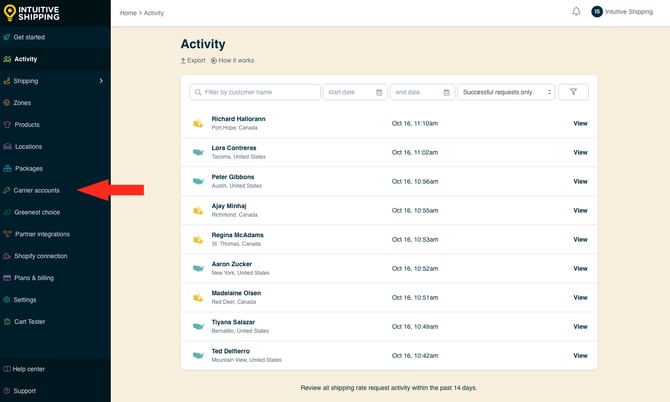
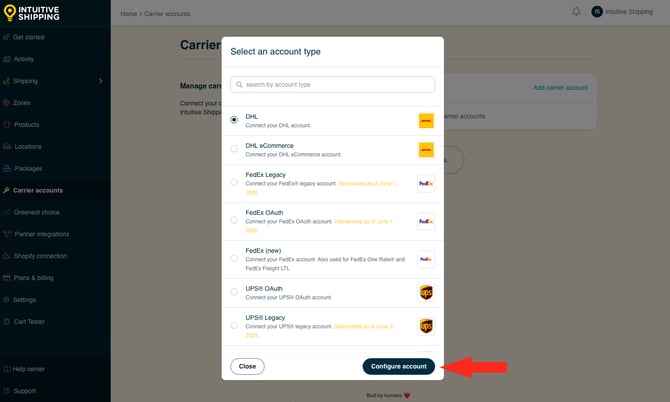
1. Click Carrier accounts on the sidebar menu.
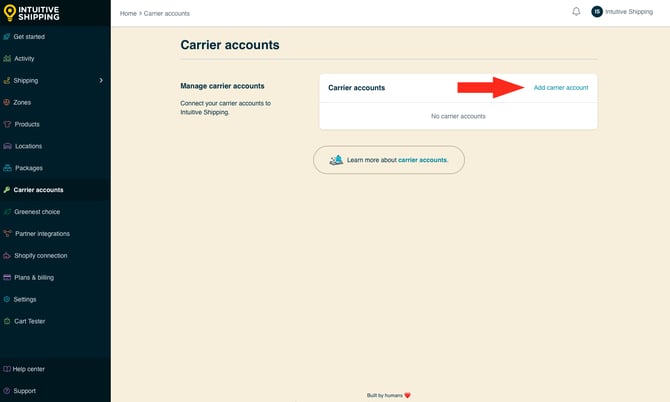
2. Click Add carrier account.
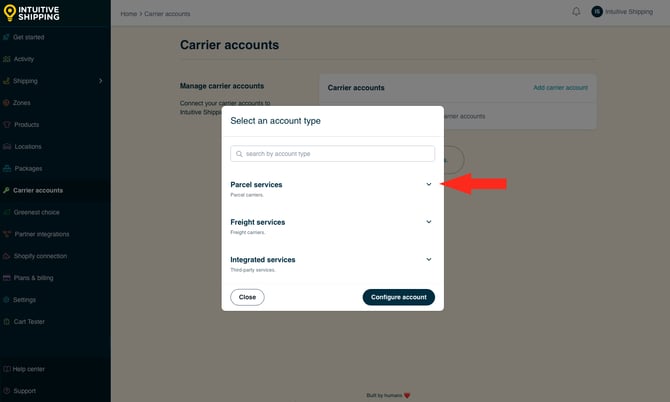
3. Click the drop-down arrow beside Parcel services.
4. Select DHL from the list.
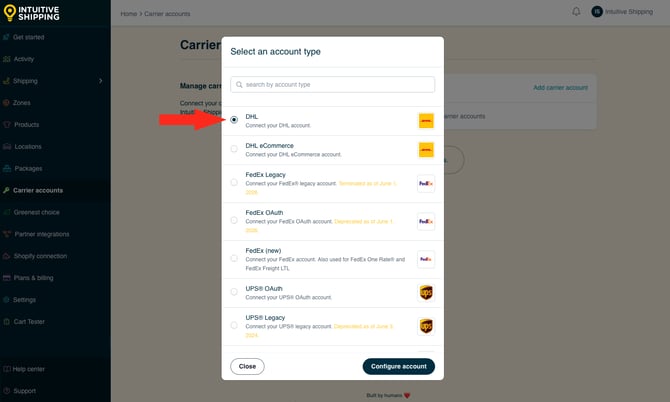
5. Click the Configure account button.
Carrier Account Settings
1. Enter a Carrier account title, such as ‘DHL’ or 'DHL Express'.
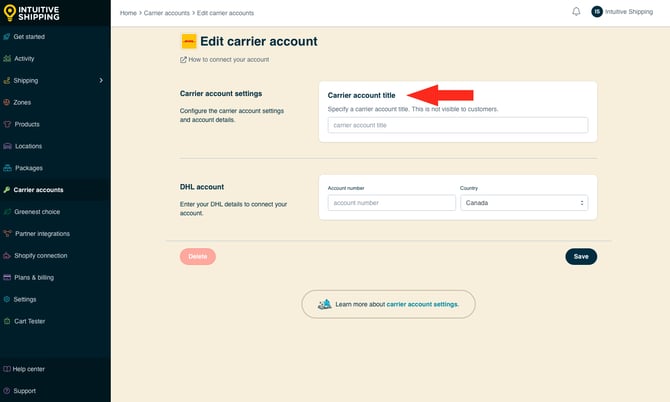
Carrier account titles are not visible to customers.
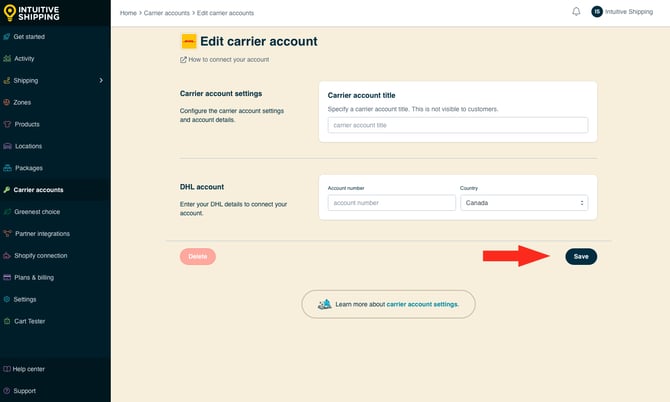
DHL Account
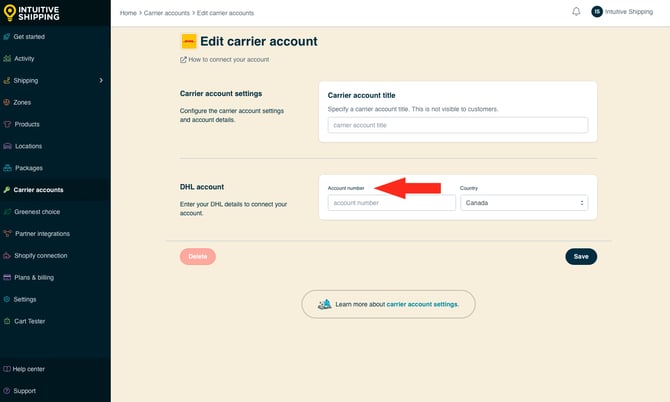
1. Enter your DHL Account number.
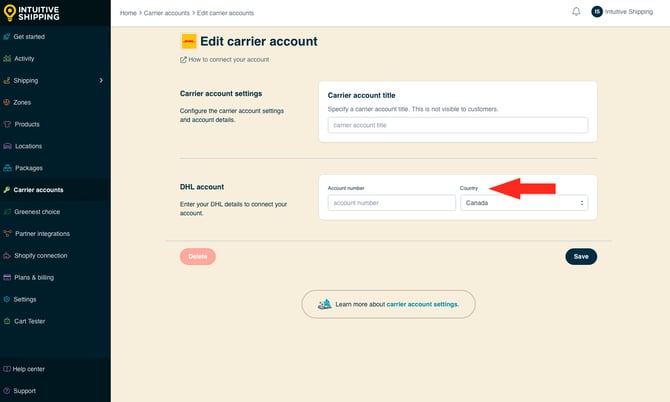
2. Select your Country.
3. Click the Save button to save your DHL account.
Connect DHL eCommerce Account
This guide shows you how to link your DHL eCommerce account credentials to Intuitive Shipping for use with DHL eCommerce rates.
Learn how to connect to other carriers.
If you have an account with DHL eCommerce, you can connect it to Intuitive Shipping using your account credentials. Once connected, DHL eCommerce will be available when creating a parcel service shipping method.
If you don’t connect your DHL eCommerce credentials here, you can still add them directly when setting up a shipping method.
After your credentials are saved in Intuitive Shipping, they’ll be used automatically each time you add the same carrier account to a new shipping method.
Learn more about how to create a parcel service shipping method.
Add DHL eCommerce To Carrier Accounts List
DHL eCommerce account credentials are required to complete this setup. If you don't have credentials, including a Client ID, Client Secret, and Pickup account number, learn how to get them here.
1. Click Carrier accounts on the sidebar menu.
2. Click Add carrier account.
3. Click the drop-down arrow beside Parcel services.
4. Select DHL eCommerce from the list.
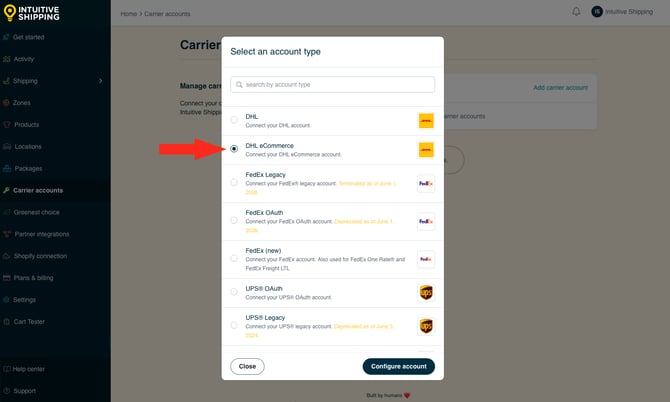
5. Click the Configure account button.
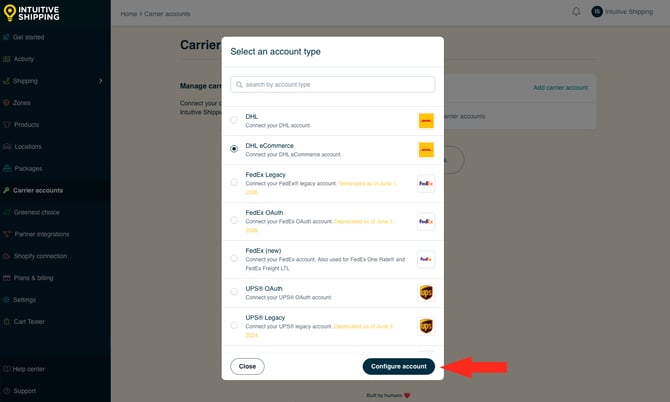
Carrier Account Settings
1. Enter a Carrier account title, such as ‘DHL’ or 'DHL eCommerce'.
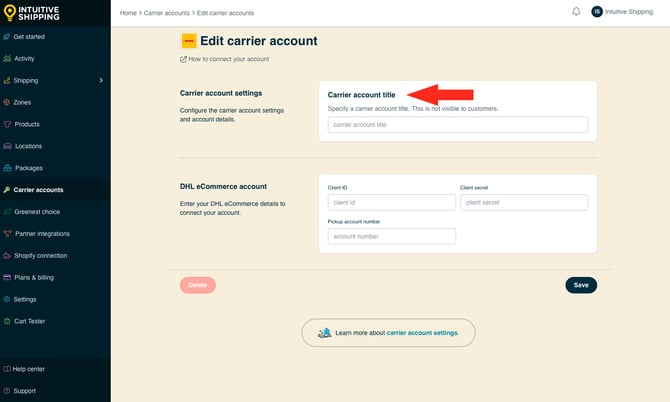
Carrier account titles are not visible to customers.
DHL eCommerce Account
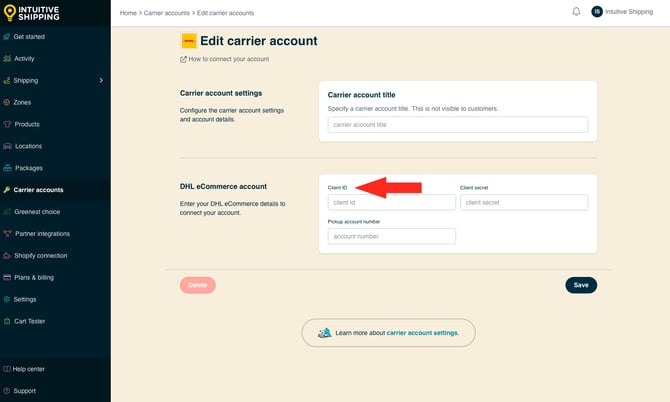
1. Enter your DHL eCommerce Client ID.
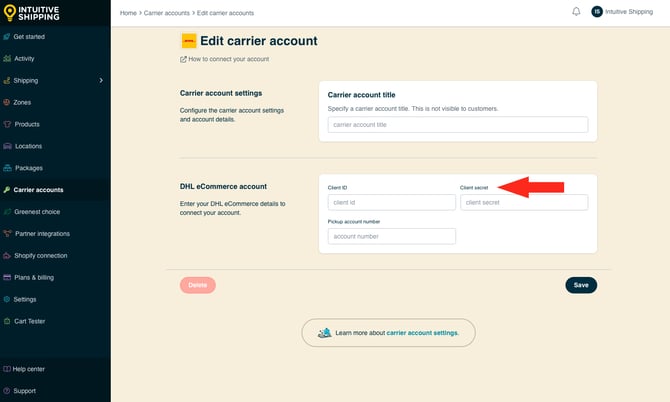
2. Enter your DHL eCommerce Client Secret.
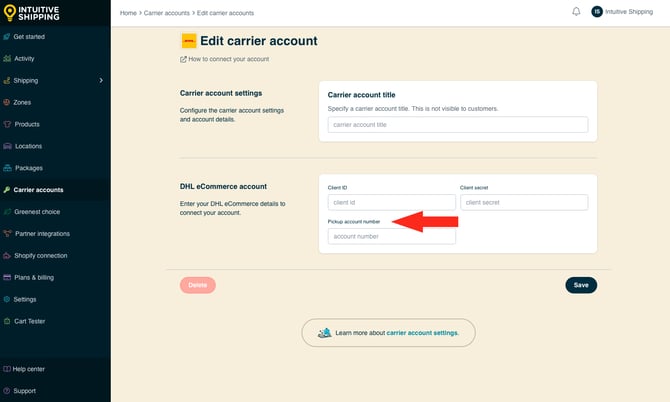
3. Enter your DHL eCommerce Pickup account number.
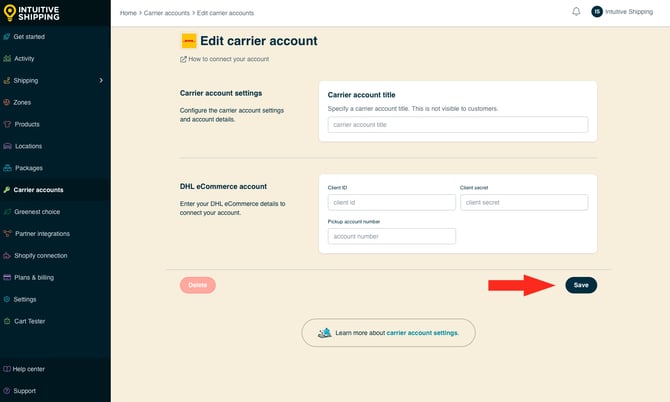
4. Click the Save button to save your DHL eCommerce account.
Create A DHL (Express) Account
If you don’t have a DHL account, you can easily create one following the steps below. Please contact DHL directly if you have technical issues while creating your account.
1. In a new browser tab, go to the DHL website.
DHL periodically updates their website. The screenshots below are provided for visual reference and may differ from your experience.
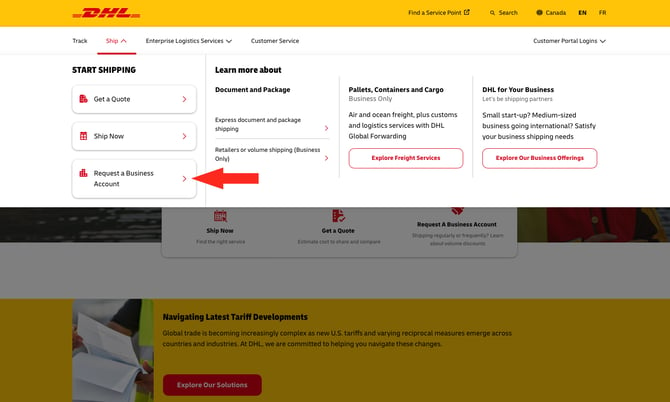
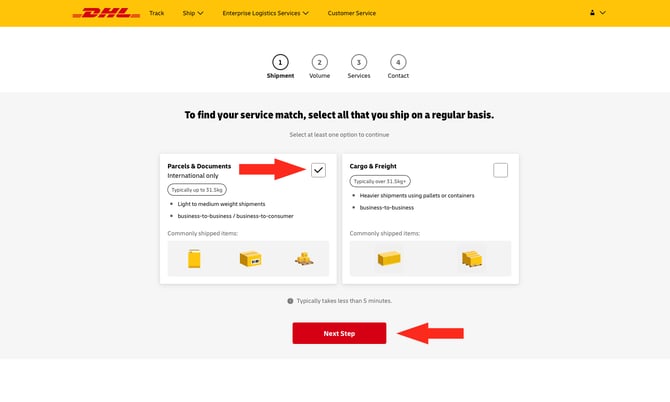
If you ship more than 100 packages per day, you are eligible for a DHL eCommerce account.
5. Connect your DHL Express account to Intuitive Shipping.
If you have issues connecting your account or accessing your discounted DHL Express rates, please contact DHL directly.
Create A DHL eCommerce Account
 A minimum of 100 daily parcel shipments is required to be eligible for an eCommerce account.
If you don’t have a DHL eCommerce account, you can easily create one following the steps below. Please contact DHL directly if you have technical issues while creating your account.
1. In a new browser tab, go to the DHL website.
DHL periodically updates their website. The screenshots below are provided for visual reference and may differ from your experience.
To qualify for a DHL eCommerce account, you must ship a minimum of 100 parcels per day.
5. Connect your DHL eCommerce account to Intuitive Shipping.
If you have issues connecting your account or accessing your DHL eCommerce rates, please contact DHL directly.
Restrictions
Each carrier has restrictions that may limit your shipping capabilities or prevent you from making certain shipments. Here are some restrictions to be aware of when using Canada Post.
- Originating address - To use DHL eCommerce, the shipment must originate within the country associated with your account.
- Restrictions by country - Each country you ship to may have its own trade and import restrictions. Not all DHL delivery services are available to all countries. Learn more about restrictions for specific countries here.
- Prohibited items - Certain goods, including items considered to be illegal or dangerous, may not be shipped by DHL under any circumstances. Learn more about restricted items here.
- Controlled items - items such as tobacco and vaping products, plants and animals, and dangerous goods may be shipped if they meet certain criteria. Other items such as pharmaceuticals may be shipped by DHL under strict regulations in some areas and prohibited in others. Learn more about restricted items here.
- Packaging restrictions - Some products can only be shipped if they comply with certain packaging standards. Learn more about DHL packaging requirements or obtain guidance for packaging your items here.
- International restrictions - Customs and international laws may limit what you ship, how you ship it, and how it can be returned to you. You may also require additional information, such as Harmonization codes, documentation and fees to complete your shipment. Learn more about shipping internationally with DHL here (note: international DHL sites may provide different information - be sure to verify that the information provided aligns with your international shipments or contact DHL for more information.)
- Size & weight restrictions - Packages shipped with DHL must comply with the size and weight limits of the selected DHL service and the origin and destination countries. For DHL Express, individual pieces are generally limited to 70 kg (150 lbs), though larger and heavier shipments may be accepted by prior arrangement. Shipments are also subject to maximum dimensional limits and may be rated using volumetric weight when the dimensional weight exceeds the actual weight. Oversized, overweight, or irregularly shaped shipments may be considered non-conveyable and may be subject to additional handling fees or special approval. DHL eCommerce services may have different size, weight, and dimensional limits depending on the country or region, and shipments exceeding those limits may not be accepted.
For more information about DHL restrictions, please visit the DHL website or contact your local DHL representative.
Troubleshooting
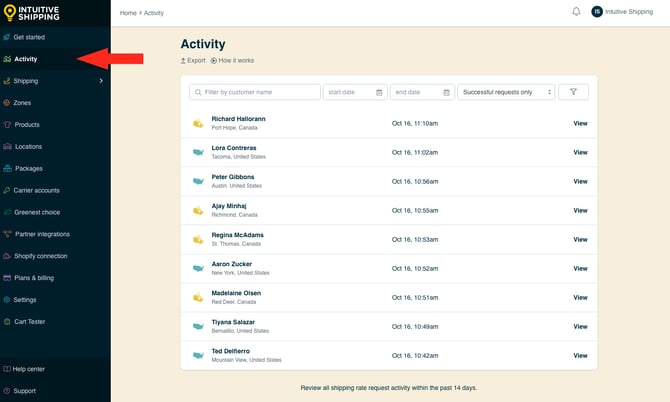
In certain situations, rates from DHL Express or eCommerce may not appear at checkout, or they might not be displayed as expected. You may be able to determine why rates aren’t being displayed correctly by reviewing the rate calculation Activity.
1. Click Activity on the main menu.
2. Select ‘Unsuccessful requests only‘ from the Filter by request status drop-down list. This will list only Activities where rates were not returned.
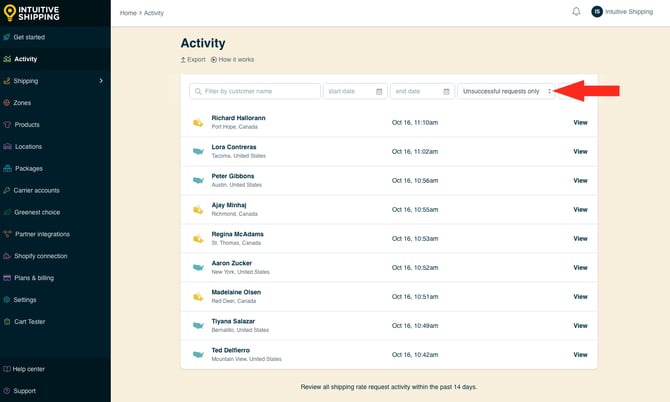
3. Click View beside any ‘unsuccessful’ Activity.
4. In the Details section, click View log beside 'Warnings and errors', if available.
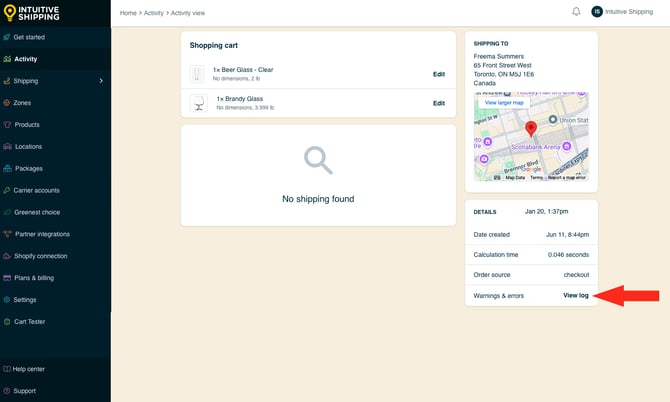
Warnings & errors are not displayed as a result of missing information, such as missing customer address information, or an invalid request, such as Status (visibility) turned off or Shopify Carrier-calculated Rates not enabled.
5. Review the warnings for DHL delivery services.
Here are some of the most common reasons why carrier rates don't appear at checkout:
Sandbox Mode
While you're in Sandbox mode, rates will only appear at checkout when you use ‘Intuitive’ on the checkout page, even when the Scenario status is set to ‘Published’. To make your rates visible to customers, you will need to select a billing plan to activate your free trial.
To test rates in Sandbox mode
- For Shopify - enter ‘Intuitive’ as either the customer’s first or last name at checkout
- For BigCommerce or Shopify B2B - enter ‘Intuitive’ in the optional address field for ‘Apartment/ Suite/ Building’ at checkout.
Scenario Status
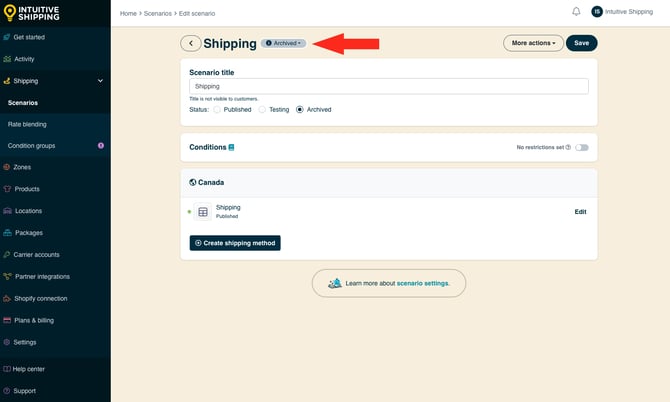
If rates are not appearing with an active billing plan, it may be because the Scenario status is set to 'Archived' (not visible to anyone) or 'Testing' (only visible when using ‘Intuitive’ on the checkout page).
Shipping Method Status
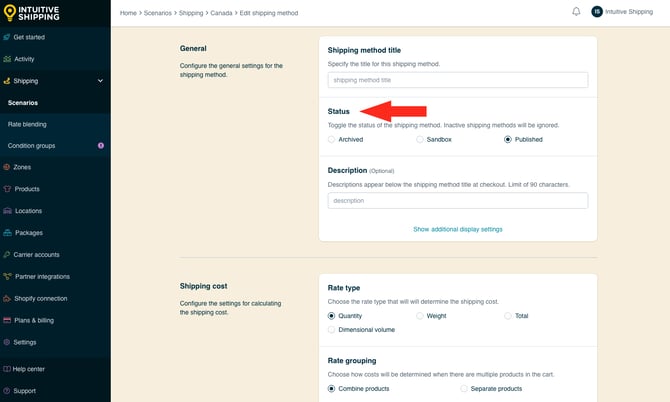
If rates are not appearing with an active billing plan, it may be because the shipping method Status is set to 'Archived' (not visible to anyone) or 'Testing' (only visible when using ‘Intuitive’ on the checkout page).
Carrier-calculated Rates
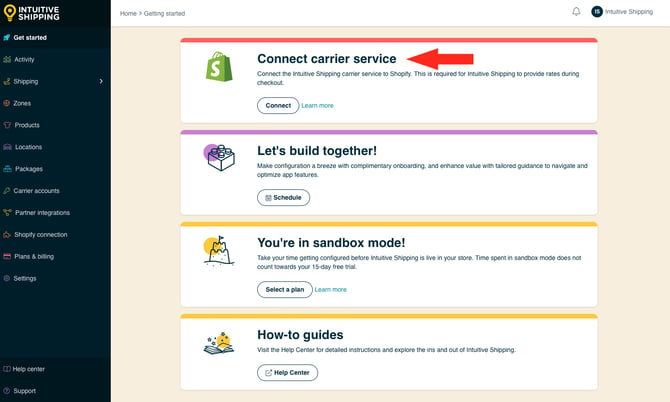
If you're using Shopify, their third-party carrier service feature must be enabled on your Shopify account to use any third-party shipping rate calculator app, including Intuitive Shipping.
Account Credentials
Double-check that you have correctly entered your Account number (DHL Express), or your Client ID, Client Secret and Pickup account number (DHL eCommerce), and that there are no spaces or extra or missing characters.
Packages
Rates may not appear if a suitable package size is uavailable in your parcel service shipping method. If the correct package size is missing or set to 'Archived', the next largest package will be used. If the next package size exceeds the carrier's size limits, no rate will be returned.
If a suitable package isn't found, Intuitive Shipping will attempt to create a custom package using the product dimensions. If that custom package also exceeds the carrier limits, no rate will be returned.
To prevent this, make sure the packages in your shipping method are properly set up to fit your products and that they meet the carrier's size requirements.
Delivery Services
Some carrier delivery services may be unavailable due to restrictions such as shipment size, weight, or the customer’s address. If some DHL rates appear but others do not, or if another carrier returns rates while DHL does not, the issue is likely related to service limitations.
Check that the selected services are compatible with the shipping address. For example, domestic-only services will not return rates for international addresses.
If some rates were returned and others were not, review the Notifications for any messages related to the carrier.
Product Dimensions & SmartBoxing
If you’re using SmartBoxing, volume-based shipping, or dimension-based conditions, products must have dimensions.
For Shopify, dimensions must be entered directly in Intuitive Shipping or provided through Shopify product dimension metafields. For BigCommerce, dimensions can be managed in either BigCommerce or Intuitive Shipping.
SmartBoxing and volume-based packing rely on product dimensions to pack the order. If any product is missing dimensions, the packing process will fail, no package information will be sent to the carrier, and no rates will be returned at checkout.
If you’re using dimension-based Scenario conditions, any products missing dimensions will also cause those conditions to fail.
Learn more about how to use SmartBoxing.
Syncing
While you’re in Sandbox mode, any product changes must be manually imported to Intuitive Shipping. Once you activate a billing plan, changes are imported automatically. However, if many changes are made in a short period of time, such as adding or editing several products, auto-importing may not finish completely. If required product details are missing, the calculation will fail and package information cannot be sent to the carrier.
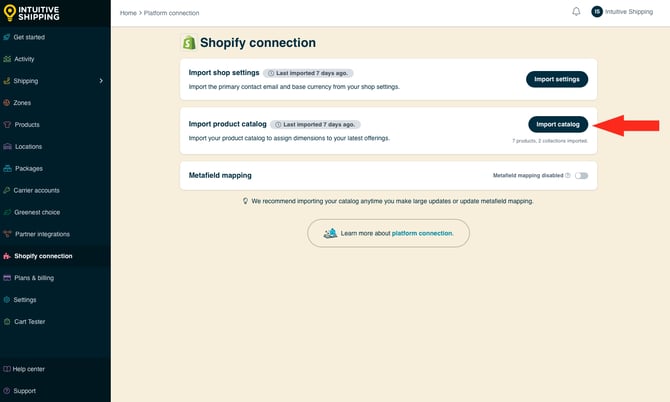
If you’re using the SmartBoxing packing algorithm, be sure all new products have dimensions added in Intuitive Shipping or you're using metafields for product dimensions.
Cost Adjustments
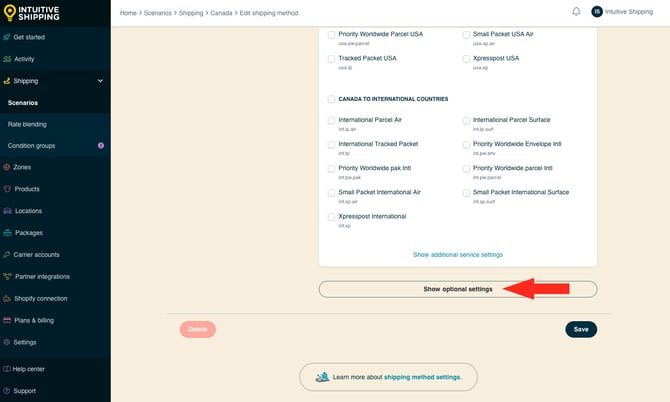
If rates are showing but appear too high or too low, a cost adjustment may have been applied. Check the 'Cost adjustments' section (in Optional Settings) of your parcel service shipping method.
Contact Us
If rates aren't displaying as expected and you are unable to resolve the issue, please contact us. We’re here to help!