
Contents:
 USPS has changed their account credentials system, which may affect how you use your account with Intuitive Shipping.
As of January 25, 2026, the United States Postal Service (USPS) is discontinuing XML account credentials and switching to an OAuth credential system.
If you're using USPS in any parcel service shipping method - whether you're using standard retail and commercial rates or you have legacy account credentials connected to Intuitive Shipping - you'll need to migrate your shipping methods to the new OAuth version.
While not required, if you prefer to use your own account and don't have a legacy USPS account or existing XML access key, you will need to create account credentials using the new OAuth method, which includes:
- Consumer key
- Consumer secret
Your OAuth credentials can be added by following the steps to Connect USPS Account Using OAuth Account Credentials.
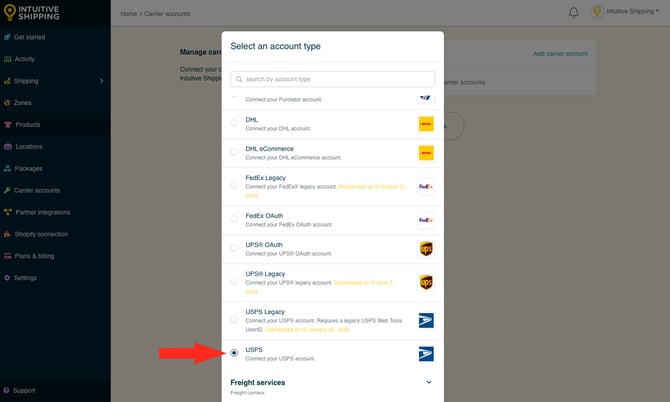
When adding your OAuth credentials to Intuitive Shipping, you must select the ‘USPS’ service type.

Learn more about how to create a parcel service shipping method.
If you require assistance adding your USPS OAuth account settings to Intuitive Shipping or configuring your USPS OAuth shipping method, please contact us.
Connect USPS Account Using OAuth Account Credentials
This guide shows you how to link your newer USPS OAuth account credentials to Intuitive Shipping.
Legacy XML account credentials are no longer supported by Intuitive Shipping.
Learn how to connect to other carriers.
If you have an account with USPS, you can connect it to Intuitive Shipping using OAuth account credentials. Once connected, USPS will be available when creating a parcel service shipping method.
You don’t need USPS OAuth credentials to use USPS rates. When creating a parcel service shipping method, choosing the ‘USPS’ service type lets you access standard USPS retail and commercial rates without an account.
If you don’t connect your USPS OAuth credentials here, you can still add them directly when setting up a shipping method.
After your credentials are saved in Intuitive Shipping, they’ll be used automatically each time you add the same carrier account to a new shipping method.
Add USPS To Carrier Accounts List
USPS OAuth account credentials are required to complete this setup. If you don't have USPS OAuth credentials, including a Consumer Key and Consumer Secret, learn how to get them here.
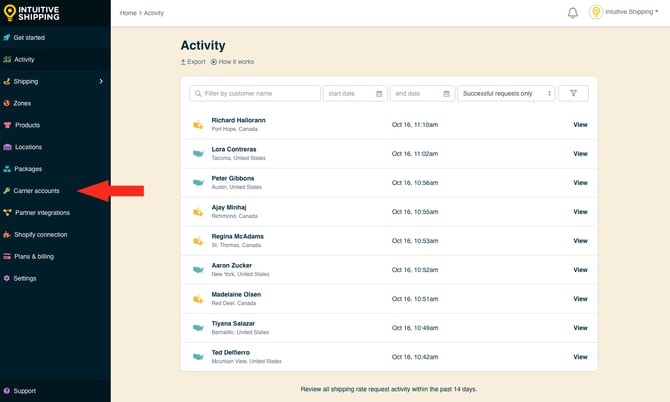
1. Click Carrier accounts on the sidebar menu.
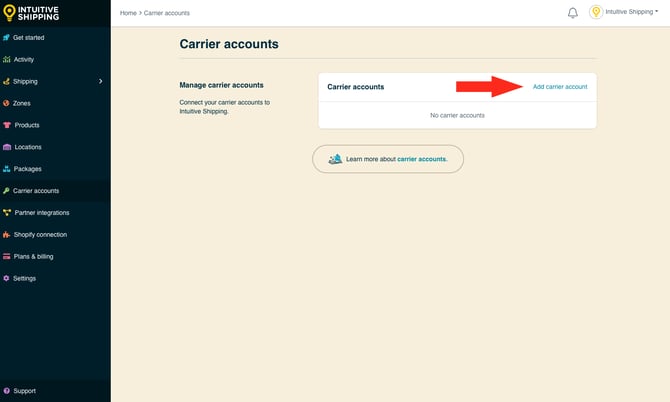
2. Click Add carrier account.
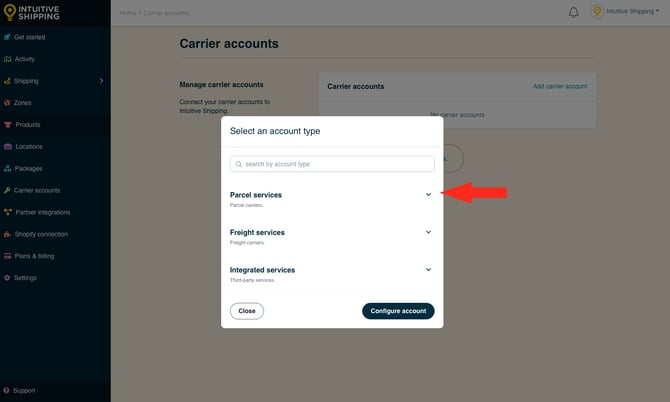
3. Click the drop-down arrow beside Parcel services.
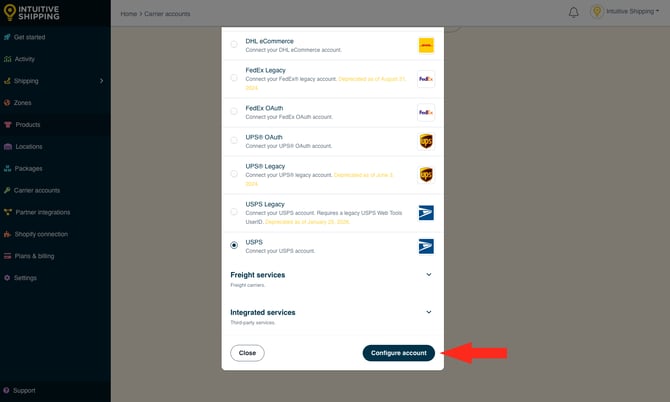
4. Select USPS from the list.
5. Click the Configure account button.
Carrier Account Settings
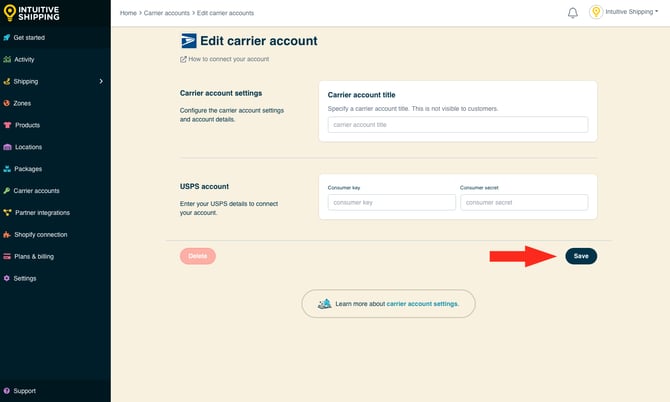
1. Enter a Carrier account title, such as ‘USPS OAuth’.
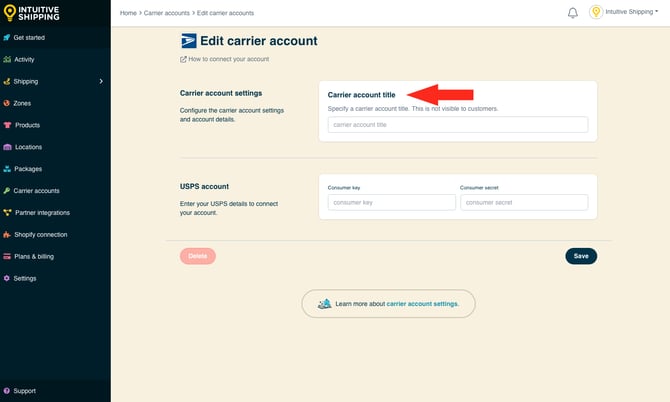
Carrier account titles are not visible to customers.
USPS Account
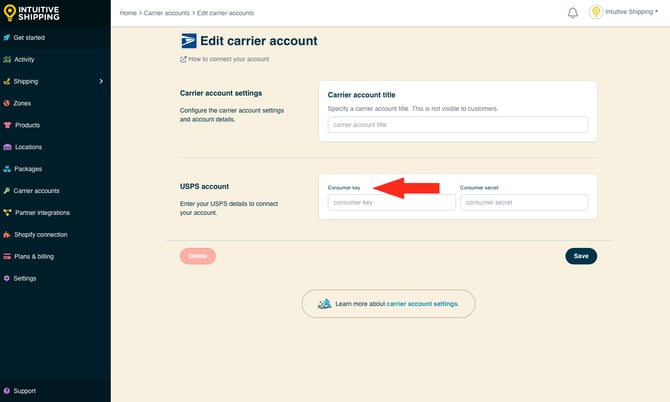
1. Enter your USPS Consumer key.
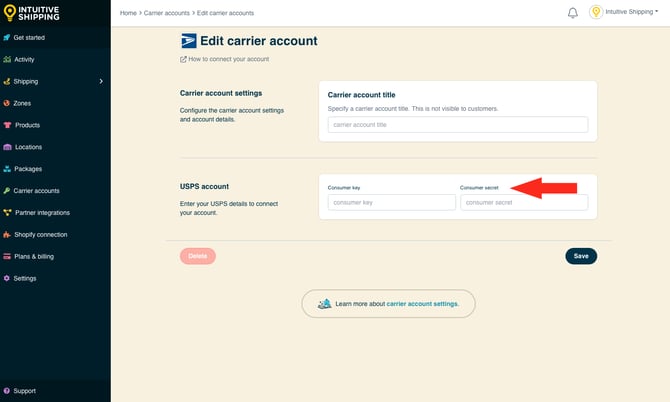
2. Enter your USPS Consumer secret.
3. Click the Save button to save your USPS OAuth account.
Migrating from Legacy XML Access Key to OAuth Credentials
USPS has transitioned to a new carrier account API connection method. As of January 25, 2026, USPS no longer supports legacy account credentials with an XML access key.
We strongly recommend migrating to the new OAuth credential system, since Intuitive Shipping is also ending support for legacy account credentials. This ensures your USPS shipping methods remain active and prevents disruptions to rate calculations at checkout.
If you don’t already have a USPS account, new accounts can only be set up with OAuth credentials.
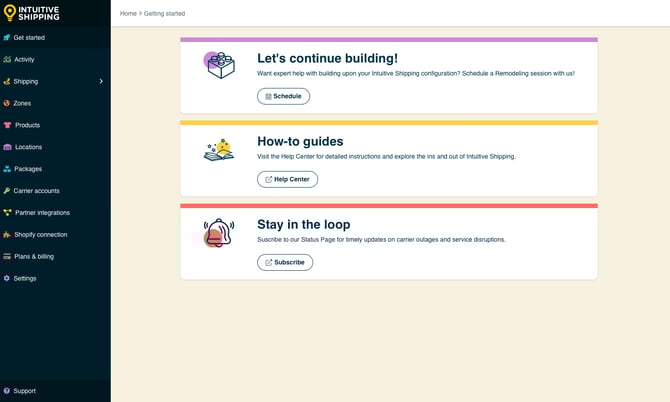
If you currently use a legacy USPS account with XML access key credentials, you’ll need to migrate your parcel service shipping methods to the OAuth account type. An urgent warning card will appear on the Get started page in Intuitive Shipping if migration is required. If you don't see the card, migration is not required.
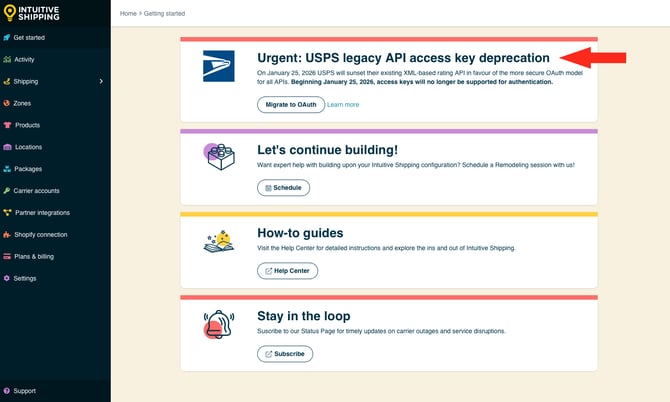
Migrate Your USPS Account
If you have a new USPS OAuth account type, but it's not currently connected to Intuitive Shipping, you can connect it before you can migrate your shipping methods. However, it is not required. USPS provides access to standard retail and commercial rates without the need for an account.
To migrate to USPS OAuth:
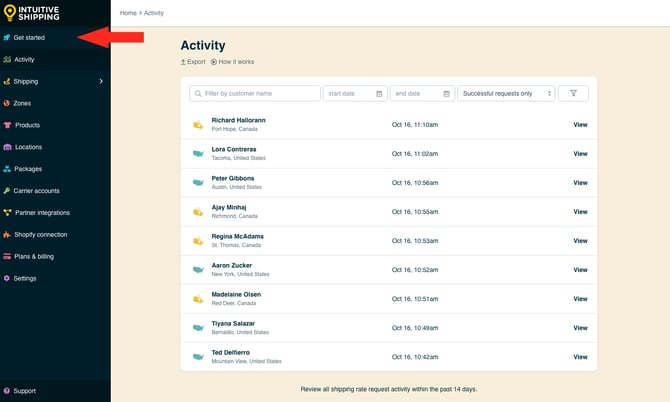
1. Go to the Get started page.
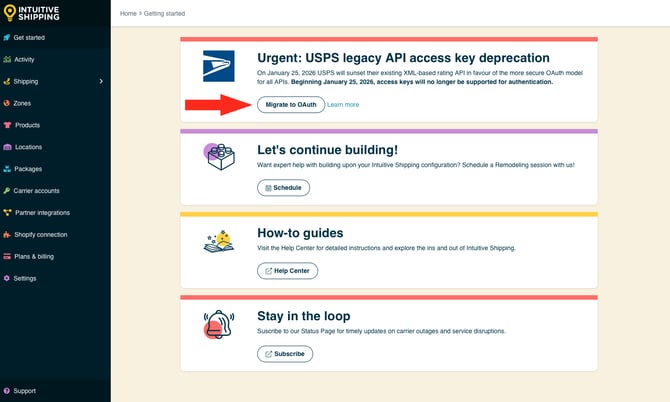
2. Click the Migrate to OAuth button on the warning card.
3. Review the migration information, then click the Migrate carrier button
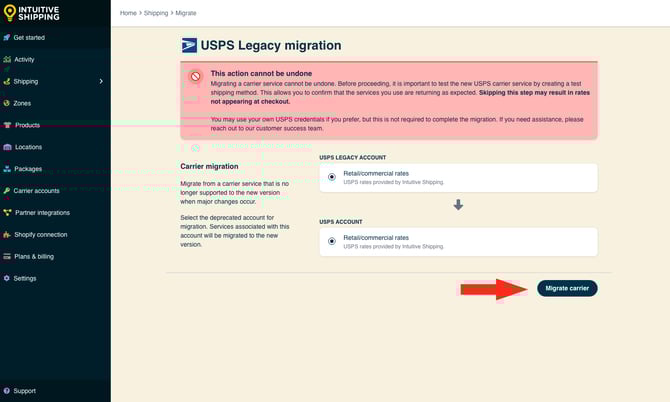
Migration cannot be undone.
A temporary notification confirming migration will appear at the bottom of the screen.
4. Return to the Get started page.
The urgent warning card no longer appears on the page.
Create A USPS Account
If you don’t have a USPS account, you can easily create one following the steps below. Please contact USPS directly if you have technical issues while creating your account.
1. In a new browser tab, go to the USPS website.
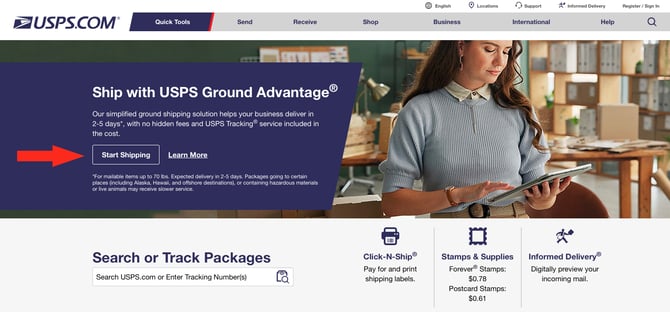
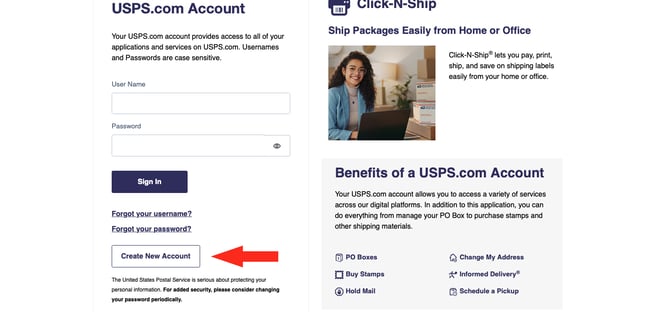
USPS periodically updates their website. The screenshots below are provided for visual reference and may differ from your experience.
2. Click the Start Shipping button or 'Register/Sign in' on the main menu bar.
3. Click the Create New Account button.
4. Select Business Account, then click the Continue.
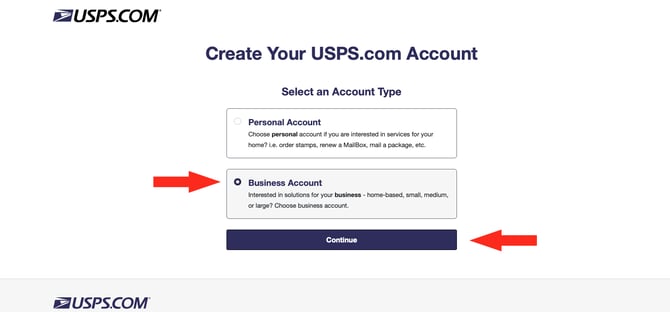
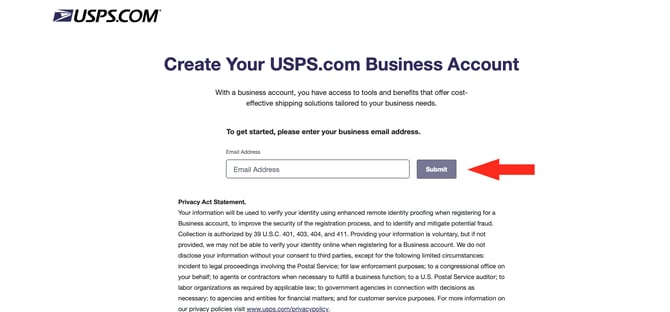
5. Enter your email address, then click the Submit button. A verification email will be sent to the address and you will have 10 minutes to validate it.
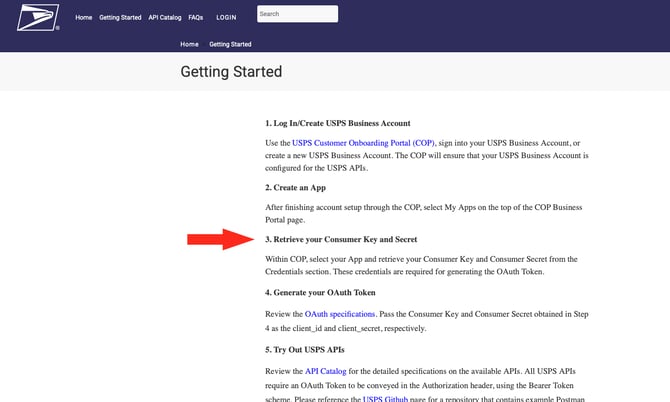
6. After completing the account application, navigate to the USPS Developer Portal Getting Started page.
Create API Credentials
1. Complete Steps 1, 2 and 3 on the Getting Started page.
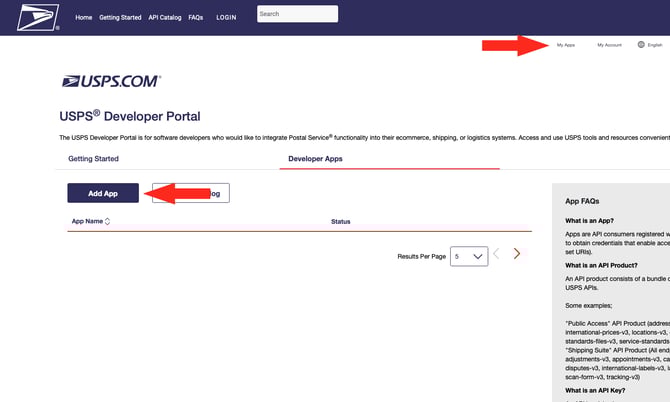
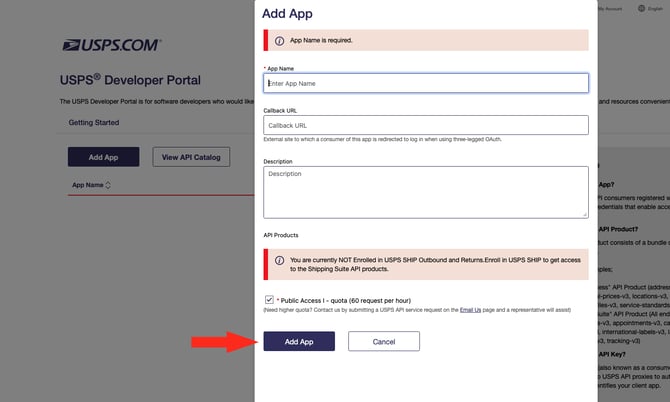
2. Click My apps on the USPS main menu, then click the Add App button.
3. Enter Intuitive Shipping as the App Name.
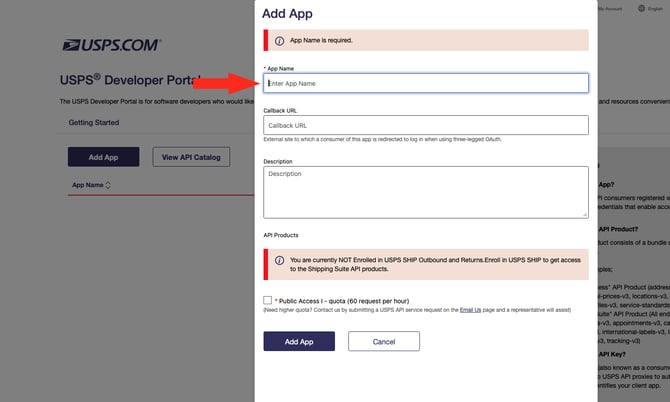
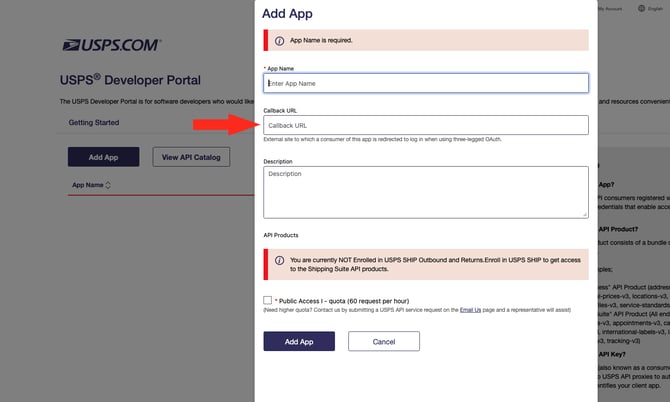
4. Leave Callback URL blank. This is not required.
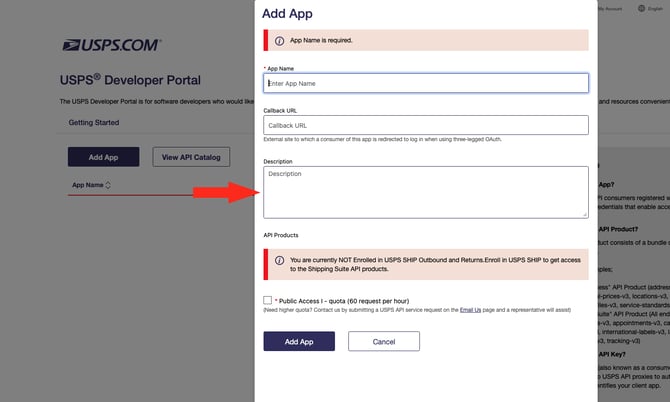
5. If desired, enter a description. This is optional.
6. Check the box beside Public Access.
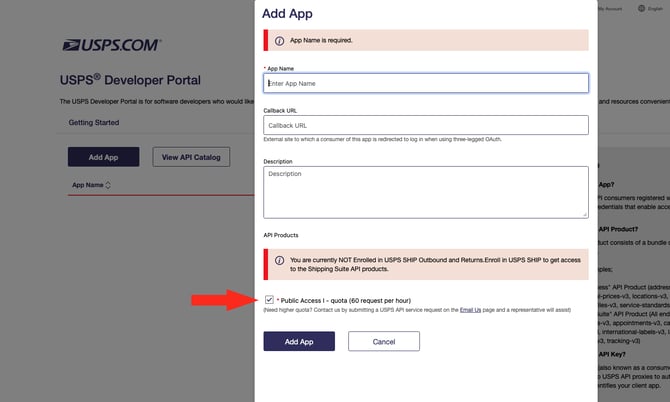
Please note: By default, your account is entitled to 60 API requests per minute. This may be sufficient to use Intuitive Shipping without any issues. However, we recommend requesting an increase in API requests to ensure there are no issues during busier periods.
USPS API Request Increase
1. Click the Email us link provided, then complete the 'Tell Us About Your Issue' form. We recommend opening the link in a new browser page.
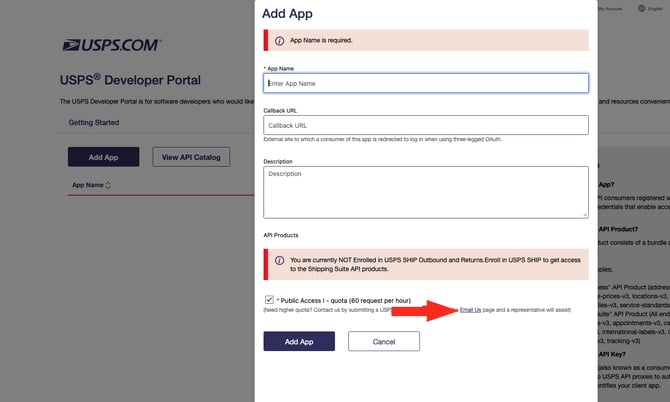
2. Enter your USPS account User ID.
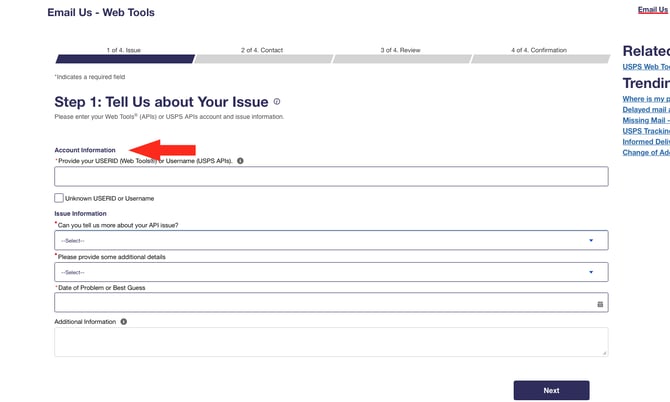
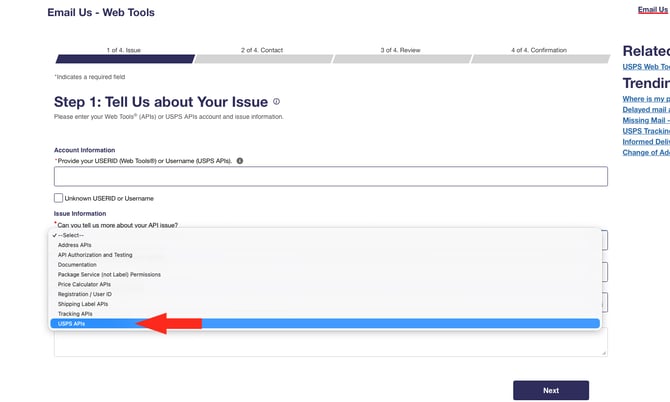
3. Select USPS APIs from the first 'Issues Information' drop-down.
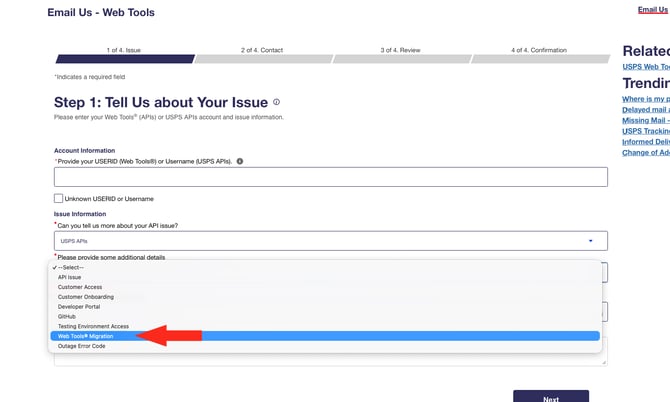
4. Select Web Tools Migration from the second 'Issues Information' drop-down.
5. Select today's date as the 'Date of Problem or Best Guess'.
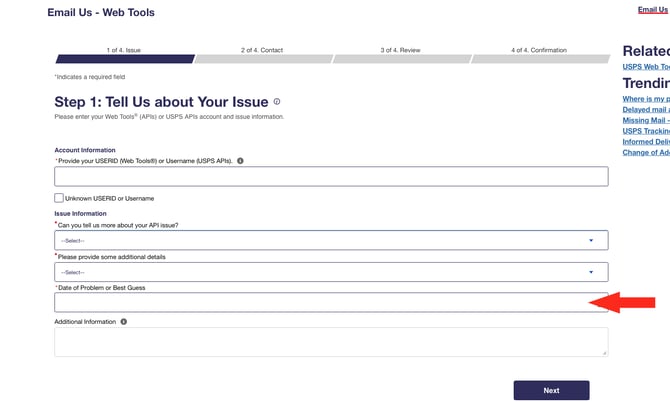
6. Enter details in the 'Additional Information' field. We recommend entering this message:
'In order to continue using Intuitive Shipping, I need my rate limit increased to [enter number].'
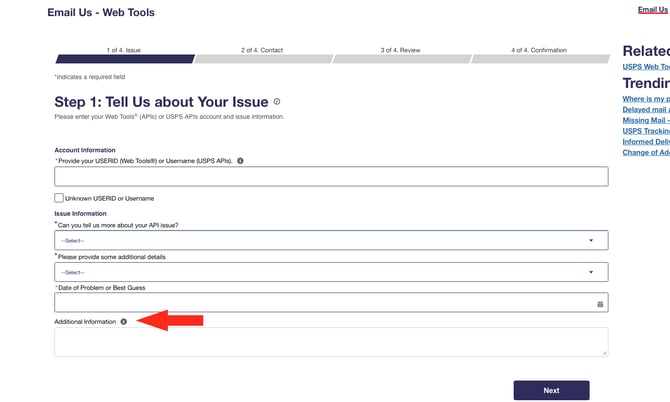
We recommend entering a number that is 10 times (10x) your maximum hourly order volume to ensure you have a sufficient number of API requests for busy periods.
7. Click the Next button.
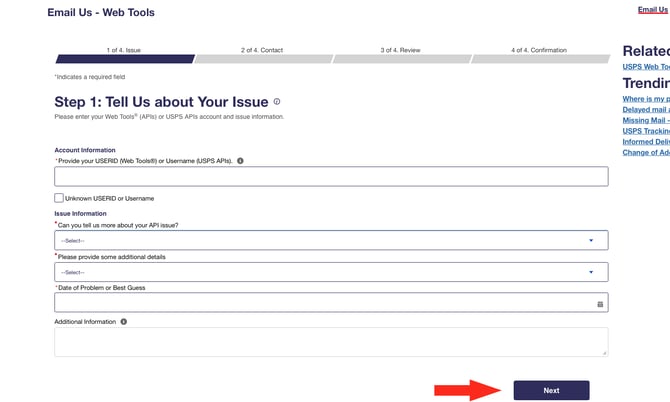
Please note: It may take several days to receive approval for your API request increase.
Add App
1. On the completed 'Add App' form, click the Add App button.
2. Open Intuitive Shipping in a new browser tab. Leave the tab with USPS site open and easily accessible. Do not close until you have copied the account credential values into Intuitive Shipping.
3. Connect your USPS account to Intuitive Shipping.
If you have issues connecting your account or accessing your discounted USPS rates, please contact USPS directly and ensure you have access to the rating API for your User ID.
Restrictions
Each carrier has restrictions that may limit your shipping capabilities or prevent you from making certain shipments. Here are some restrictions to be aware of when using USPS.
- Originating address - To use the United States Postal Service, the shipment must originate within the US or a US territory, such as a US military address, Puerto Rico, Guam, US Virgin Islands or American Samoa.
- Restrictions by country - Each country you ship to may have its own trade and import restrictions. Not all USPS delivery services are available to all countries. Learn more about restrictions for specific countries here.
- Prohibited items - Certain goods, including items considered to be illegal or dangerous, may not be shipped by USPS under any circumstances. Learn more about restricted items here.
- Controlled items – items such as tobacco and vaping products, plants and animals, and dangerous goods may be shipped if they meet certain criteria. Other items such as pharmaceuticals may be shipped by USPS under strict regulations in some areas and prohibited in others. Learn more about restricted items here.
- Packaging restrictions - Some products can only be shipped if they comply with certain packaging standards. Learn more about USPS packaging requirements or obtain guidance for packaging your items here.
- International restrictions - Customs and international laws may limit what you ship, how you ship it, and how it can be returned to you. You may also require additional information, such as Harmonization codes, documentation and fees to complete your shipment. Learn more about shipping internationally with USPS here.
- Size & weight restrictions - Packages shipped by USPS must not exceed a length + girth of 108 inches (9 feet/ 274 cm), or a weight of 70 lbs (31.75 kg) for most services. Priority Mail, Retail Ground and Parcel Select must not exceed a length plus girth of 130 inches (11 feet/ 332 cm). First-Class Mail letters cannot exceed 11.5 inches long x 6.125 inches high x 0.25 inches thick and cannot exceed 3.5 oz. First-Class Mail Large Envelopes (Flat) cannot exceed 15 inches long x 12 inches high x 0.75 inches thick and cannot exceed 3.5 oz.
For more information about USPS restrictions, please visit USPS.com or contact your local USPS representative.
Troubleshooting
In certain situations, rates from USPS may not appear at checkout, or they might not be displayed as expected. You may be able to determine why rates aren’t being displayed correctly by reviewing the rate calculation Activity.
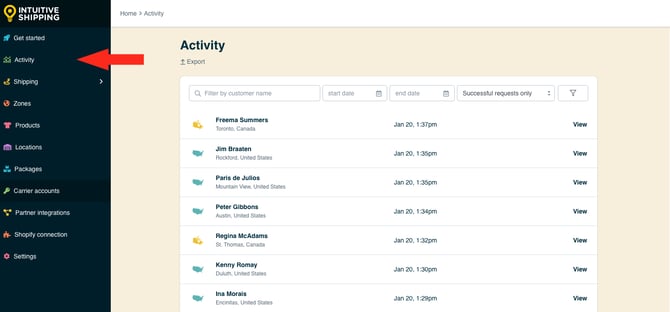
1. Click Activity on the main menu.
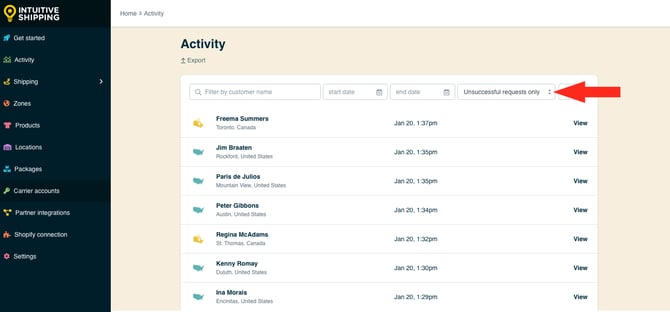
2. Select ‘Unsuccessful requests only‘ from the Filter by request status drop-down list. This will list only Activities where rates were not returned.
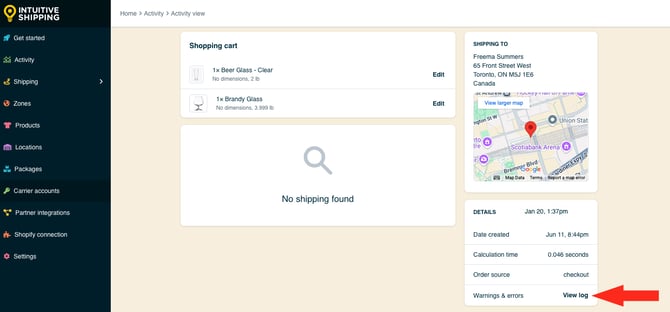
Warnings & errors are not displayed as a result of missing information, such as missing customer address information, or an invalid request, such as Status (visibility) turned off or Shopify Carrier-calculated Rates not enabled.
5. Review the warnings for USPS delivery services.
Here are some of the most common reasons why carrier rates don't appear at checkout:
Sandbox Mode
While you're in Sandbox mode, rates will only appear at checkout when you use ‘Intuitive’ on the checkout page, even when the Scenario status is set to ‘On’. To make your rates visible to customers, you will need to select a billing plan to activate your free trial.
To test rates in Sandbox mode
- For Shopify - enter ‘Intuitive’ as either the customer’s first or last name at checkout
- For BigCommerce or Shopify B2B - enter ‘Intuitive’ in the optional address field for ‘Apartment/ Suite/ Building’ at checkout.
Scenario Status
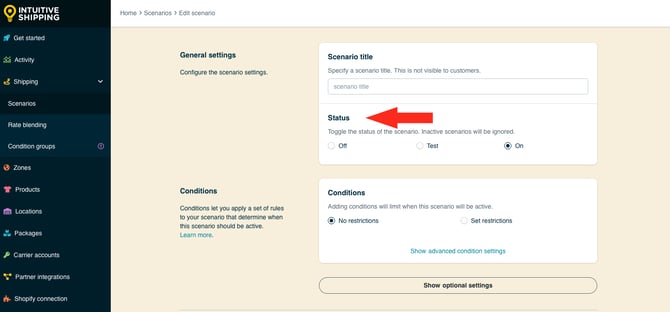
If rates are not appearing with an active billing plan, it may be because the Scenario status is set to 'Off' (not visible to anyone) or 'Test' (only visible when using ‘Intuitive’ on the checkout page).
Shipping Method Status
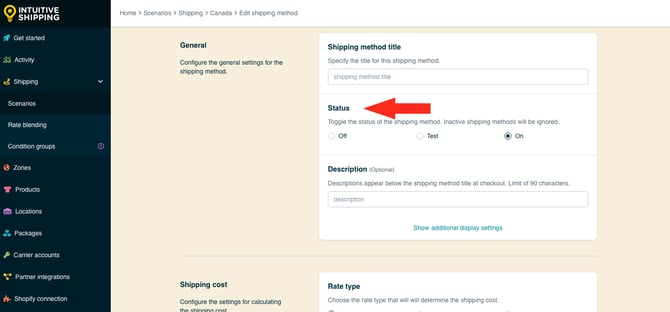
If rates are not appearing with an active billing plan, it may be because the shipping method Status is set to 'Off' (not visible to anyone) or 'Test' (only visible when using ‘Intuitive’ on the checkout page).
Carrier-calculated Rates
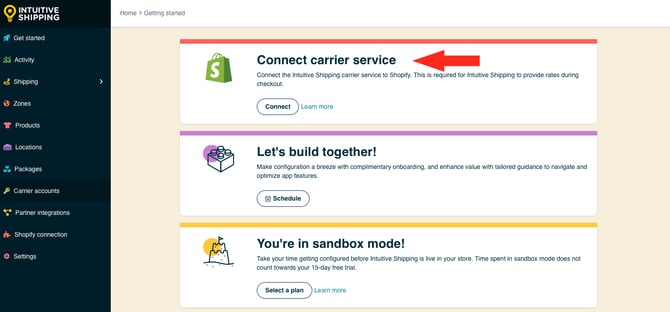
If you're using Shopify, their third-party carrier service feature must be enabled on your Shopify account to use any third-party shipping rate calculator app, including Intuitive Shipping.
Account Credentials
Double-check that you have correctly entered your User ID and password, and that there are no spaces or extra or missing characters.
Packages
Rates may not appear if a suitable package size is uavailable in your parcel service shipping method. If the correct package size is missing or set to 'Off', the next largest package will be used. If the next package size exceeds the carrier's size limits, no rate will be returned.
If a suitable package isn't found, Intuitive Shipping will attempt to create a custom package using the product dimensions. If that custom package also exceeds the carrier limits, no rate will be returned.
To prevent this, make sure the packages in your shipping method are properly set up to fit your products and that they meet the carrier's size requirements.
Delivery Services
Some carrier delivery services may be unavailable due to restrictions such as shipment size, weight, or the customer’s address. If some USPS rates appear but others do not, or if another carrier returns rates while USPS does not, the issue is likely related to service limitations.
Check that the selected services are compatible with the shipping address. For example, domestic-only services will not return rates for international addresses.
If some rates were returned and others were not, review the Notifications for any messages related to the carrier.
Product Dimensions & SmartBoxing
If you’re using SmartBoxing, volume-based shipping, products must have dimensions set in Intuitive Shipping (Shopify only). Dimensions are required for SmartBoxing and volume-based packing to pack the order. If any product is missing dimensions, the packing process will fail, no package info will be sent to the carrier, and no rates will be returned. If you're using dimension-based conditions, missing dimensions will cause the Scenario conditions to fail.
Learn more about how to use SmartBoxing.
Syncing
While you’re in Sandbox mode, any product changes must be manually synced with Intuitive Shipping. Once you activate a billing plan, syncing happens automatically. However, if many changes are made in a short period of time, such as adding or editing several products, auto-syncing may not finish completely. If required product details are missing, the calculation will fail and package information cannot be sent to the carrier.
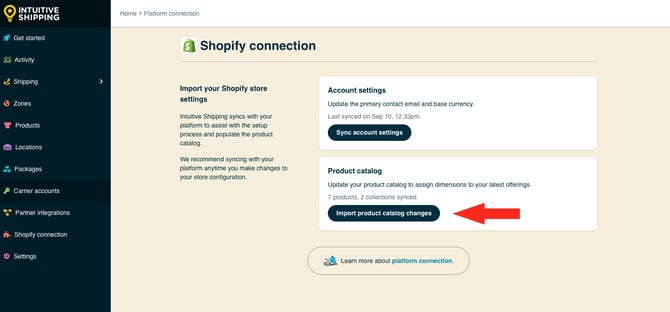
If you’re using the SmartBoxing packing algorithm, be sure all new products have dimensions added in Intuitive Shipping.
Cost Adjustments
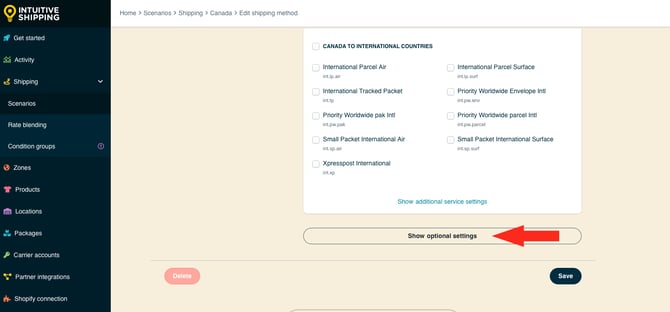
If rates are showing but appear too high or too low, a cost adjustment may have been applied. Check the 'Cost adjustments' section (in Optional Settings) of your parcel service shipping method.
Contact Us
If rates aren't displaying as expected and you are unable to resolve the issue, please contact us. We’re here to help!