
If you're on Shopify, Intuitive Shipping supports metafields for product dimensions. Metafields for dimensions lets you manage product dimensions right in your eCommerce platform product settings so you don't need to add them to your Intuitive Shipping product settings for features that require dimensions, such as the SmartBoxing packing algorithm.
 Metafields for dimensions must be added in your Shopify settings before mapping can be completed. Mapping must also be enabled for Shopify metafield dimensions to be used in rate calculations.

Watch a walk-through video tutorial of metafields for dimensions here.
How It Works
Product dimensions are required if you’re using:
-
Volume-based or dimensional-based conditions in Scenarios
-
Volume-based packing algorithms, including SmartBoxing
-
Simple packing algorithms, such as weight-based, where dimensions are used to prevent certain products from being packed into specific boxes due to size
If you’re using Shopify and any of these apply to your setup, you previously needed to add product dimensions directly in Intuitive Shipping to ensure rates could be calculated correctly.
Now, you can sync product dimensions from your Shopify product settings using metafields, allowing Intuitive Shipping to use those values in rate calculations.
Please note: if you’re using BigCommerce, metafield mapping is not available or required. Intuitive Shipping already syncs product dimensions directly from your BigCommerce product settings when they are provided.
To use metafield dimensions with Intuitive Shipping, you’ll first need to set up the metafields in Shopify, map them in Intuitive Shipping, and add dimension values for length, width, and height to each product that uses Scenarios or shipping methods with dimension-based functions.
Add Product Dimension Metafields To Shopify
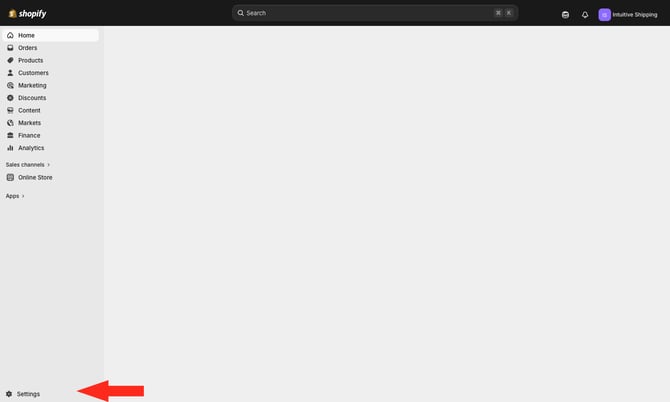
1. Go to your Shopify Admin page, then click Settings at the bottom of the sidebar menu.
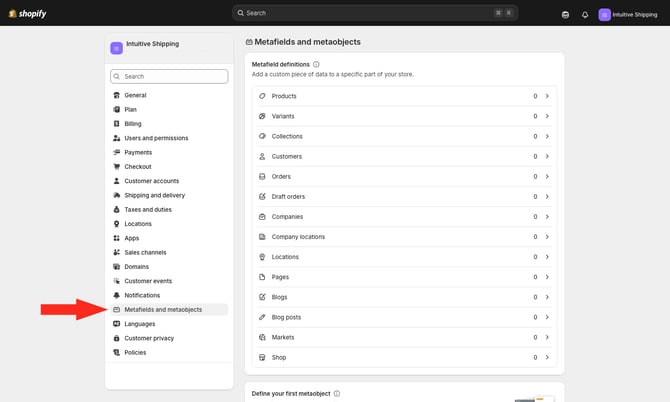
2. Select Metafields and metaobjects from the Settings menu.
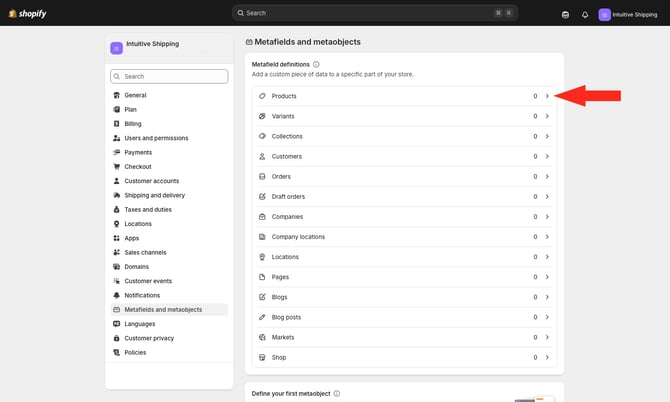
3. Click the side-facing arrow next to 'Products'.
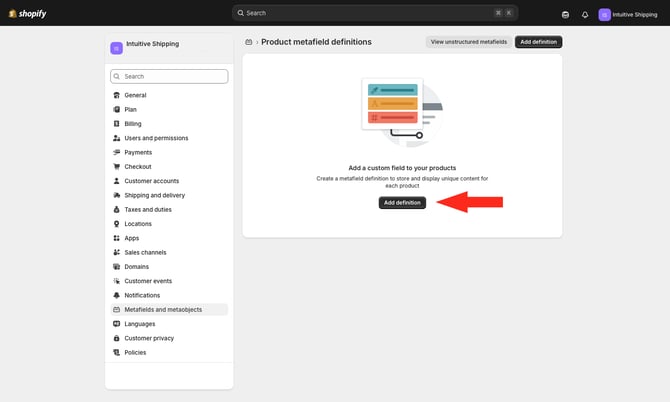
4. Click the Add definition button.
5. Enter a name for your height metafield. We recommend using 'Height'.
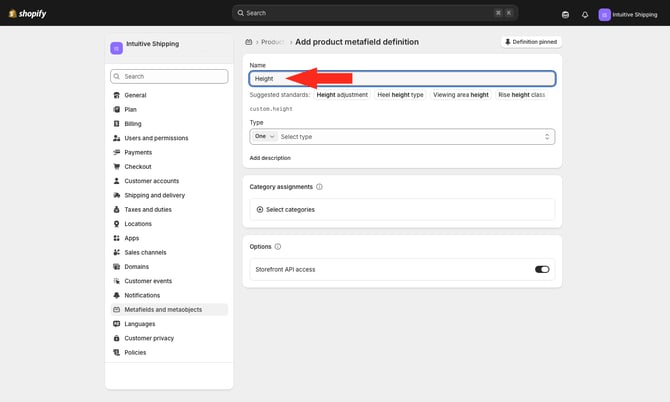
Shopify assigns a default metafield namespace and key (identifier). For this example, the default assigned is 'custom.height'. We recommend editing the identifier for easier mapping.
6. Click on the default namespace and key.
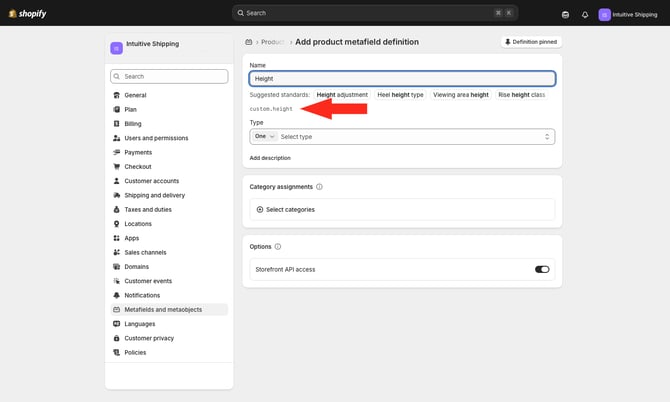
7. Rename the namespace and key as 'product.height' or something similar. Be sure to adhere to Shopify's formatting rules.
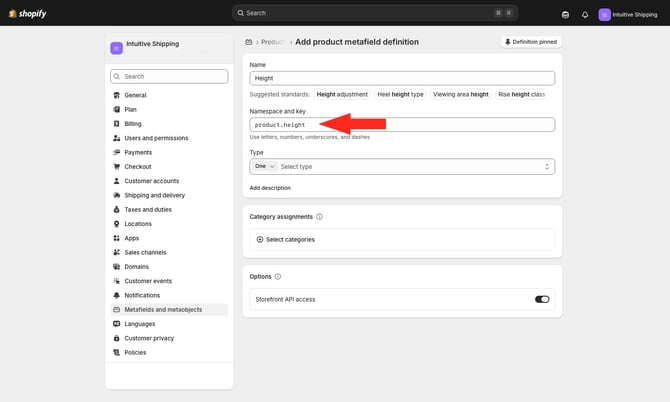
8. Click the arrows next to 'Type'.
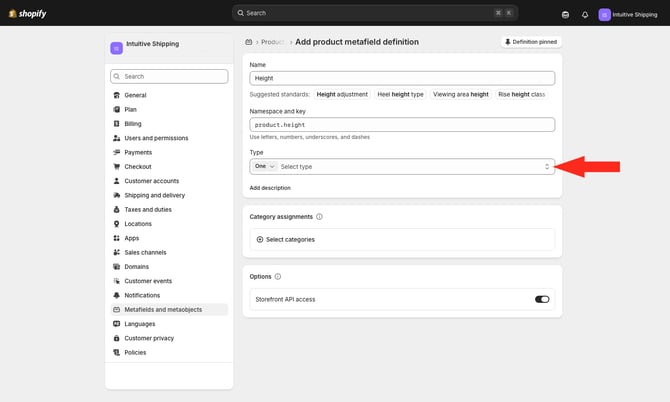
9. Enter 'Dimension' into the search field, then select it as the type.
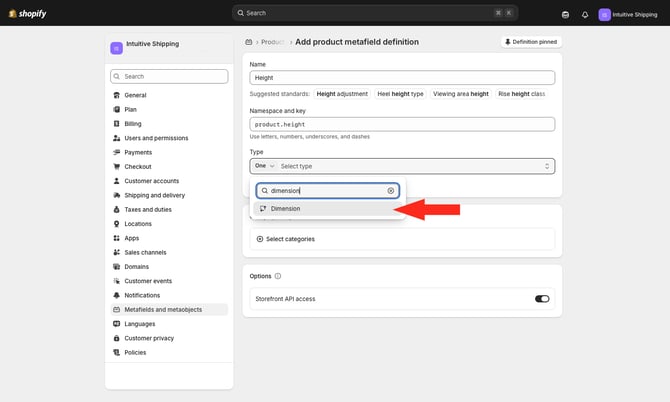
10. Click the Save button at the top of the page.
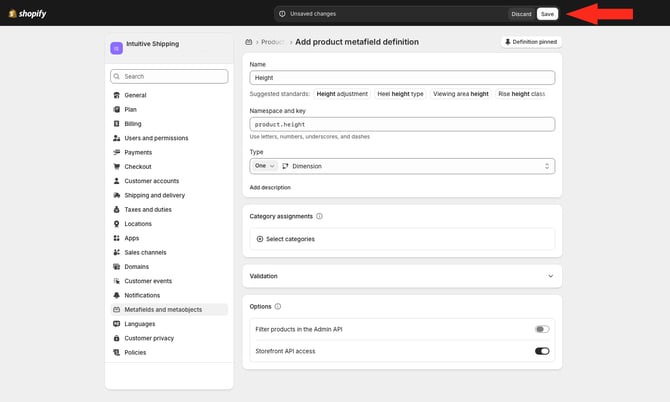
11. Repeat Steps 4 to 10 for product length and width.
If your products have variants, follow the steps in the next section. If you don't have variants, skip ahead to add product dimensions to Shopify.
Add Variant Dimension Metafields
If your products have variants, you’ll need to set up variant dimension metafields for all three dimensions in addition to those created for parent products.
1. Return to the main page for metafields and metaobjects.
2. Click the side-facing arrow next to 'Variants'.
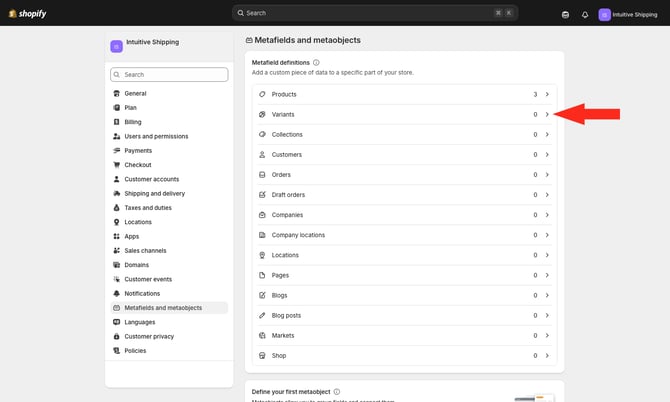
3. Click the Add definition button.
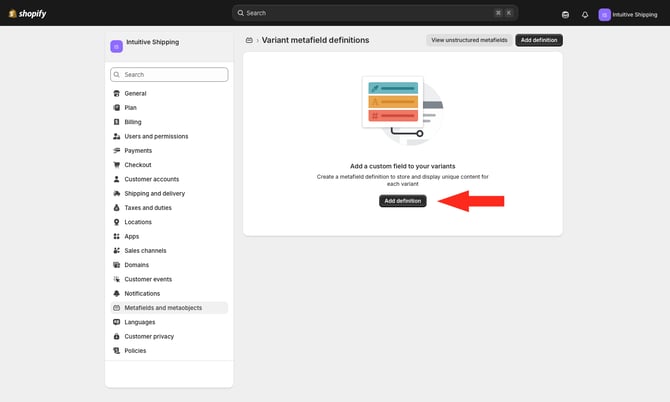
4. Enter a name for your variant height metafield. We recommend using 'Height'.
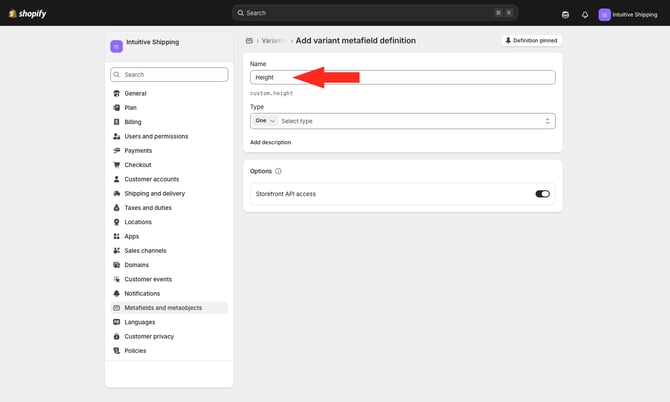
Shopify assigns a default metafield namespace and key (identifier). For this example, the default assigned is 'custom.height'. We recommend editing the identifier for easier mapping.
5. Click on the default namespace and key.
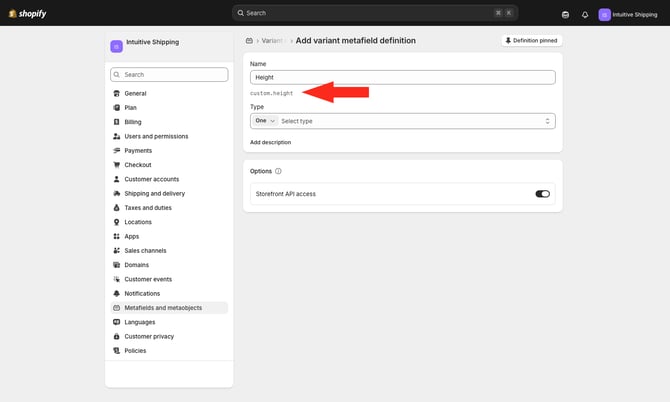
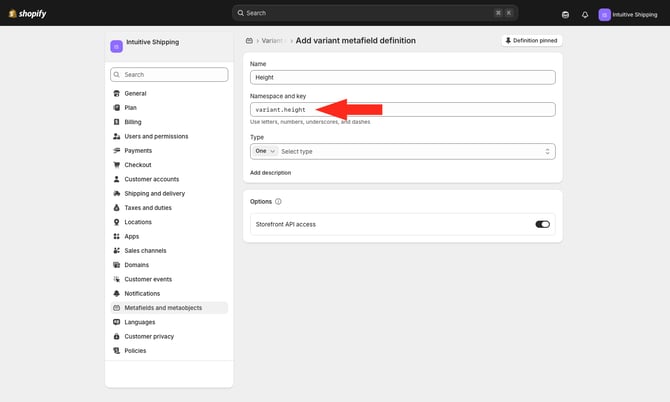
6. Rename the namespace and key as 'variant.height' or something similar. Be sure to adhere to Shopify's formatting rules.
7. Click the arrows next to 'Type'.
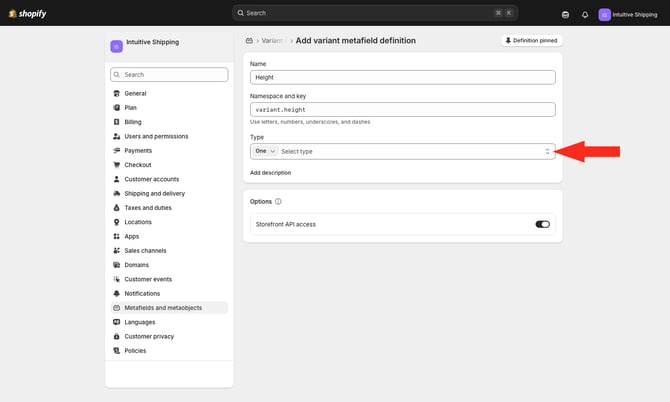
8. Enter 'Dimension' into the search field, then select it as the type.
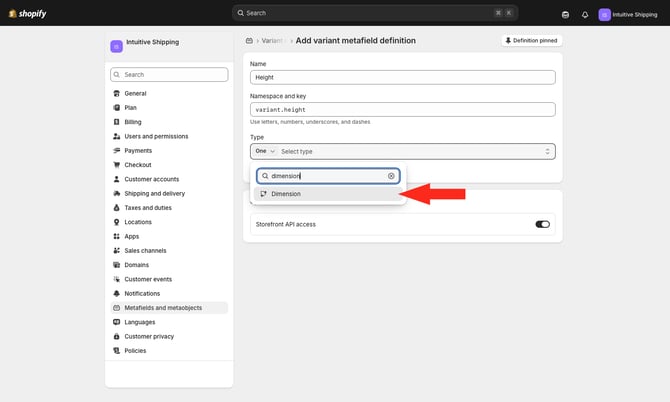
9. Click the Save button at the top of the page.
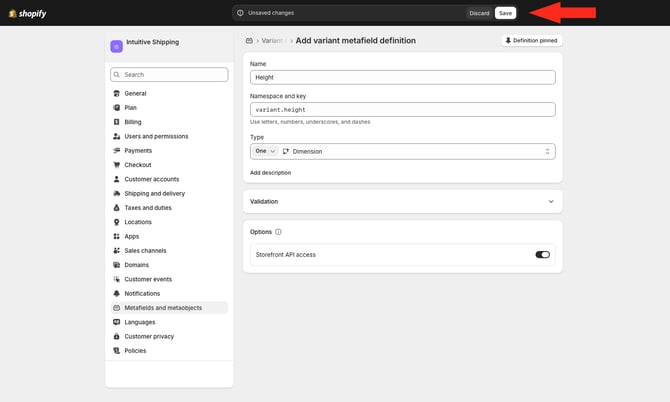
10. Repeat Steps 3 to 9 for variant length and width.
Add Product Dimensions
Once you've configured metafields for dimensions, you can begin adding dimension values to each of your products.
1. Go to your Shopify Product settings. Select a product, then scroll to the bottom of the page.
2. Enter values for all three dimension metafields. The unit of measurement, such as inches, is applied automatically based on your shop settings.
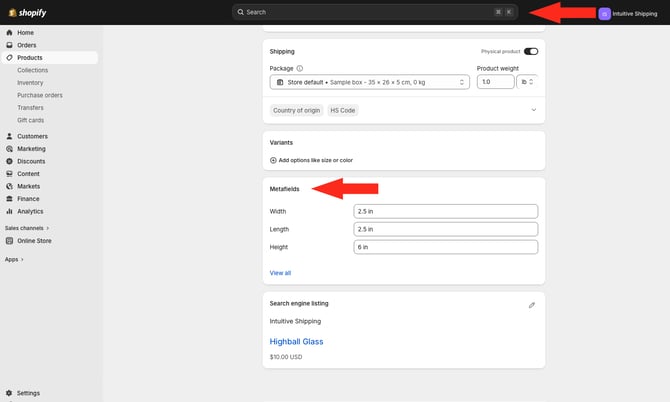
3. Repeat Steps 1 and 2 for each product used by Scenarios and shipping methods with dimension-based functions.
If your product has variants, follow the steps in the next section. If you don't have variants, return to Intuitive Shipping to complete metafield mapping.
Add Variant Dimensions
If your product has variants:
1. Select a product with variants, then click on a variant to edit its settings.
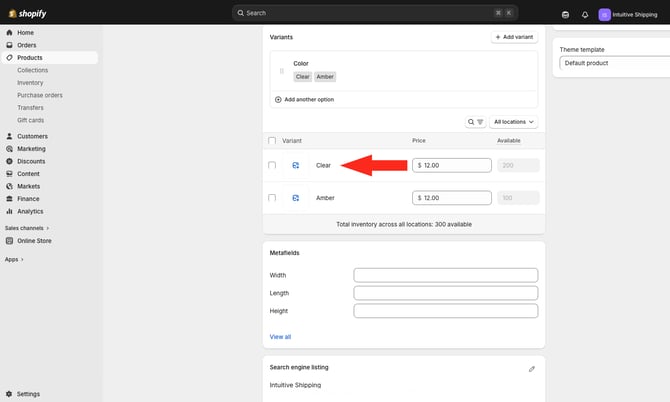
2. Enter values for all three variant dimension metafields. The unit of measurement, such as inches, is applied automatically based on your shop settings
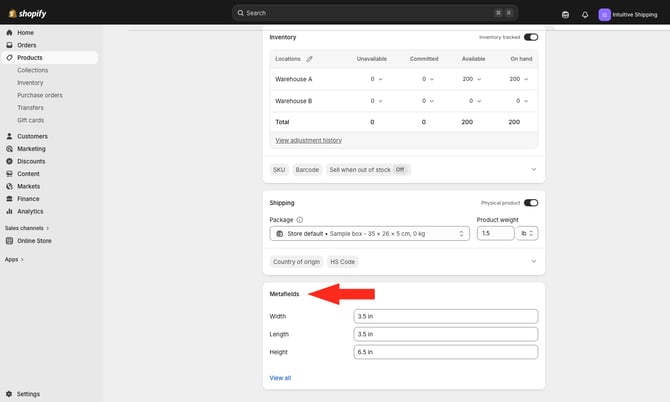
3. Repeat Steps 1 and 2 for each variant that uses Scenarios and shipping methods with dimension-based functions, then return to Intuitive Shipping to complete metafield mapping.
Metafield Mapping
Metafields for dimensions must be added in your Shopify settings before mapping can be completed. Mapping must also be enabled for Shopify metafield dimensions to be used in rate calculations.
If you haven’t added product dimension metafields in Shopify yet, you’ll need to do that here before continuing with the steps below.
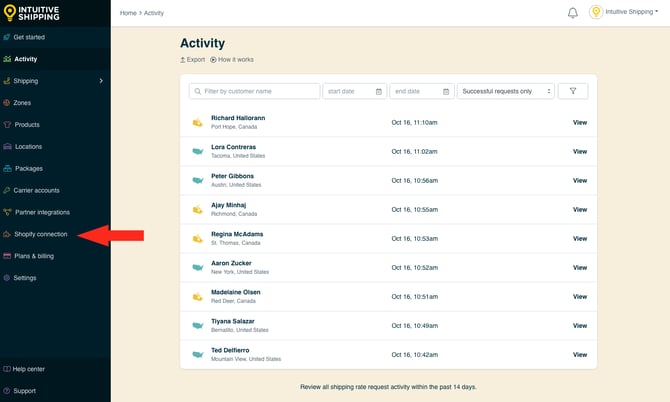
1. Click Shopify connection on the sidebar menu.
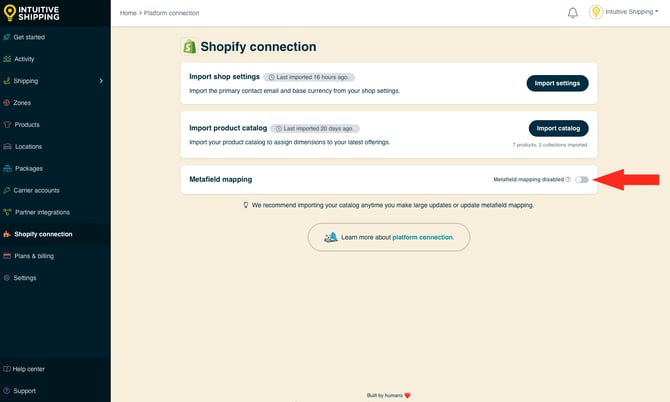
2. Click the toggle beside 'Metafield mapping' to enable metafields for dimensions.
3. Click the drop-down arrow beside product.length.
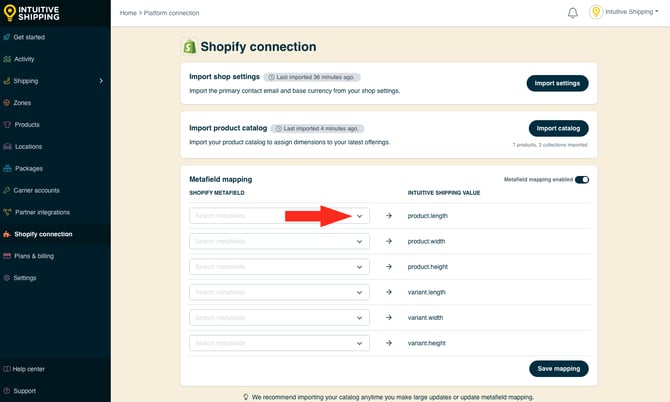
4. Search the name of the length metafield by typing.
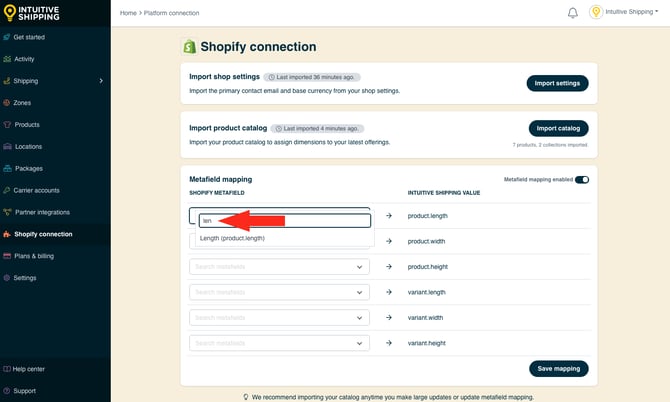
5. Select the length metafield.
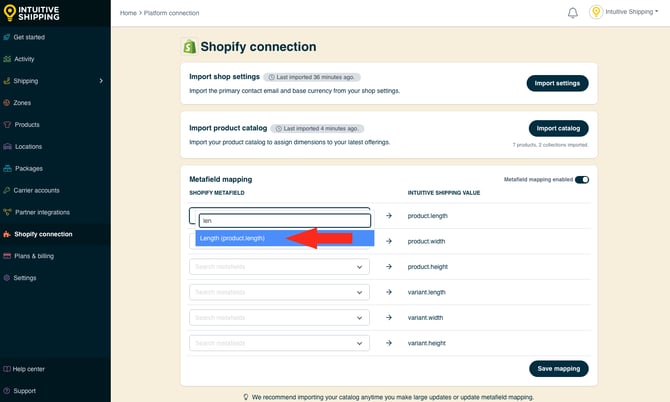
6. Repeat Steps 3 to 5 for product.width and product.height metafields.
Metafields for length, width, and height must be mapped, and each product must have values for all three dimensions saved in your Shopify product settings.
For example, if only length and width are mapped, or if all three are mapped but a product is missing a value for one of them, such as height, the dimensions will not be synced with Intuitive Shipping.
Mapping metafields for variants is only required if your products have variants and you created variant metafields. As with parent products, all three dimension metafields for variants (length, width, and height) must be mapped, and each variant must have values for all three dimensions saved in your Shopify product settings.
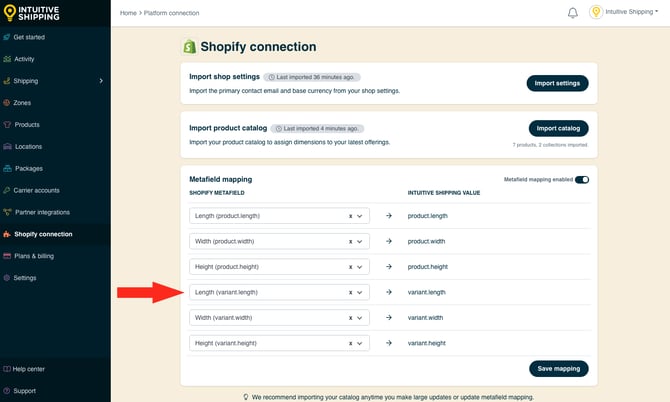
7. If applicable, repeat Steps 3 to 5 for variant length, width and height.
8. Click Save mapping.
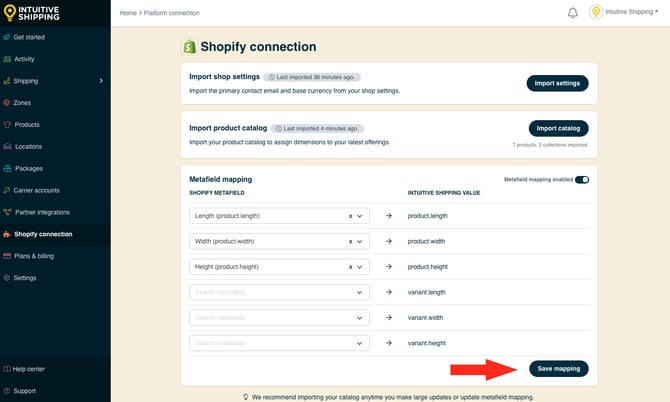
Once mapping is completed, we recommend importing your catalog again to ensure all of your product metafield dimensions are synced with Intuitive Shipping.
Missing metafield dimensions for length, width or height may result in checkout errors.
Verify Product Dimensions Are Syncing
1. Click Products on the sidebar menu.
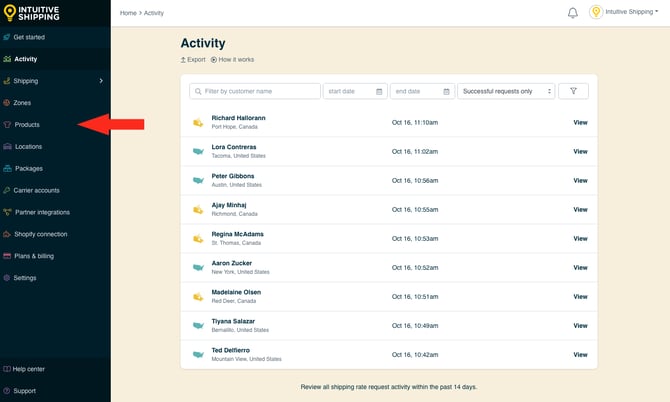
2. Click Edit next to a product with metafield dimensions added to your Shopify product settings.
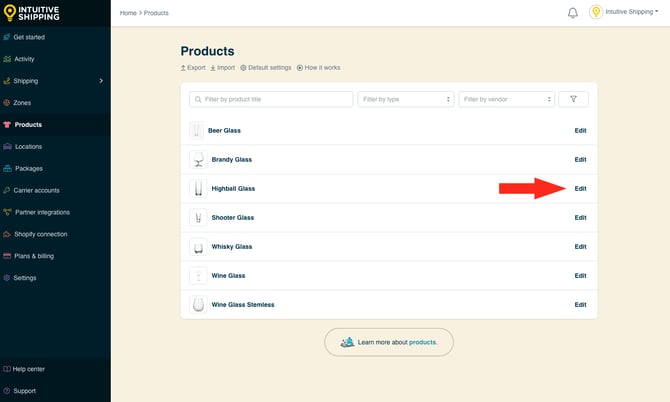
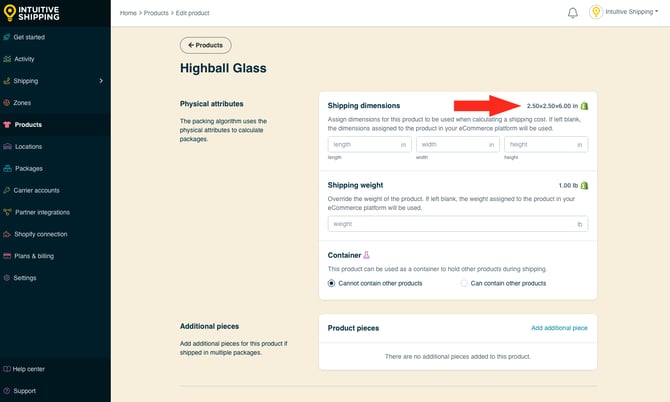
If metafield product dimensions are syncing correctly, they will appear next to Shipping dimensions with a Shopify logo. If the dimensions and logo are not displayed, verify that metafield mapping is enabled, then try importing product catalog changes again. It may take a few minutes for the import to complete, depending on the size of your product catalog.
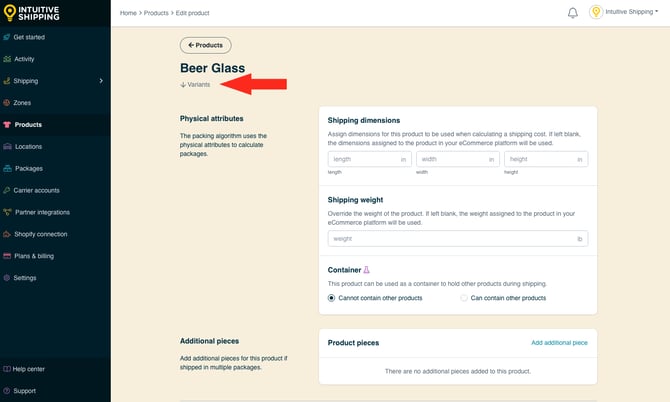
If your product has variants and you added variant dimensions that are different than the parent product dimensions:
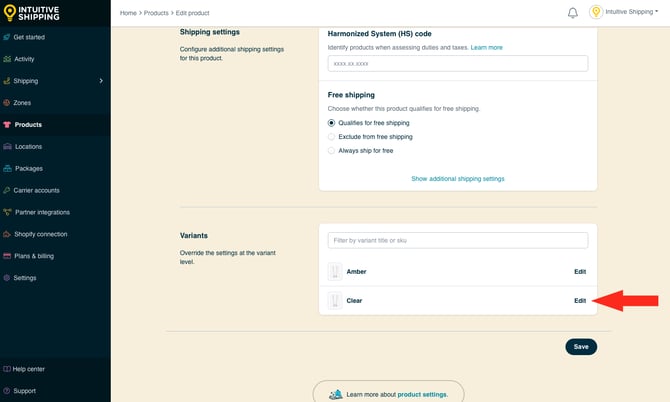
3. Click Variants below the product heading.
4. Click Edit next to a variant with metafield dimensions added to your Shopify product settings.
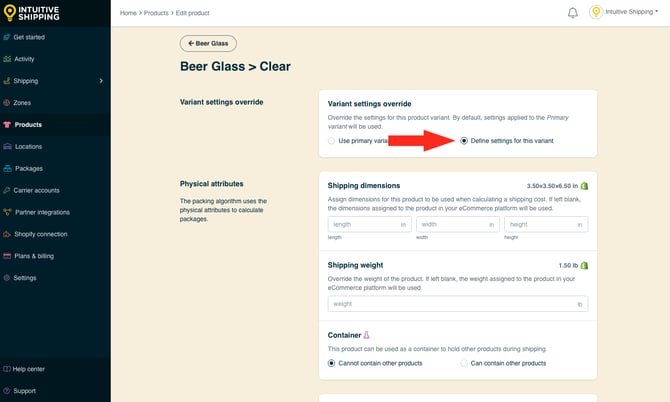
5. Select Define settings for this variant.
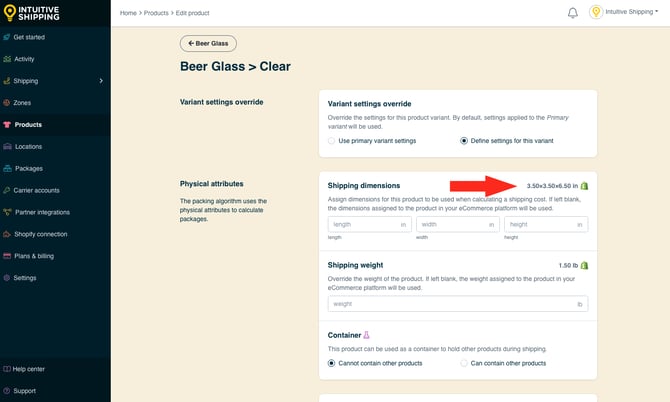
If metafield variant dimensions are syncing correctly, they will appear next to Shipping dimensions with a Shopify logo. If the dimensions and logo are not displayed, verify that metafield mapping is enabled for variants, then try importing product catalog changes again. It may take a few minutes for the import to complete, depending on the size of your product catalog.
We check product dimension values at checkout before calculating rates. If dimensions are required, we first look for values stored in Intuitive Shipping. If they are available, those values will be used. If not, the system will use the dimensions from your Shopify product metafield settings.