---
title: How To Update Your Platform Connection
description: How To Update Your Shopify Connection
---
[Skip to content](https://knowledge.intuitiveshipping.com/how-to-update-your-platform-connection#main-content)
[](https://knowledge.intuitiveshipping.com?hsLang=en)
- [FAQ](https://knowledge.intuitiveshipping.com/faq-page)
- [Main Site](https://intuitiveshipping.com/)
Open main navigation
Close main navigation
- [FAQ](https://knowledge.intuitiveshipping.com/faq-page)
- [Main Site](https://intuitiveshipping.com/)
- [Contact us](https://knowledge.intuitiveshipping.com/contact)
[Contact us](https://knowledge.intuitiveshipping.com/contact?hsLang=en)
How can we help?
- There are no suggestions because the search field is empty.
1. [Intuitive Shipping Help Center](https://knowledge.intuitiveshipping.com/?hsLang=en)
2. [How-To](https://knowledge.intuitiveshipping.com/how-to?hsLang=en)
# How To Update Your Platform Connection
## Keep Intuitive Shipping up-to-date by syncing changes to your eCommerce platform account and product settings.
**Contents:**
- [How It Works](https://knowledge.intuitiveshipping.com/how-to-update-your-platform-connection#how-it-works)
- [Update Platform Connection](https://knowledge.intuitiveshipping.com/how-to-update-your-platform-connection#update-platform-connection)
- [Shop Settings](https://knowledge.intuitiveshipping.com/how-to-update-your-platform-connection#shop-settings)
- [Product Catalog](https://knowledge.intuitiveshipping.com/how-to-update-your-platform-connection#product-catalog)
- [Metafield Mapping](https://knowledge.intuitiveshipping.com/how-to-update-your-platform-connection#metafield-mapping)
Intuitive Shipping syncs with your Shopify or BigCommerce store to access the information needed for rate calculations and to connect with your checkout. This includes your store name, primary shipping address, contact email, and product catalog.
### How It Works
Syncing happens automatically when you install the app and complete the initial setup.
While you’re in **Sandbox mode**, any changes to your store information or product catalog must be imported manually using the steps below.
Once you activate your account by selecting a **billing plan**, product catalog updates, including metafield dimensions, will sync automatically. However, if you make a large number of changes in a short period, such as adding or updating many products, we recommend running a manual import to ensure everything is up to date.

Learn more about [Sandbox mode and selecting a billing plan](https://knowledge.intuitiveshipping.com/select-a-billing-plan?hsLang=en).
Changes to [account settings](https://knowledge.intuitiveshipping.com/how-to-update-your-platform-connection#account-settings) (store info) requires a manual import, even when billing has been activated.
### Update Platform Connection
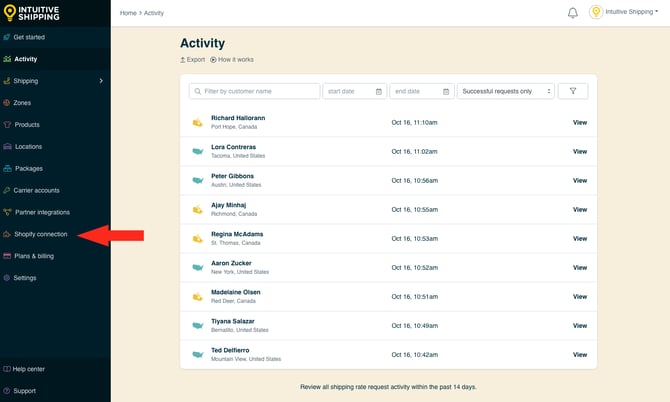
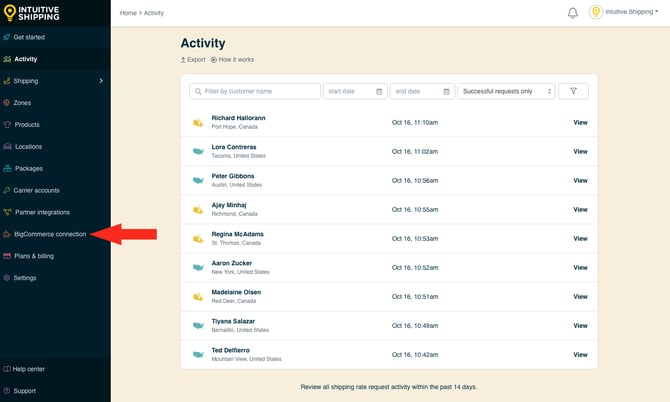
**1.** Click **Shopify connection** or **BigCommerce connection** on the sidebar menu.
### Shop Settings
We recommend performing this action whenever you do any of the following:
- Update your store name.
- Update your store’s primary shipping origin address. We use this to calculate real-time carrier rates and, if applicable, distance-based rates.
- Change your primary contact email address.
- Change your store’s currency.
- Change your Shopify Shipping & delivery or BigCommerce shipping settings. This may affect our ability to display rates at checkout.

Importing shop settings does not update your product catalog.
To import changes to your products, skip ahead to [Product Catalog](https://knowledge.intuitiveshipping.com/how-to-update-your-platform-connection#product-catalog).
To import changes made in your eCommerce platform shop settings into Intuitive Shipping:
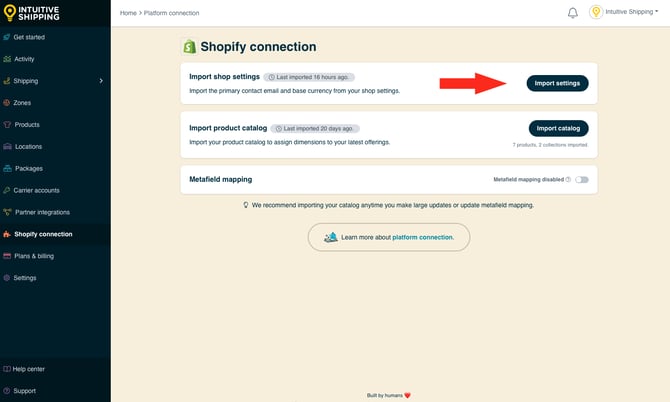
**1.** Click the **Import settings** button.
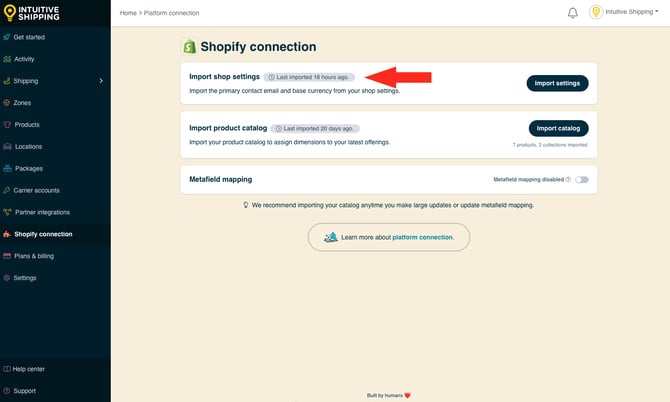
The time since your last settings import is displayed next to the setting heading and will update once the import has finished.
While importing, the button will be replaced with the message ‘Importing in progress’.
Importing may take several seconds. You can continue using Intuitive Shipping during this time, but we recommend avoiding test checkouts that could be affected by recent changes, such as updates to currency settings or your shipping origin address.
**2.** Check back and review the timestamp to **confirm the import has completed**.
### Product Catalog
We recommend performing this action **while in Sandbox mode** whenever you do any of the following:
- Add or remove products or variants
- Change product or variant titles (names)
- Add or remove product tags
- Add or edit product dimension metafields (Shopify)
- Assign or remove product vendors
- Add to or update product collections/ categories
- Update product prices
- Update product types
- Update product images
- Update fulfillment services (legacy Shopify feature)

Importing product catalog changes is required while in Sandbox mode.
Product catalog changes are imported automatically once you have an active billing plan. However, we recommend running a manual import if you add, remove, or update multiple products in a short period of time.
**1.** Click the **Import catalog** button.
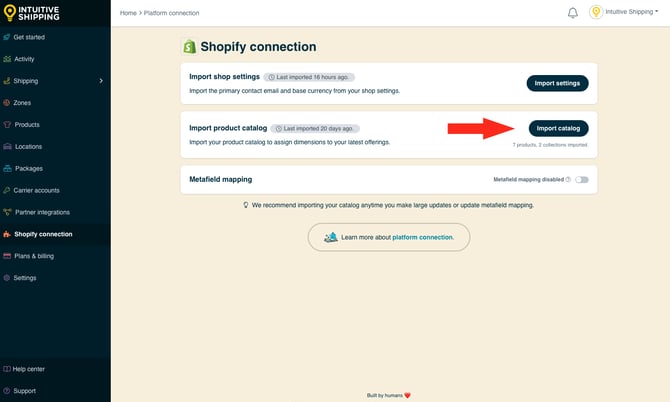
The number of products and collections imported is displayed below the button. These totals reflect what exists in your platform settings and will only change if the overall quantity changes. If you’re importing updates to existing products or collections, the totals will remain the same.
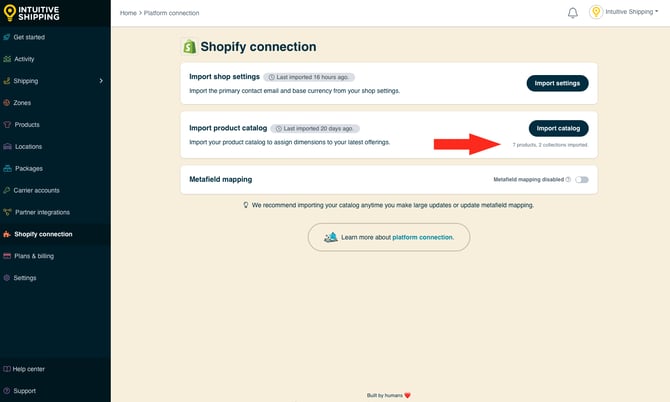
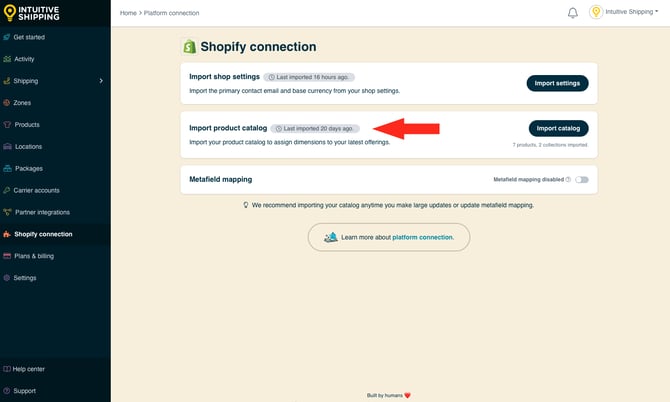
The time since your last product import is displayed next to the setting heading and updated once the import has finished.
While importing, the button will be replaced with the message ‘Importing in progress’.
Importing may take a few seconds up to a few minutes, depending on the size of your product catalog. You can continue using Intuitive Shipping during this time, but we strongly recommend avoiding test checkouts or making changes to product settings in Intuitive Shipping.
**2.** Check back and review the timestamp to **confirm the import has completed**.
Manual syncing refreshes your entire product catalog, even if only a few products were changed.
### Metafield Mapping
If you're on Shopify, Intuitive Shipping supports metafields for product dimensions. Metafields for dimensions lets you manage product dimensions right in your eCommerce platform product settings so you don't need to add them to your Intuitive Shipping product settings for features that require dimensions, such as the [SmartBoxing packing algorithm](https://knowledge.intuitiveshipping.com/how-to-use-smartboxing?hsLang=en).
Metafields for dimensions must be added in your Shopify settings before mapping can be completed. Mapping must also be enabled for Shopify metafield dimensions to be used in rate calculations.

Learn [how to set up and use metafields with Intuitive Shipping](https://knowledge.intuitiveshipping.com/how-to-use-metafields-for-product-dimensions?hsLang=en).
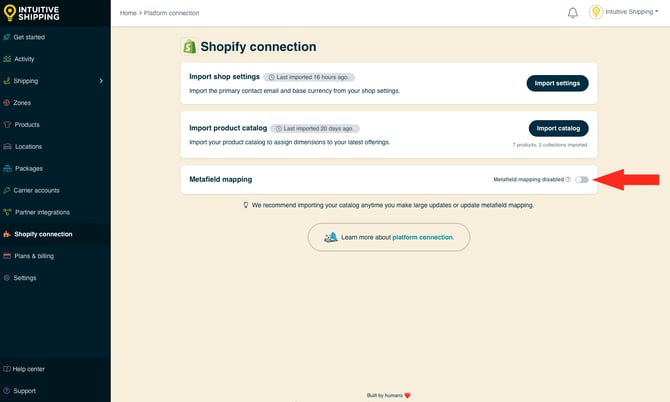
**1.** Click the **toggle** beside **Metafield mapping** to enable metafields for dimensions.
**2.** Click the drop-down arrow beside **product.length**.
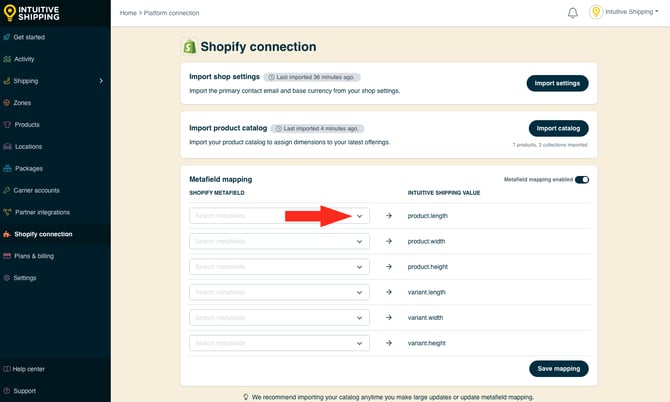
**3.** Search the name of the length metafield by **typing**.
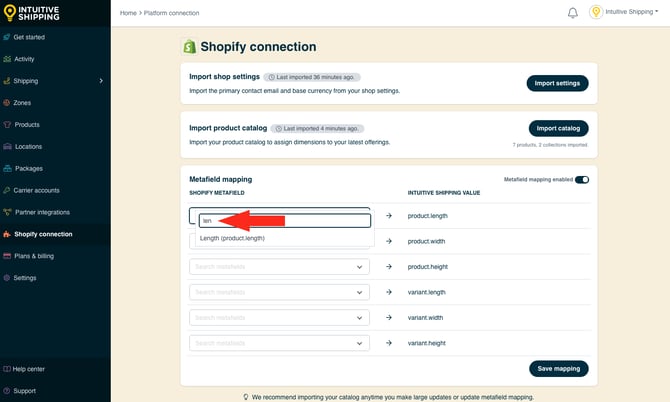
**4.** Select the **length metafield**.
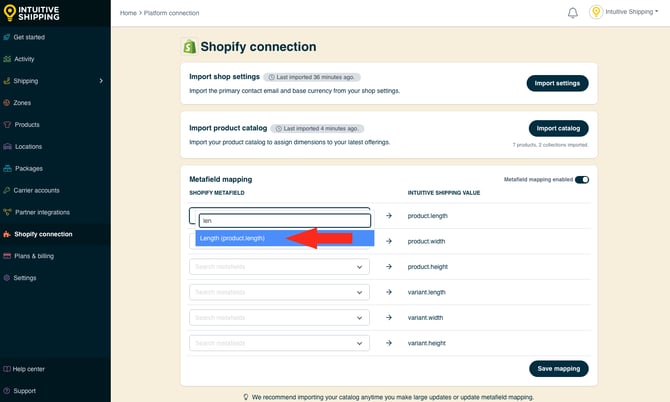
**5.** Repeat **Steps 2 to 4** for each additional metafield.
**6.** Click **Save mapping**.
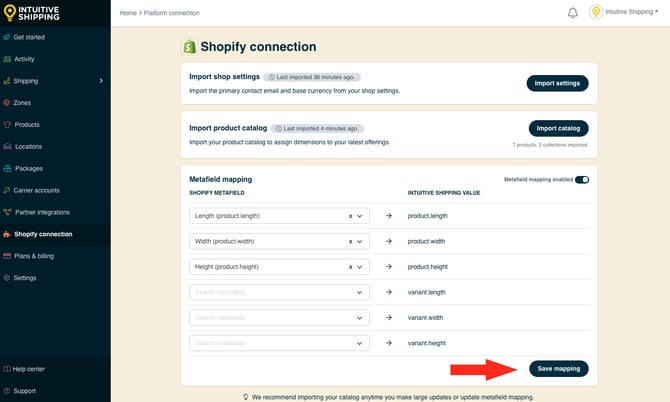
Once mapping is completed, we recommend [importing your catalog](https://knowledge.intuitiveshipping.com/how-to-update-your-platform-connection#product-catalog) again to ensure all of your product metafield dimensions are synced with Intuitive Shipping.
**Please note:** for product metafield dimensions to sync with Intuitive Shipping, all three metafields for length, width, and height must be mapped, and each product must have values entered for all three dimensions in your Shopify product settings.
For example, if only length and width are mapped, or if all three are mapped but a product is missing a value for one of them, such as height, the dimensions will not be synced with Intuitive Shipping.
Mapping metafields for variants is only required if your products have variants. As with parent products, all three dimension metafields for variants must be mapped, and each variant must have values entered for all three dimensions.
Missing metafield dimensions for length, width or height may result in checkout errors.
### Learn more:
- [Common setups](https://knowledge.intuitiveshipping.com/common-setups?hsLang=en)
- [Additional setups](https://knowledge.intuitiveshipping.com/additional-setups?hsLang=en)
- [How-to guides](https://knowledge.intuitiveshipping.com/how-to?hsLang=en)
- [Connect a carrier](https://knowledge.intuitiveshipping.com/connect-a-carrier?hsLang=en)
- [General info](https://knowledge.intuitiveshipping.com/general-info?hsLang=en)
- [FAQ](https://knowledge.intuitiveshipping.com/faq-page?hsLang=en)
- [Get Started](https://knowledge.intuitiveshipping.com/get-started?hsLang=en)
- [Common Setups](https://knowledge.intuitiveshipping.com/common-setups?hsLang=en)
- [Additional Setups](https://knowledge.intuitiveshipping.com/additional-setups?hsLang=en)
- [How-To](https://knowledge.intuitiveshipping.com/how-to?hsLang=en)
- [Connect A Carrier](https://knowledge.intuitiveshipping.com/connect-a-carrier?hsLang=en)
- [Black Friday](https://knowledge.intuitiveshipping.com/black-friday?hsLang=en)
- [Billing & Account](https://knowledge.intuitiveshipping.com/billing-account?hsLang=en)
- [General Info](https://knowledge.intuitiveshipping.com/general-info?hsLang=en)
- [Get Help](https://knowledge.intuitiveshipping.com/get-help?hsLang=en)
- [Main Site](https://intuitiveshipping.com/)
- [FAQ](https://knowledge.intuitiveshipping.com/faq-page)
- [Privacy Policy](https://intuitiveshipping.com/legal/privacy)
- [Terms](https://intuitiveshipping.com/legal/terms)
- [EULA](https://intuitiveshipping.com/legal/eula)
[](http://intuitiveshipping.com)
The shipping solution for serious sellers.
© Copyright 2019-2025 Intuitive Shipping Inc.