
Contents:
 FedEx has changed their account credentials system, which may affect how you use your account with Intuitive Shipping.
As of June 1, 2026, FedEx has sunset its OAuth-based rating API in favor of a more secure and flexible Multi-Factor Authentication (MFA) model. All existing OAuth-based shipping methods - and Legacy XML shipping methods - must be updated to use MFA authentication.
Your account credentials can be added by following the steps to connect your FedEx account.
When adding your account to Intuitive Shipping, you must select the ‘FedEx’ account type.
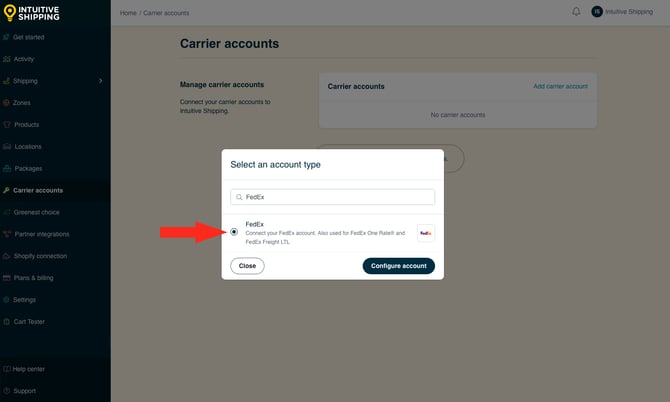
Once connected, you can use these credentials with FedEx or FedEx One Rate parcel service shipping methods, as well as FedEx Freight LTL freight service shipping methods.
 Learn more about how to create a parcel service shipping method and freight service shipping method.
If you require assistance adding your FedEx account settings to Intuitive Shipping or configuring your FedEx, FedEx One Rate or FedEx Freight LTL shipping methods, please contact us.
Connect FedEx Account
This guide shows you how to link your FedEx OAuth Multi-Factor Authentication (MFA) account credentials to Intuitive Shipping.
Legacy XML and older (non-MFA) OAuth FedEx account credentials will not be supported by Intuitive Shipping as of June 1, 2026.
Learn how to connect to other carriers.
If you have an account with FedEx, you can connect it to Intuitive Shipping using validated account credentials. Once connected, FedEx will be available when creating a parcel service shipping method or FedEx LTL freight service shipping method and these credentials are required to use FedEx as a carrier service with Intuitive Shipping.
After your credentials are saved in Intuitive Shipping, they’ll be used automatically each time you add the same carrier account to a new shipping method.
Add FedEx To Carrier Accounts List
FedEx account credentials are required to complete this setup. If you don't have a FedEx account, learn how to get one here.
This guide will walk you through how to connect your FedEx account credentials. If you’re using FedEx One Rate or FedEx Freight LTL shipping methods, the connection process is the same for all.
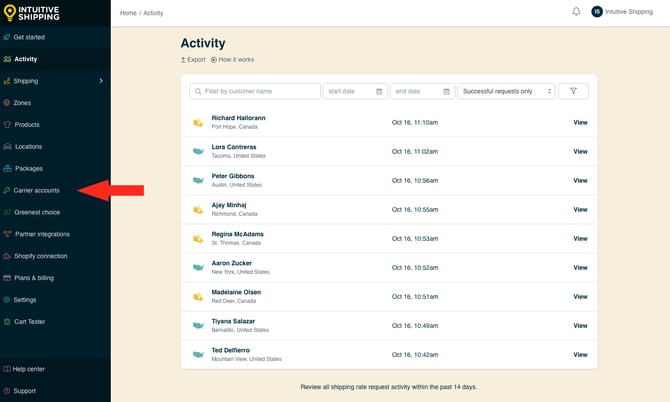
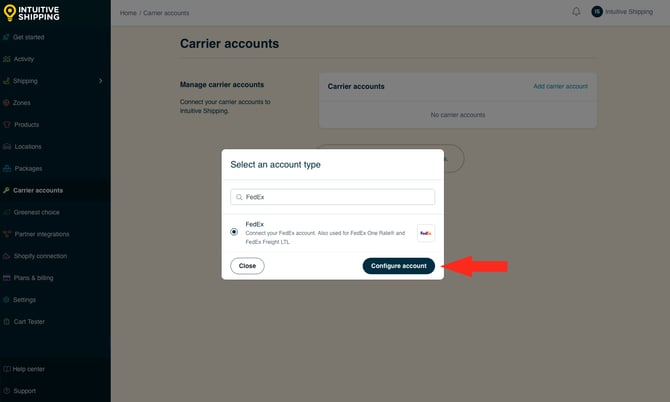
1. Click Carrier accounts on the sidebar menu.
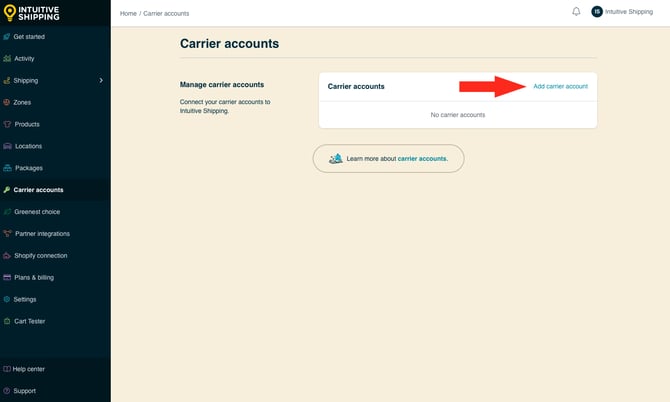
2. Click Add carrier account.
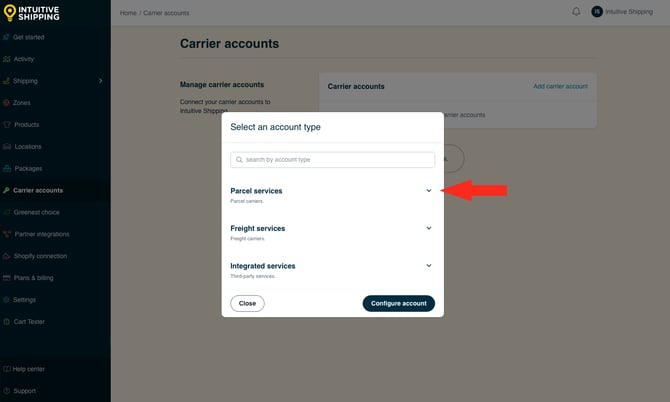
3. Click the drop-down arrow next to Parcel services or type 'FedEx' into the search field.
4. Select FedEx from the list.
5. Click the Configure account button.
Connect FedEx to Intuitive Shipping
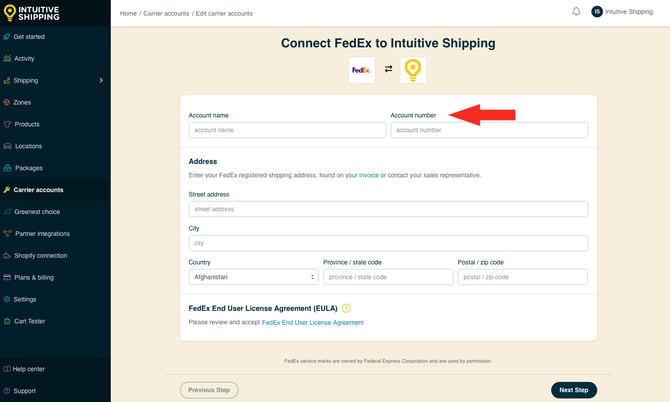
To complete these steps, you’ll need the following details from your FedEx account. You can find them on your invoice or by contacting your FedEx sales representative:
- Account name
- Account number
- Registered shipping address
Depending on the validation option you select later in this guide, you may also need:
- Phone number registered to the account
- Email address registered to the account
- Invoice number
- Invoice date
- Invoice amount (matching the invoice date)
- Invoice currency
Intuitive Shipping provides a link to FedEx to retreive your invoice details if they're required.
1. Enter your FedEx Account name, such as 'FedEx Canadian Account'. The name entered here is how it will be stored in Intuitive Shipping. You can change the name later if desired.
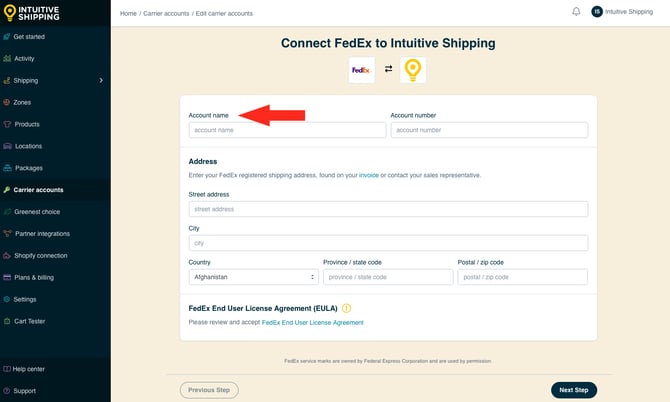
Carrier account names are not visible to customers.
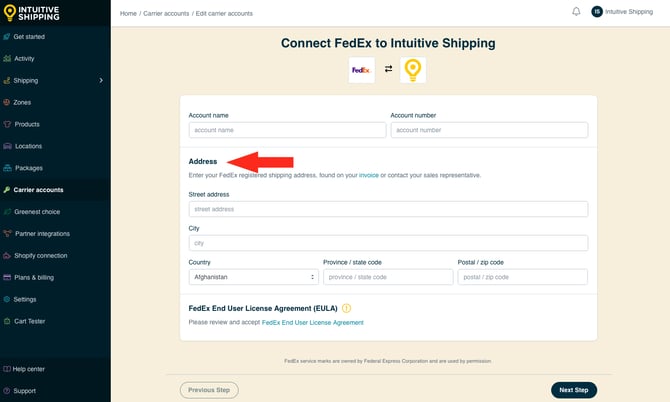
You must enter the address exactly as it appears on your account.
The street address must be entered exactly as it appears on your account. For example, if your account uses ‘121 MAIN ST’, it must be entered the same way here. Using lowercase letters or spelling out abbreviations, such as entering ‘Main Street’ instead of ‘MAIN ST’, will prevent the address from being validated.
The province or state code must use the standard two-letter uppercase abbreviation, such as ‘ON’ for Ontario or ‘TX’ for Texas. Entering the full name, lowercase letters, or alternate abbreviations like ‘ONT’ or ‘TEX’ will also prevent validation.
Postal code spacing is not required. If your account postal code is 'M5V 1J1', enter is as 'M5V1J1.
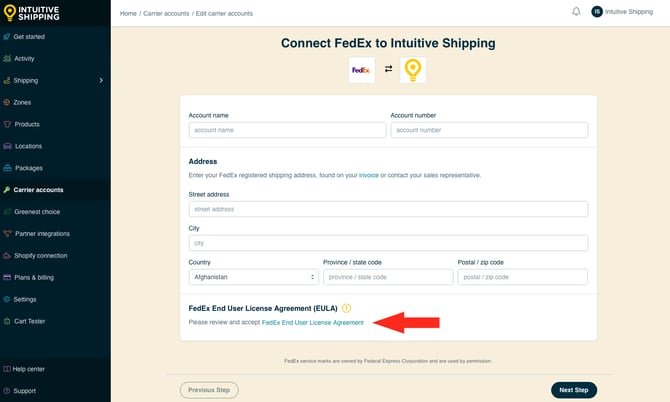
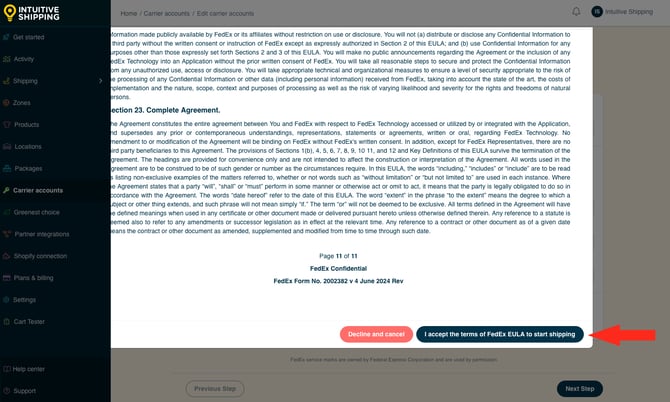
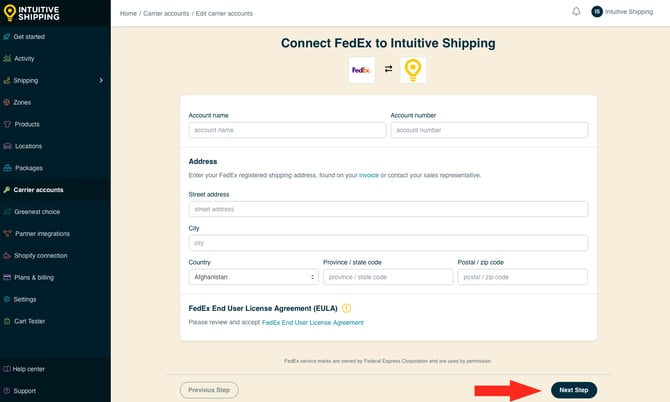
FedEx will attempt to validate your shipping address. If validation fails, an error message will be displayed and you’ll need to re-enter your account details. If successful, the account and address form will be muted and a green checkmark icon will appear.
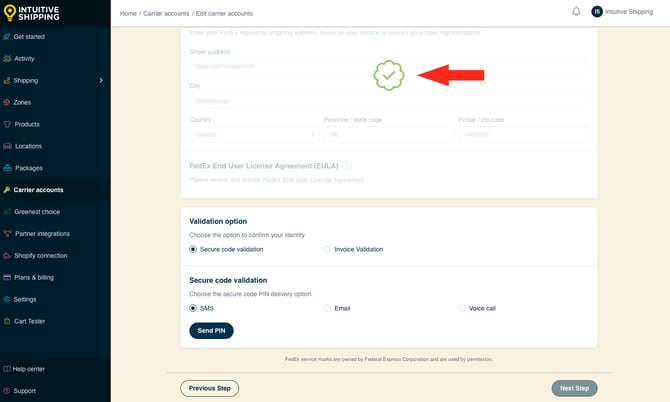
Validation Option
1. Select a validation option.
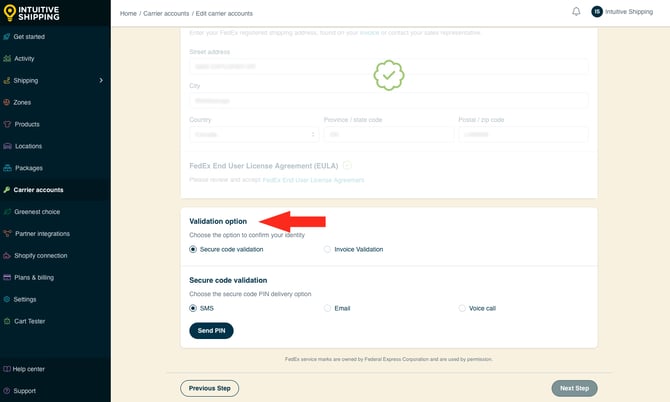
2 a. If you selected 'Secure code validation' in the Step 1, select a secure code validation method, then click the Send PIN button.
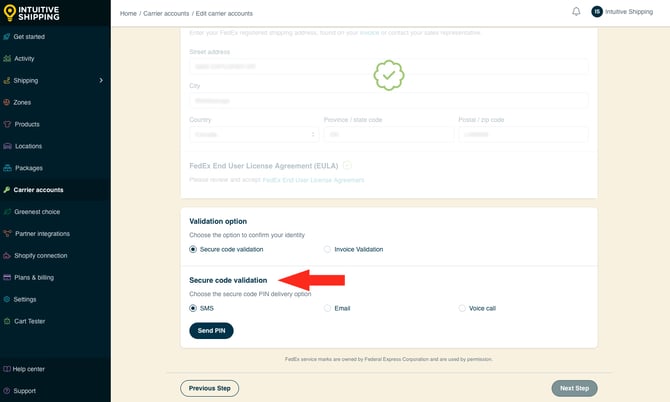
There is a 30-second delay before you can resend the PIN.
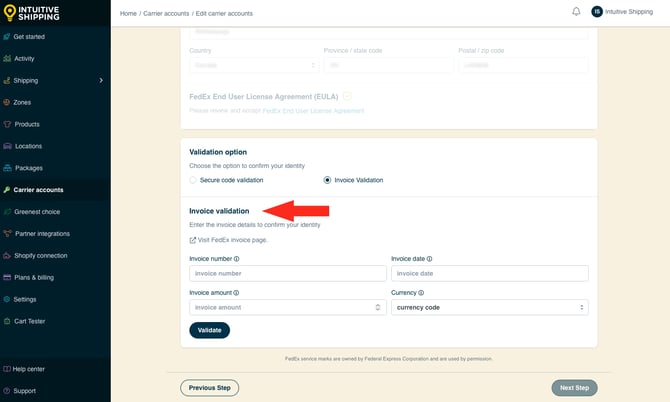
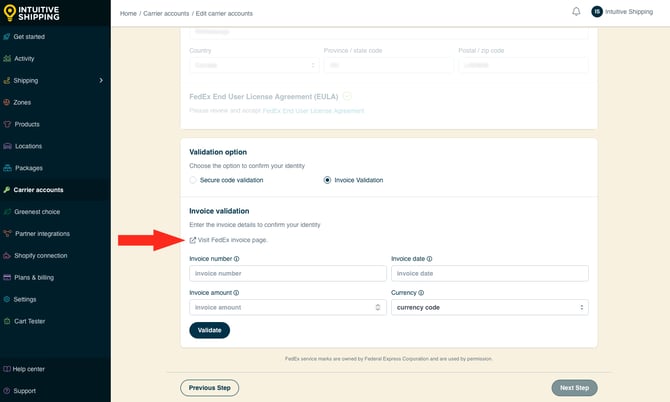
If your account has been successfully validated, the account details will be displayed.
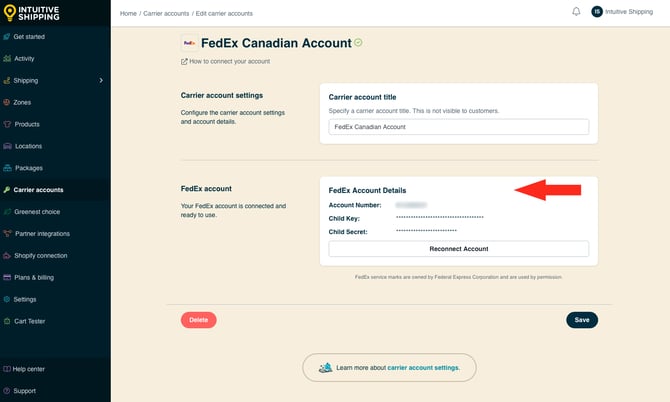
If your account cannot be validated after multiple attempts, FedEx will temporarily block additional attempts for 24 hours. A ‘limit exceeded’ message will appear, and you’ll have the fallback option to contact FedEx Customer Service directly instead of waiting for the restriction period to end.
If you exceed the validation limit, follow these fallback option steps.
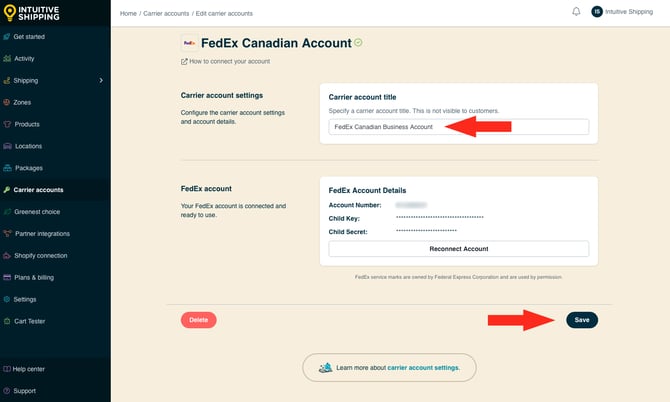
3. If desired, change the carrier account title to something different, like 'FedEx Canadian Business Account', then click the Save button. You can change the account title at any time after it's been saved in Intuitive Shipping.
Validation Fallback Option
If account validation is unsuccessful after multiple attempts with both Secure code validation and Invoice validation, FedEx will temporarily block additional attempts for 24 hours. A ‘limit exceeded’ message will appear, and you’ll have the fallback option to contact FedEx Customer Service directly instead of waiting for the restriction period to end.
1. If you choose not to wait for the restriction period to end, click the Contact FedEx Customer Service button.
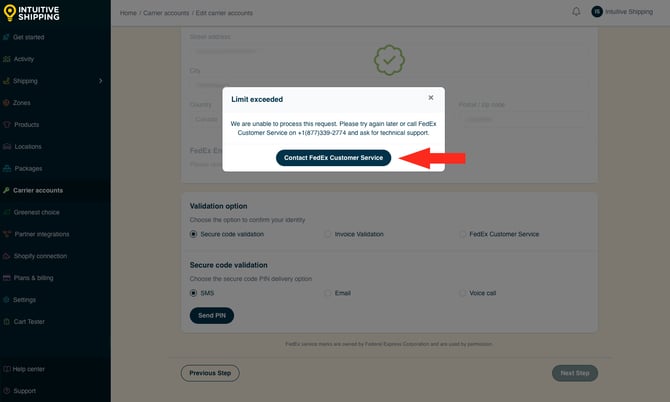
2. Contact FedEx Customer Service.
3. After contacting FedEx, check the box next to 'I have contacted FedEx Customer Service, then click the Authorize account' button.
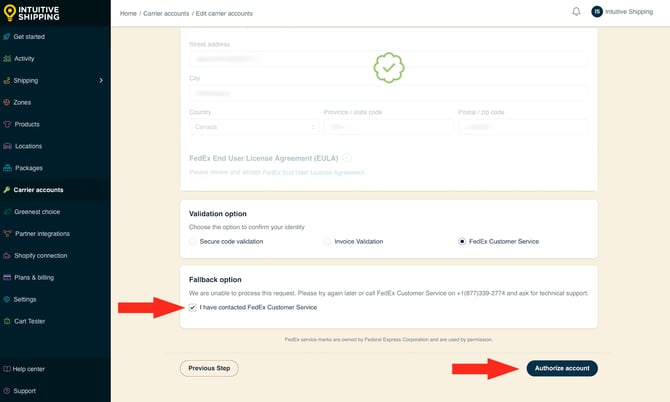
If your account has been authorized by a FedEx representative and successfully validated, the account details will be displayed.
Reconnect Your FedEx Account
If you make changes to your FedEx account, such as updating the address, you’ll need to update the information stored in Intuitive Shipping. To do this, you’ll need to reconnect your FedEx account.
Reconnecting invalidates your current Child Key and Child Secret creditials.
Once your current child credentials are invalidated, shipping methods using that FedEx account will no longer be able to calculate rates from FedEx until your account has been reconnected and new child credentials have been assigned.
1. Click Carrier accounts on the sidebar menu.
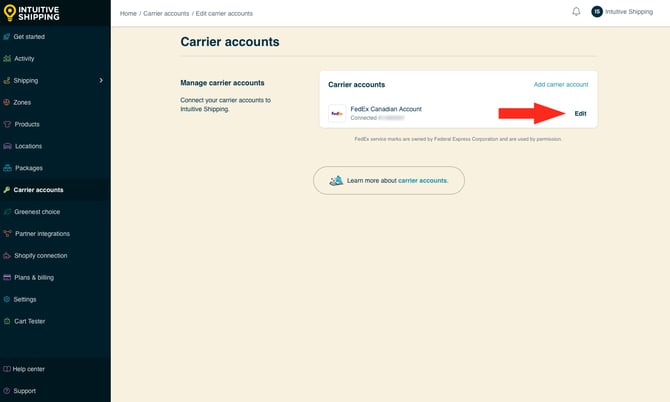
2. Click Edit next to the FedEx account that needs to be updated.
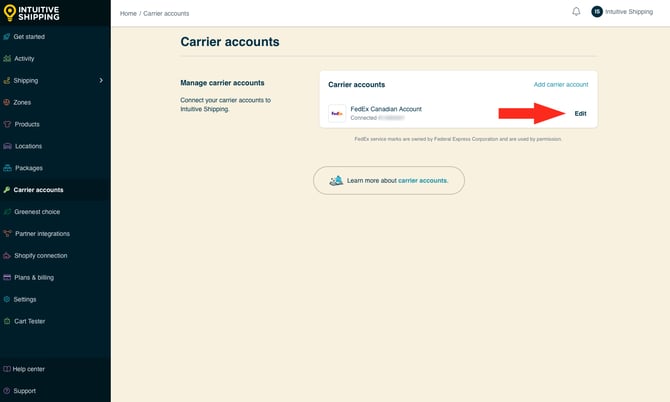
The account number is displayed next to 'Connected' for reference.
If you have more than one FedEx account connected to Intuitive Shipping, this helps you identify which account is you're editing.
3. Click Reconnect Account.
If any shipping methods are using your FedEx account, they will be listed here. You’ll have the option to edit each shipping method and temporarily set it to ‘Archived’ or ‘Testing’ until your account has been reconnected.
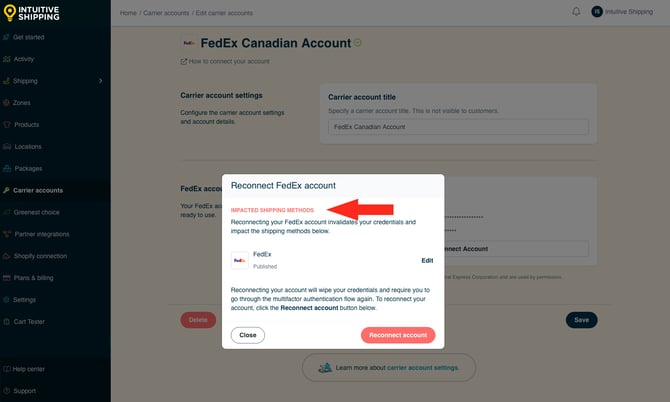
Editing impacted shipping methods is not required.
4. After making any changes to impacted shipping methods, or if you choose not to edit them, click the Reconnect account button.
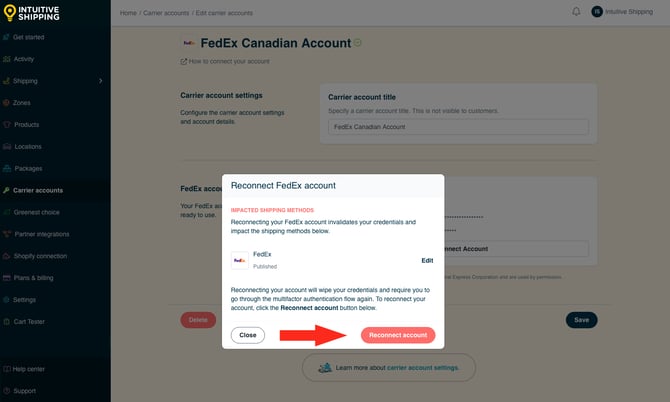
Clicking 'Reconnect account' will invalidate your current child credentials. This action cannot be undone.
Once your current child credentials are invalidated, shipping methods using that FedEx account will no longer be able to calculate rates from FedEx until your account has been reconnected and new child credentials have been assigned.
After clicking the 'Reconnect' button, you'll be returned to the original ‘Connect FedEx to Intuitive Shipping’ page, with your existing account information already populated.
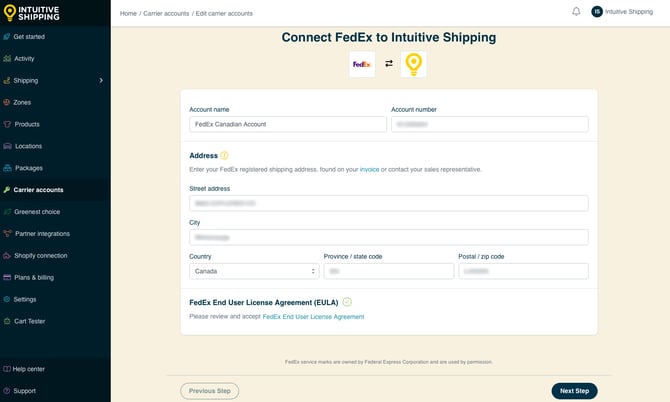
3. Enter your updated account information by completing the account connection steps again.
If you are unable to complete the account information update and need to stop the reconnection process, your FedEx account will remain in a ‘Disconnected’ state until the account update and validation process is completed successfully.
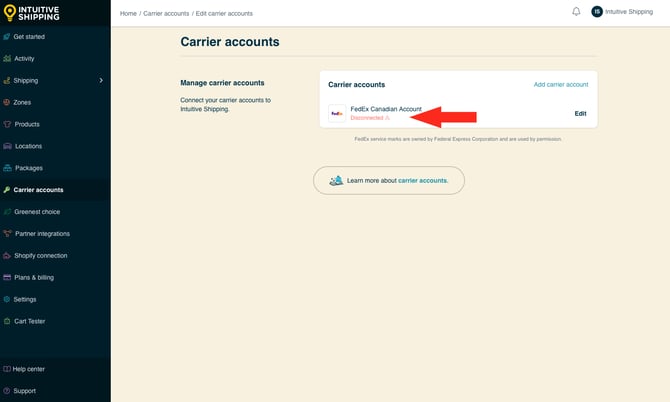
4. After successfully reconnecting your account, if you temporarily set any related shipping methods to ‘Archived’ or ‘Testing’ during the reconnection process, remember to change their statuses back to ‘Published’.
Migrating OAuth Account Credentials to Mult-Factor Authentication
As of June 1, 2026, FedEx is sunsetting its existing OAuth-based and XML-based rating APIs in favor of a more secure and flexible Multi-Factor Authentication (MFA) model. All existing OAuth-based and XML-based shipping methods must be updated to use MFA authentication by this date.
If you previously added FedEx OAuth or legacy XML credentials to Intuitive Shipping and created shipping methods with them, you’ll need to migrate to the new MFA credentials before that deadline.
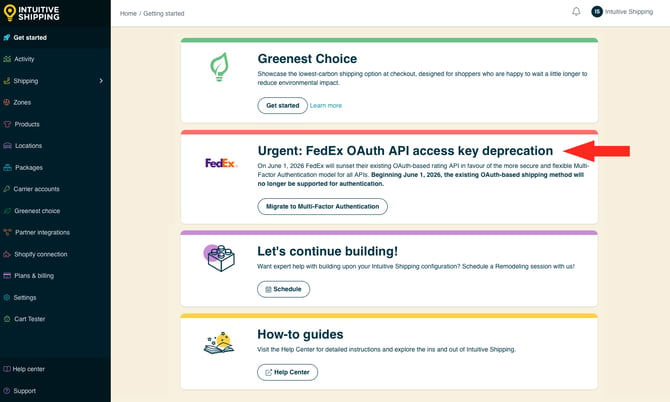
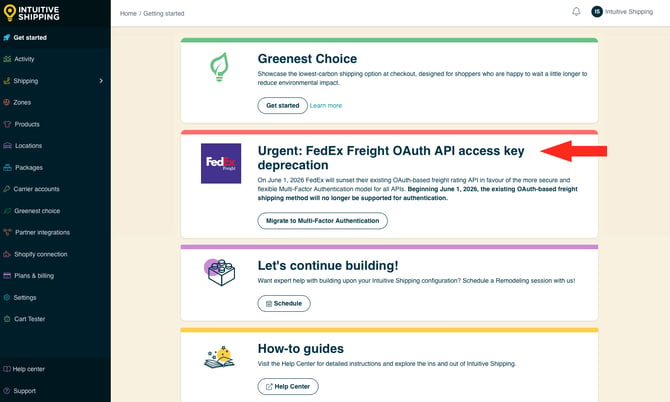
If your current FedEx OAuth credentials were not validated using MFA, you’ll need to update your FedEx parcel service or FedEx Freight LTL shipping methods to the new MFA-based account type. An urgent warning card will appear on the Get started page in Intuitive Shipping if migration is required. If you do not see this card, no migration is needed.
Migrate Your FedEx Account
 A new MFA-validated account type is required and it must be connected to Intuitive Shipping to complete the steps below.
If you have an MFA-validated account type, but it's not currently connected to Intuitive Shipping, you must connect it before proceeding to Step 1.
1. Go to the Get started page.
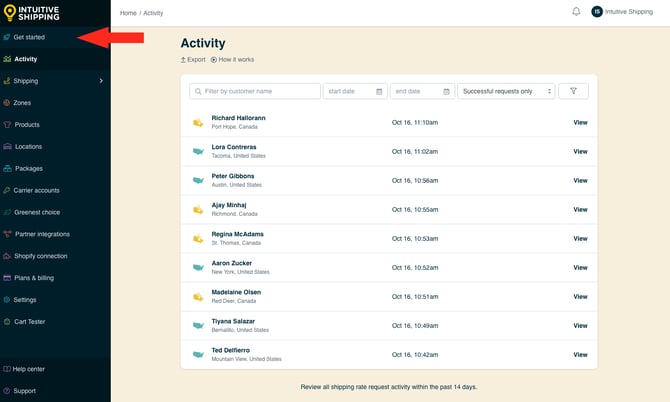
2. Click Migrate to Multi-Factor Authentication on the warning card.
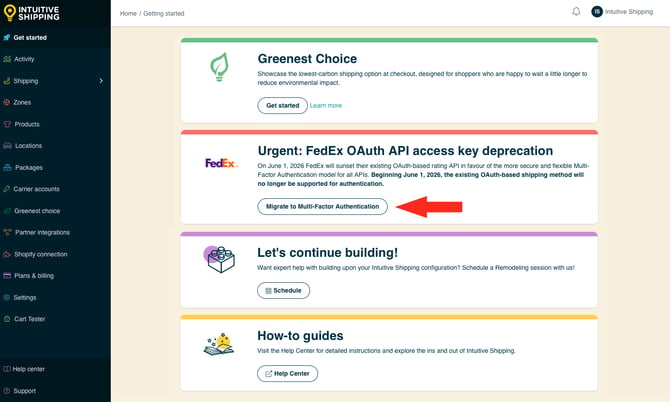
3. Review the migration information, then click the Migrate carrier button.
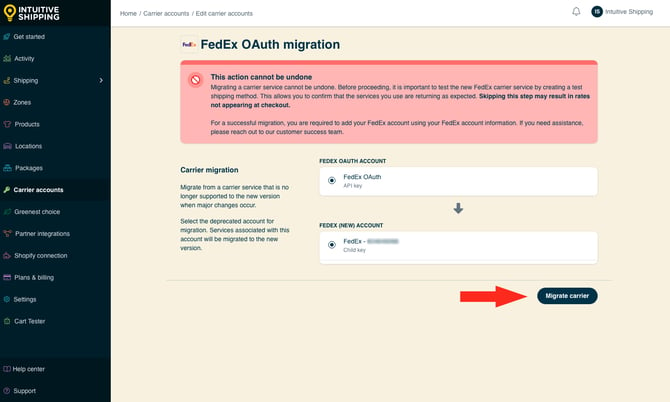
Migration cannot be undone.
A temporary notification confirming migration will appear at the bottom of the screen.
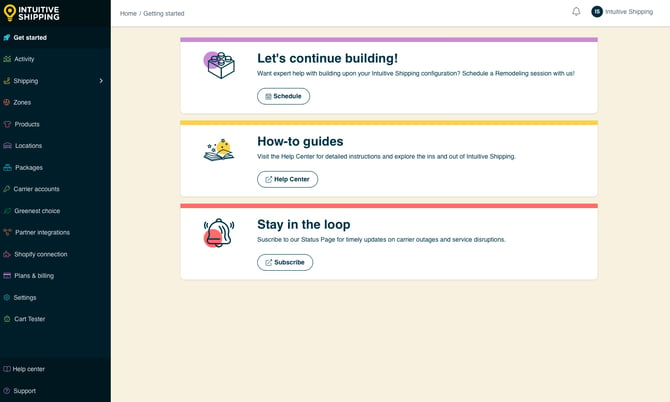
4. Return to the Get started page.
The urgent card no longer appears on the page.
Create A FedEx Account
If you don’t have a FedEx account, you can easily create one following the steps below. Please contact FedEx directly if you have technical issues while creating your account.
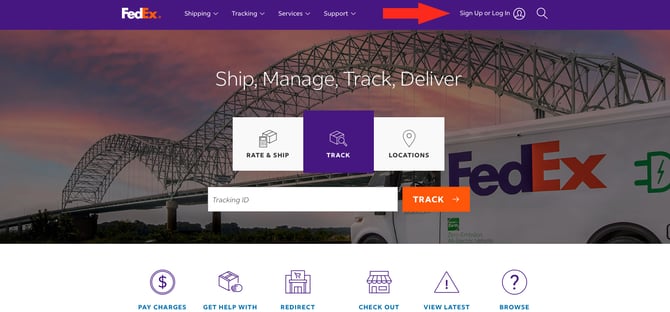
1. In a new browser tab, go to the Fedex website.
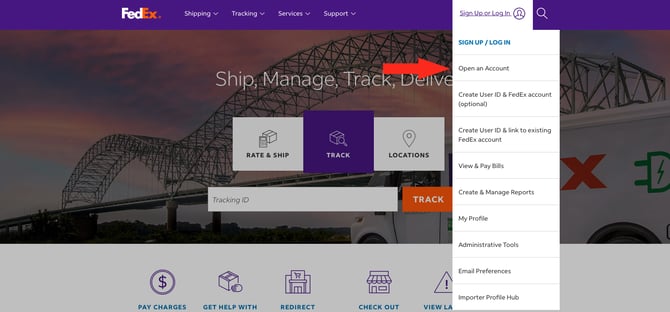
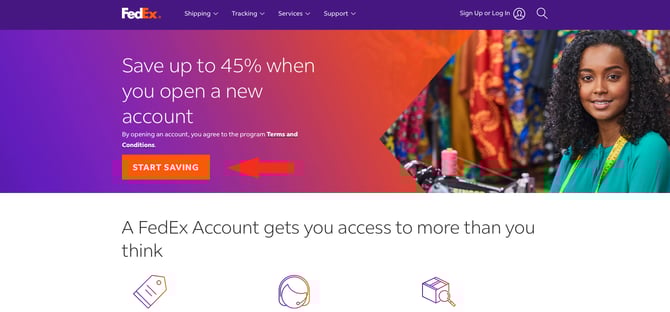
FedEx periodically updates their website. The screenshots below are provided for visual reference and may differ from your experience.
2. Click Sign Up or Log In on the main menu bar.
3. Click Open An Account on the drop-down menu.
4. Click the Open An Account (or Start Saving) button.
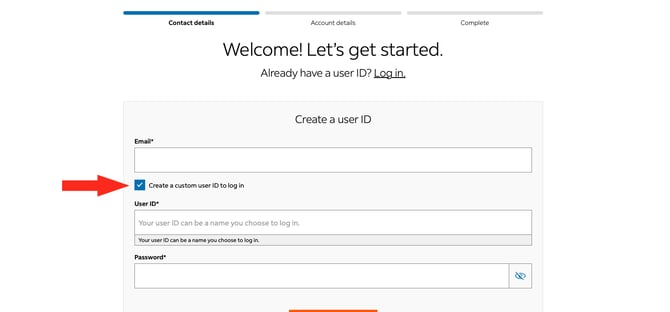
5. Create a User ID for your account by adding an email address, creating a password and clicking the Create Login button.
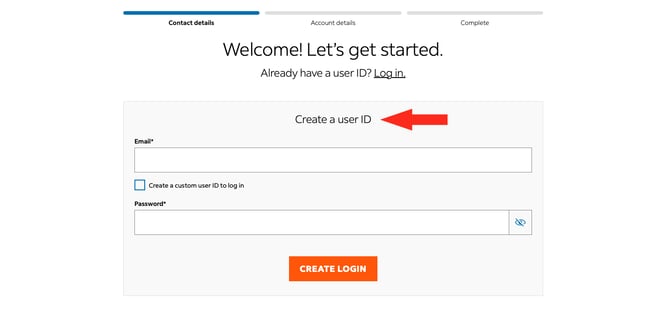
6. FedEx gives you the option you create a custom user ID if you want to apply a unique username to the account other than the email address. If desired, check the box beside Create a custom user ID to log in, then enter your custom user ID in the field below. This is not required to complete your account setup.
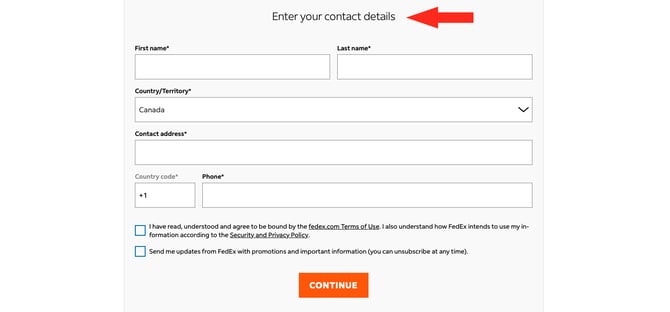
7. Enter your contact details.
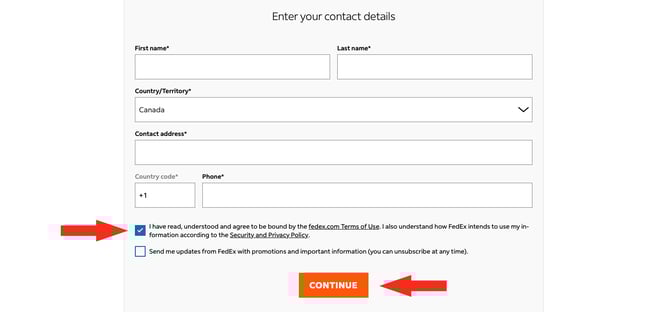
8. Check the box confirming you understand and agree to FedEx’s Terms of Use and Security & Privacy, then click the Continue button.
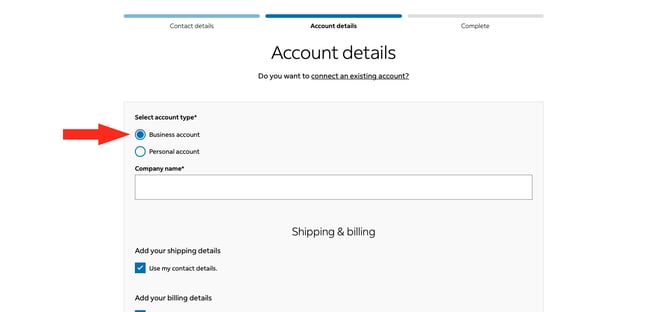
9. Select the business account type, then enter your business name in the field below.
10. Click the Continue button
11. Add your billing information to complete your account setup.
Restrictions
Each carrier has restrictions that may limit your shipping capabilities or prevent you from making certain shipments. Here are some restrictions to be aware of when using FedEx.
- Originating address - Not all FedEx services are available in every country. To see which domestic services are available in your country, visit your regional FedEx website or go here to select your country.
- Restrictions by country - Each country you ship to may have its own trade and import restrictions. Not all FedEx delivery services are available to all countries. Learn more about restrictions for specific countries here.
- Prohibited items - Certain goods, including items considered to be illegal or dangerous, may not be shipped by FedEx under any circumstances. Learn more about restricted items here.
- Controlled items - Items such as tobacco and vaping products, plants and animals, and dangerous goods may be shipped if they meet certain criteria. Other items such as pharmaceuticals may be shipped by FedEx under strict regulations in some areas and prohibited in others. Learn more about restricted items here.
- Packaging restrictions - Some products can only be shipped if they comply with certain packaging standards. Learn more about FedEx packaging requirements or obtain guidance for packaging your items here.
- International restrictions - Customs and international laws may limit what you ship, how you ship it, and how it can be returned to you. You may also require additional information, such as Harmonization codes, documentation and fees to complete your shipment. Learn more about shipping internationally with FedEx here.
- Size & weight restrictions - All packages shipped by FedEx within the US must not exceed a length of 108 inches (9 feet/ 274 cm), a length + girth of 165 inches (13.5 feet/ 419 cm), or a weight of 150 lbs (68 kg). Any package exceeding 75 lbs (34 kg) must have a 'Heavy' sticker applied. Shipments outside of North America may be subject to dimension and weight restrictions of the origin or destination country. Certain delivery services may have size limitations. Packages exceeding 150 lbs may be suitable for FedEx Freight.
FedEx Freight is independent of FedEx and requires a separate account number. Connect your FedEx Freight account and create a freight service shipping method.
For more information about FedEx restrictions, please visit FedEx or contact your local FedEx representative.
Troubleshooting
In certain situations, rates from FedEx may not appear at checkout, or they might not be displayed as expected. You may be able to determine why rates aren’t being displayed correctly by reviewing the rate calculation Activity.
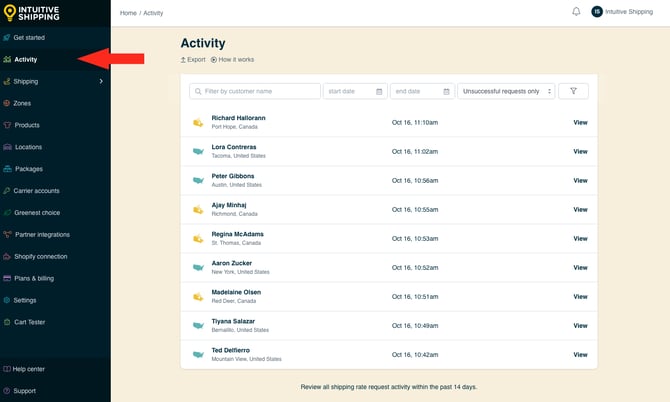
1. Click Activity on the main menu.
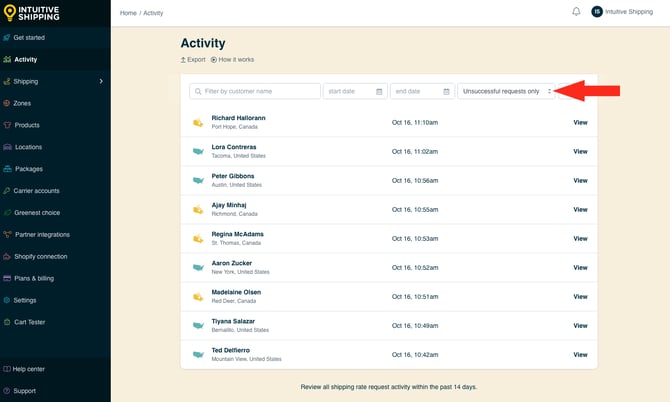
2. Select ‘Unsuccessful requests only‘ from the Filter by request status drop-down list. This will list only Activities where rates were not returned.
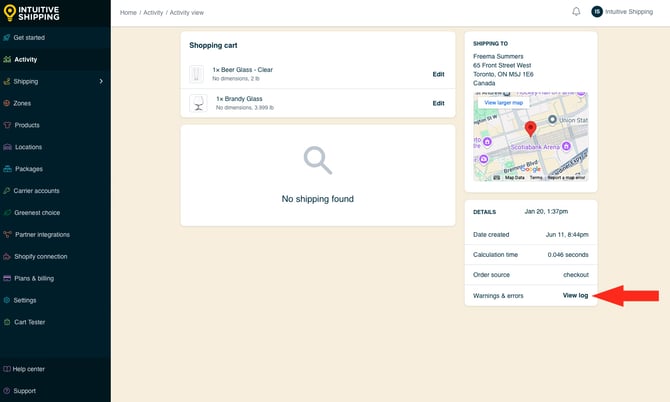
Warnings & errors are not displayed as a result of missing information, such as missing customer address information, or an invalid request, such as Status (visibility) turned off or Shopify Carrier-calculated Rates not enabled.
5. Review the warnings for FedEx delivery services.
Here are some of the most common reasons why carrier rates don't appear at checkout:
Sandbox Mode
While you're in Sandbox mode, rates will only appear at checkout when you use ‘Intuitive’ on the checkout page, even when the Scenario status is set to ‘On’. To make your rates visible to customers, you will need to select a billing plan to activate your free trial.
To test rates in Sandbox mode
- For Shopify - enter ‘Intuitive’ as either the customer’s first or last name at checkout
- For BigCommerce or Shopify B2B - enter ‘Intuitive’ in the optional address field for ‘Apartment/ Suite/ Building’ at checkout.
Scenario Status
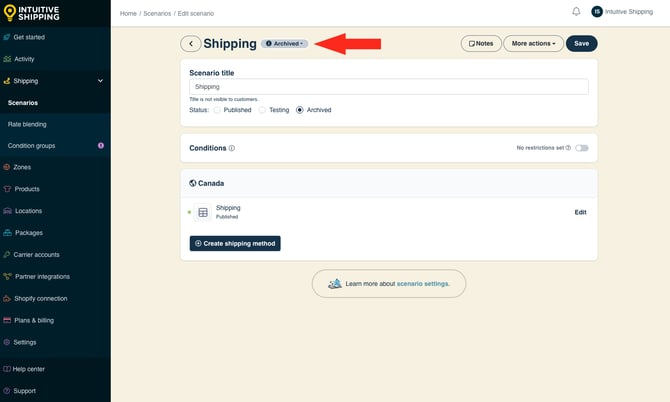
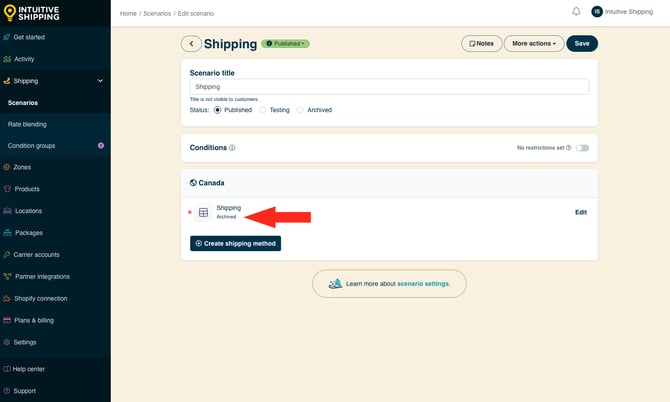
If rates are not appearing with an active billing plan, it may be because the Scenario status is set to 'Archived' (not visible to anyone) or 'Testing' (only visible when using ‘Intuitive’ on the checkout page).
Shipping Method Status
If rates are not appearing with an active billing plan, it may be because the shipping method Status is set to 'Archived' (not visible to anyone) or 'Testing' (only visible when using ‘Intuitive’ on the checkout page).
Carrier-calculated Rates
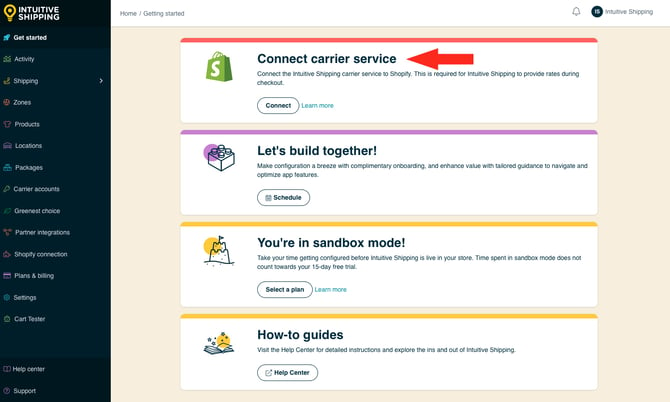
If you're using Shopify, their third-party carrier service feature must be enabled on your Shopify account to use any third-party shipping rate calculator app, including Intuitive Shipping.
Double-check that your account is connected. If it's disconnected, something may have changed in your account, such as your registered shipping address, which is preventing Intuitive Shipping from validating your account credentials.
Packages
Rates may not appear if a suitable package size is uavailable in your parcel service shipping method. If the correct package size is missing or set to 'Off', the next largest package will be used. If the next package size exceeds the carrier's size limits, no rate will be returned.
If a suitable package isn't found, Intuitive Shipping will attempt to create a custom package using the product dimensions. If that custom package also exceeds the carrier limits, no rate will be returned.
To prevent this, make sure the packages in your shipping method are properly set up to fit your products and that they meet the carrier's size requirements.
Delivery Services
Some carrier delivery services may be unavailable due to restrictions such as shipment size, weight, or the customer’s address. If some FedEx rates appear but others do not, or if another carrier returns rates while FedEx does not, the issue is likely related to service limitations.
Check that the selected services are compatible with the shipping address. For example, domestic-only services will not return rates for international addresses.
If some rates were returned and others were not, review the Notifications for any messages related to the carrier.
Product Dimensions & SmartBoxing
If you’re using SmartBoxing, volume-based shipping, products must have dimensions set in Intuitive Shipping (Shopify only). Dimensions are required for SmartBoxing and volume-based packing to pack the order. If any product is missing dimensions, the packing process will fail, no package info will be sent to the carrier, and no rates will be returned. If you're using dimension-based conditions, missing dimensions will cause the Scenario conditions to fail.
Learn more about how to use SmartBoxing.
Syncing
While you’re in Sandbox mode, any product changes must be manually synced with Intuitive Shipping. Once you activate a billing plan, syncing happens automatically. However, if many changes are made in a short period of time, such as adding or editing several products, auto-syncing may not finish completely. If required product details are missing, the calculation will fail and package information cannot be sent to the carrier.
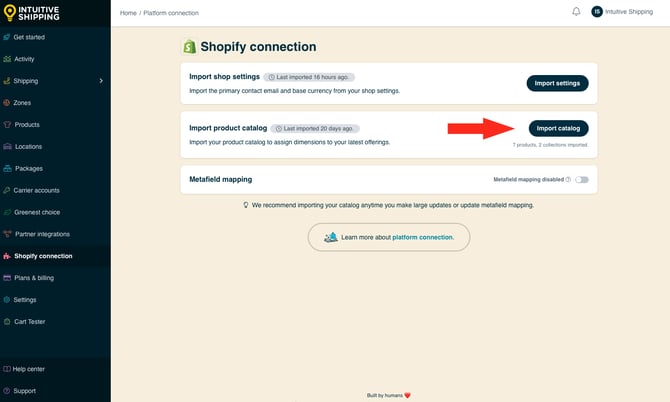
If you’re using the SmartBoxing packing algorithm, be sure all new products have dimensions added in Intuitive Shipping.
Cost Adjustments
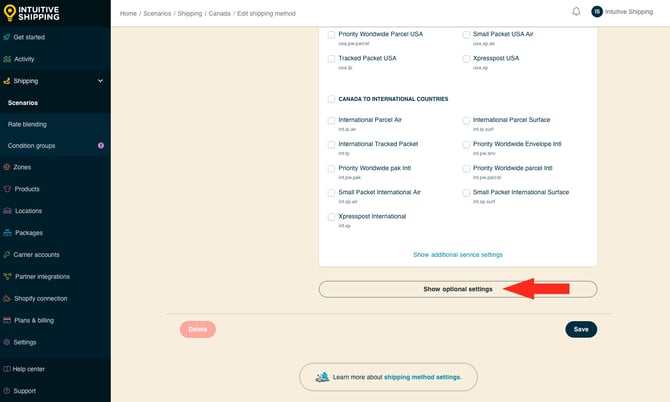
If rates are showing but appear too high or too low, a cost adjustment may have been applied. Check the 'Cost adjustments' section (in Optional Settings) of your parcel service shipping method.
Contact Us
If rates aren't displaying as expected and you are unable to resolve the issue, please contact us. We’re here to help!