
Contents:
Shopify’s Shipping Profiles feature allows you to create custom profiles for products with unique shipping needs, such as fragile items or products that ship from different locations. These custom profiles can be set to combine with, or be excluded from, shipments that include general products.
How It Works
Within each Shopify profile, you can assign one or more Shopify shipping zones, which are specific geographic areas you ship to, such as individual countries or groups of states, provinces, or territories. If you’re using multiple profiles, such as the General Profile plus at least one custom profile, you may end up with the same shipping zones in both. For example, your General profile and a Fragile Products profile might both include shipping zones for ‘USA’ and ‘Canada’.
To ensure Intuitive Shipping calculates rates accurately, we strongly recommend using only one General Profile in your Shopify settings. Intuitive Shipping works best when you keep a single general profile and remove all custom profiles.
When you delete a custom profile, products assigned to it will automatically return to your General profile.
Remove Custom Profiles
To ensure Intuitive Shipping calculates rates properly, we recommend removing all custom profiles and keeping only your default General profile.
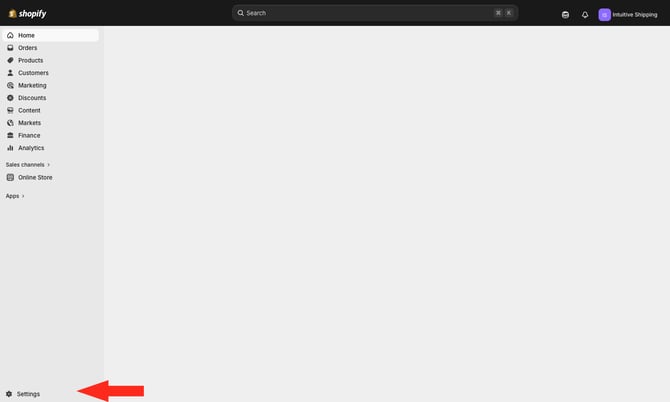
1. Go to your Shopify Admin page, then click Settings at the bottom of the sidebar menu.
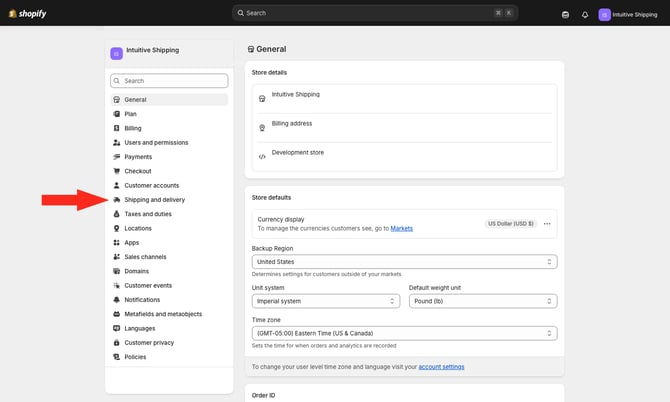
2. Click Shipping and delivery on the Settings menu.
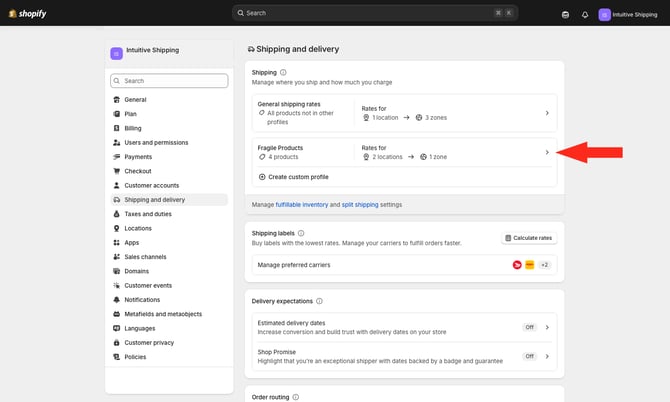
3. In the Shipping and delivery section at the top of the page, click the side-facing arrow next to a custom profile. For this example, we're using a custom profile for 'Fragile products'.
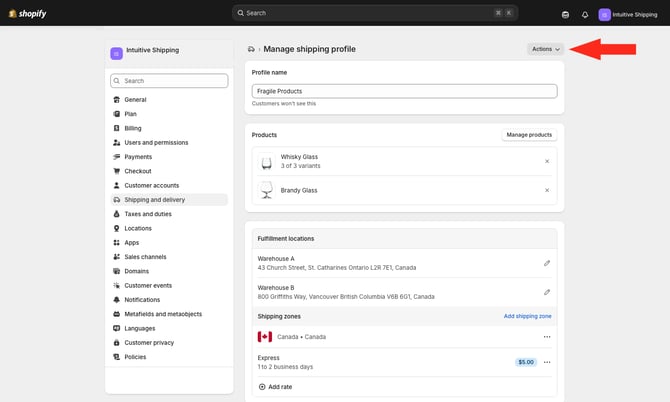
4. Click the Action button at the top right of the page.
5. Click Delete profile, then again when prompted to confirm you wish to delete the profile. All products in the custom profile will be returned to your General profile.
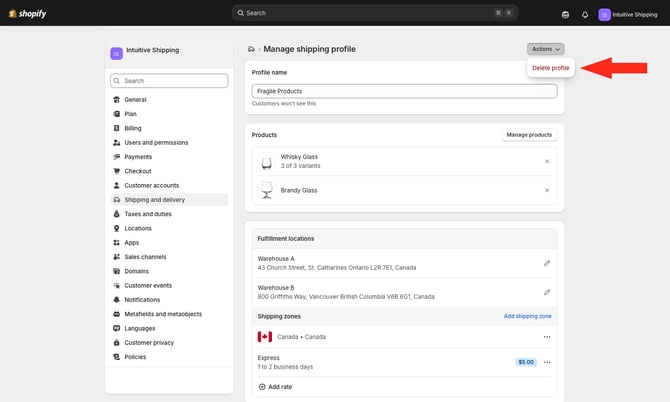
6. Repeat Steps 3 to 5 to remove any additional custom Shopify Shipping profiles.
The Risks of Using Custom Profiles
Shopify automatically adds Intuitive Shipping as a Carrier service to your General profile when you install the app. If you create additional custom profiles, you can choose to add Intuitive Shipping as a carrier service or use other options, such as Shopify’s discounted carrier rates.
If you have multiple profiles, whether you’re using Intuitive Shipping in just one profile or across several, you may encounter rate calculation errors.
Intuitive Shipping In One Profile
When Intuitive Shipping is set up as a carrier service in only one of your profiles, and a customer places an order that includes products from multiple profiles, Intuitive Shipping will only calculate rates for the products in the profile it is connected to.
For example, let’s say you have three profiles:
-
General
-
Clothing
-
Fragile
If Intuitive Shipping is set up as the rate provider only in the General profile, it will calculate shipping rates for products in that profile only. Even if a customer adds products from the Clothing or Fragile profiles in the same order, Intuitive Shipping will not see them.
This can lead to issues with rules that depend on the full order total. For instance, you might offer conditional free shipping for orders over $75.00. If a customer buys a $60.00 item from the General profile and a $20.00 item from the Clothing profile, the total order is $80.00, which should entitle the customer to free shipping. However, because Intuitive Shipping only sees $60.00 from the General profile, free shipping isn't applied.
While adding Intuitive Shipping as a rate provider to the other profiles would allow the system to calculate rates for those products, doing so introduces a different issue.
Intuitive Shipping In Multiple Profiles
When you assign Intuitive Shipping to all three profiles, shipping rates may be duplicated or multiplied depending on the customer’s order. If you’re using free shipping thresholds in any of your shipping methods, this setup can also result in only partial free shipping.
Let’s use the same example. You have three Shopify profiles: General, Clothing, and Fragile. Intuitive Shipping is set up as a rate provider in all three profiles.
In Intuitive Shipping, you’ve created a single Scenario with no conditions and a flat rate of $15.00. You’ve also set a free shipping threshold of $75.00 in the shipping method. If a customer orders a $60.00 product from your General profile and a $20.00 product from your Clothing profile, they won’t qualify for free shipping. This happens because Intuitive Shipping receives separate sub-carts from Shopify for each profile. Each sub-cart is evaluated independently. Since neither one meets the $75.00 threshold, each is charged $15.00. Shopify then blends the two rates, and the customer is charged $30.00 at checkout.
In this case, not only does the customer miss out on free shipping, they also end up paying double the standard shipping rate.
Even if the customer increases their order - for example, two $60.00 products from the General profile (totaling $120.00) and one $20.00 product from the Clothing profile - they will still be charged $15.00 for shipping. That’s because only the General sub-cart meets the free shipping threshold. To receive free shipping on the entire order, the customer would need to purchase at least $75.00 worth of products from each profile.
Scenarios Instead of Profiles
Because of the way Shopify shipping profiles are structured, the only way to avoid calculation errors is to remove your custom profiles altogether.
That’s okay! Shipping profiles were designed to give Shopify merchants more flexibility and customization with shipping rates. Fortunately, Intuitive Shipping is powerful and flexible enough to do everything Profiles were meant to handle - and much more! - using Scenarios.
Scenarios in Intuitive Shipping work similarly to Profiles but offer much greater control and customization. You can create product-based rates that blend together when a customer orders multiple product types, or you can build a dominant Scenario that overrides others when certain products are in the cart. You can even use Scenarios to set up tiered shipping costs based on a wide range of cart conditions.

Learn more about Scenarios.
Learn more: