---
title: How To Adjust The Final Shipping Cost
description: How To Adjust The Final Shipping Cost
---
[Skip to content](https://knowledge.intuitiveshipping.com/how-to-adjust-the-final-shipping-cost#main-content)
[](https://knowledge.intuitiveshipping.com?hsLang=en)
- [FAQ](https://knowledge.intuitiveshipping.com/faq-page)
- [Main Site](https://intuitiveshipping.com/)
Open main navigation
Close main navigation
- [FAQ](https://knowledge.intuitiveshipping.com/faq-page)
- [Main Site](https://intuitiveshipping.com/)
- [Contact us](https://knowledge.intuitiveshipping.com/contact)
[Contact us](https://knowledge.intuitiveshipping.com/contact?hsLang=en)
How can we help?
- There are no suggestions because the search field is empty.
1. [Intuitive Shipping Help Center](https://knowledge.intuitiveshipping.com/?hsLang=en)
2. [How-To](https://knowledge.intuitiveshipping.com/how-to?hsLang=en)
# How To Adjust The Final Shipping Cost
## Control the final shipping price at checkout with shipping method cost adjustments and package cost settings.
**Contents:**
- [How It Works](https://knowledge.intuitiveshipping.com/how-to-adjust-the-final-shipping-cost#how-it-works)
- [Shipping Method Cost Adjustments](https://knowledge.intuitiveshipping.com/how-to-adjust-the-final-shipping-cost#shipping-method-cost-adjustments)
- [Custom Shipping Cost Adjustments](https://knowledge.intuitiveshipping.com/how-to-adjust-the-final-shipping-cost#custom-shipping-cost-adjustments)
- [Package Costs](https://knowledge.intuitiveshipping.com/how-to-adjust-the-final-shipping-cost#package-costs)
Do you want customers to pay a minimum amount for shipping? Looking to offer a promotional credit on carrier rates? Need to add a handling fee to cover warehouse costs or include packaging expenses in your shipping rates? Intuitive Shipping lets you adjust the final shipping cost so that customers pay the right price.
### How It Works
Regardless of how shipping costs are calculated - whether you use carrier rates, flat rates, or local delivery - you can fine-tune the final amount to offer promotional discounts, add markups, recover handling and material costs, set minimum or maximum charges, or simply round the total to create a cleaner checkout experience.
Cost adjustments can be applied in several places. Most commonly, they're set at the shipping method level. For [products with custom shipping costs](https://knowledge.intuitiveshipping.com/update-product-settings#custom-shipping), those amounts can be further adjusted when they're combined with standard shipping fees. If you want to include packing costs, each package can be assigned a cost that is automatically rolled into the final shipping total.
### Shipping Method Cost Adjustments
In this section, we will walk through adjusting the final shipping cost using shipping methods. For details on modifying product-based shipping prices, see [Custom Shipping Cost Adjustments](https://knowledge.intuitiveshipping.com/how-to-adjust-the-final-shipping-cost#custom-shipping-cost-adjustments). To include packaging expenses in your rates, jump ahead to [Package Costs](https://knowledge.intuitiveshipping.com/how-to-adjust-the-final-shipping-cost#package-costs).
All paid shipping methods - including [parcel service](https://knowledge.intuitiveshipping.com/create-a-parcel-service-shipping-method?hsLang=en), [custom service](https://knowledge.intuitiveshipping.com/create-a-custom-service-shipping-method?hsLang=en), [integrated service](https://knowledge.intuitiveshipping.com/create-an-integrated-service-shipping-method?hsLang=en), and [local delivery](https://knowledge.intuitiveshipping.com/create-a-local-delivery-shipping-method?hsLang=en), offer **optional cost adjustment settings**. These settings allow you to:
- Add or subtract a flat amount.
- Add or subtract a % of either the shipping cost or cart total.
- Multiple or divide by a factor of 'x'.
- Set a minimum or maximum cost limit.
Cost adjustment settings are not available for free shipping methods or advanced service shipping methods, such as 'no shipping' or custom formulas.
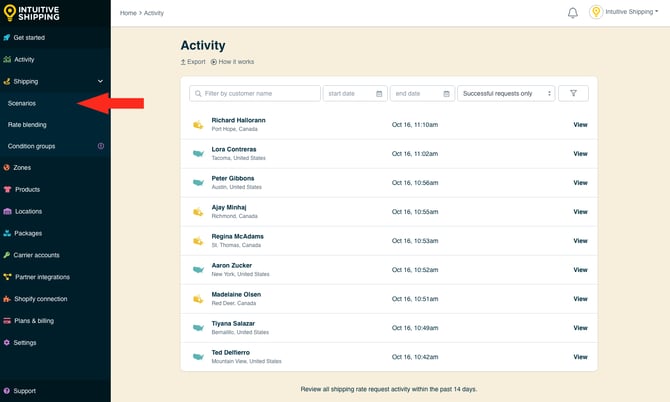
**1.** Click **Shipping** on the sidebar menu, they select **Scenarios** from the drop-down list.
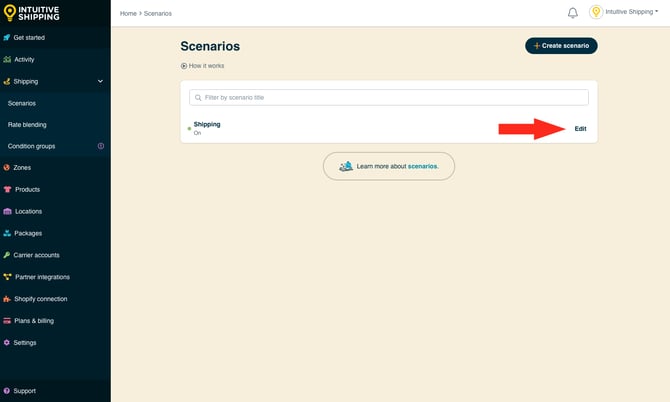
**2.** Click **Edit** beside an existing Scenario with a shipping method you want to apply cost adjustments to.

Learn more about [Scenarios](https://knowledge.intuitiveshipping.com/create-a-scenario?hsLang=en).
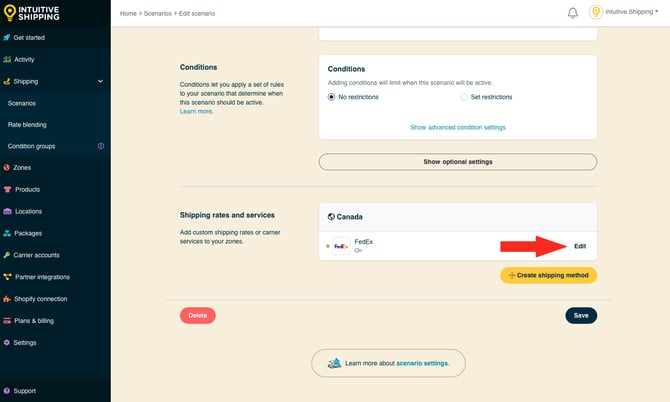
**3.** Scroll down to **Shipping rates and services** at the bottom of the Scenario page, then click **Edit** next to any shipping method that calculates paid shipping. For this example, we're adjusting a FedEx parcel service method. These steps also apply to custom service methods for flat rates or rate tables, integrated service methods for subscription services like ShipStation or Starshipit, local delivery methods for distance-based rates, and freight service methods for FedEx LTL.
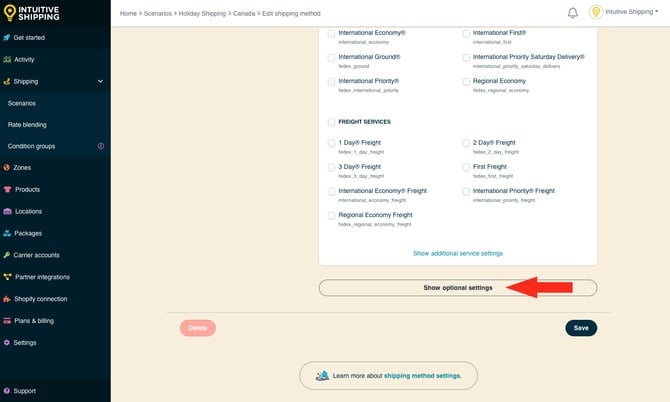
**4.** Scroll to the bottom of the shipping method, then click **Show optional settings**.
#### Cost Adjustments
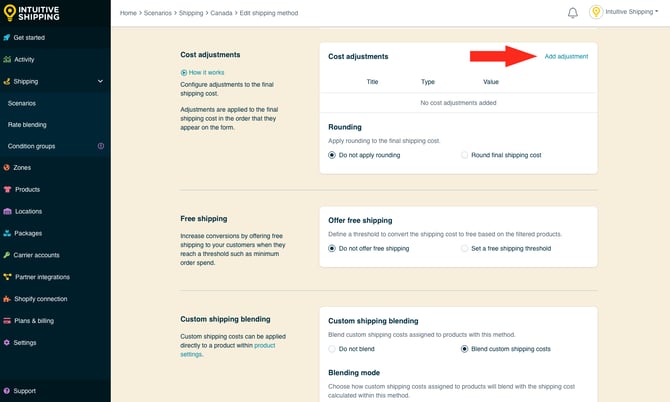
**1.** Scroll down to the **Cost adjustments** section, then click **Add adjustment**.
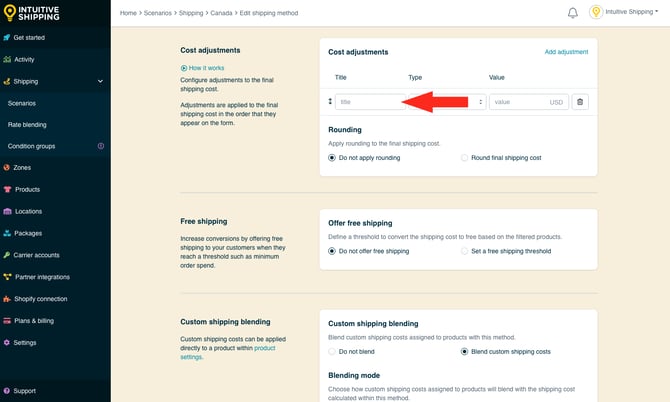
**2.** Enter a **title** for the first cost adjustment, such as 'Markup', 'Discount' or 'Handling Fee'.
**3.** Select a **method** for the first cost adjustment.
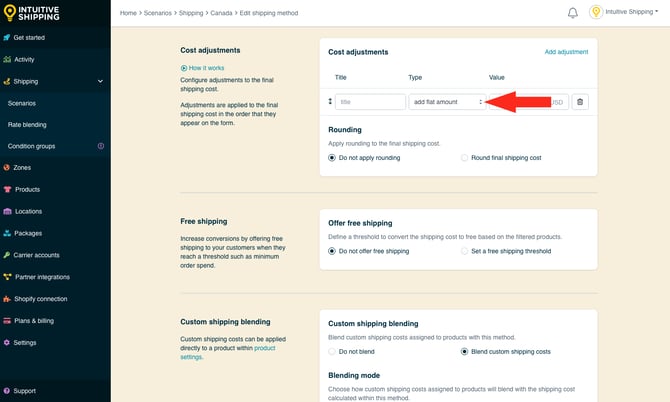
You have ten (10) settings to choose from:
- **add flat amount** - calculated shipping costs will increase by the amount entered in Step 4. For example, if the calculated cost is $28.50 and the flat amount in Step 4 is $3.00, the adjusted cost will be $31.50.
- 28.50 + 3.00 = 31.50
- **add % of shipping cost** - calculated shipping costs will increase by the percentage entered in Step 4, which is determined by the shipping cost. For example, if the calculated cost is $28.50 and the percentage in Step 4 is 5%, the adjusted cost will be $29.93.
- 28.50 x 5% = 1.43
- 28.50 + 1.43 = 29.93
- **add % of cart value** - calculated shipping costs will increase by the percentage entered in Step 4, which is determined by the cart value. For example, if the cart value is $150.00, the calculated cost is $28.50 and the percentage in Step 4 is 10%, the adjusted cost will be $43.50.
- 150.00 x 10% = 15.00
- 28.50 + 15.00 = 43.50
- **subtract flat amount** - calculated shipping costs will decrease by the amount entered in Step 4. For example, if the calculated cost is $28.50 and the flat amount in Step 4 is $3.00, the adjusted cost will be $25.50.
- 28.50 - 3.00 = 25.50
- **subtract % of shipping cost** - calculated shipping costs will decrease by the percentage entered in Step 4, which is determined by the shipping cost. For example, if the calculated cost is $28.50 and the percentage in Step 4 is 5%, the adjusted cost will be $27.07
- 28.50 x 5% = 1.43
- 28.50 - 1.43 = 27.07
- **subtract % of cart value** - calculated shipping costs will decrease by the percentage entered in Step 4, which is determined by the cart value. For example, if the cart value is $150.00, the calculated cost is $28.50 and the percentage in Step 4 is 10%, the adjusted cost will be $13.50.
- 150.00 x 10% = 15.00
- 28.50 - 15.00 = 13.50
- **multiply by** - calculated shipping costs will be multiplied by the value entered in Step 4. For example, if the calculated cost is $28.50 and value in Step 4 is '1.5', the adjusted cost will be $42.75.
- 28.50 x 1.5 = 42.75
- **divide by** - calculated shipping costs will be divided by the value entered in Step 4. For example, if the calculated cost is $28.50 and value in Step 4 is '2', the adjusted cost will be $14.25.
- 28.50 ÷ 2 = 14.25
- **set minimum cost** - calculated shipping costs will be adjusted up to the value entered in Step 4 if the returned cost is lower. For example, if the calculated cost is $8.95 and the minimum cost is $10.00, the adjusted cost will be $10.00.
- **set maximum cost** - calculated shipping costs will be adjusted down to the value entered in Step 4 if the returned cost is higher. For example, if the calculated cost is $118.95 and the maximum cost is $100.00, the adjusted cost will be $100.00.
**4.** Enter a **value** for the first cost adjustment as a whole number or decimal. The value type (currency or percentage) will be based on the adjustment method selected in Step 3.
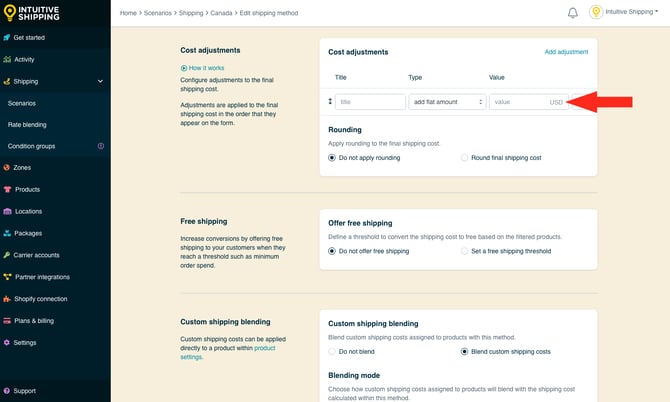
Currency and '%' symbols are not required and will result in errors when saving the shipping method.
#### Additional Cost Adjustments
You can add multiple cost adjustments by clicking 'Add adjustment' again. Adjustments are applied in the order they appear in the list.
For example, let’s say you have the following adjustments:
- **Markup** - ‘add % of shipping cost’ - 5%
- **Handling** - ‘add % of cart value’ - 2%
- **Promo Discount** - ‘divide by’ - 2
- **Minimum Cost** - ‘set minimum cost’ - 18.00
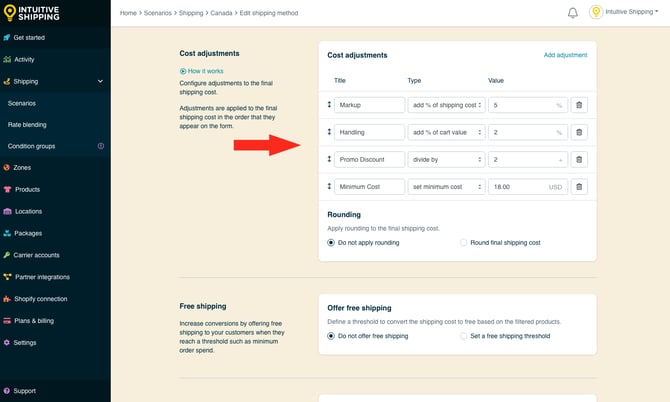
If the cart value is $150.00 and the calculated cost is $28.50, here’s how the adjustments would be applied:
1. **Markup**:
28.50 × 5% = 1.43
28.50 + 1.43 = 29.93
2. **Handling**:
150.00 × 2% = 3.00
29.93 + 3.00 = 32.93
3. **Promo Discount**:
32.93 ÷ 2 = 16.47
4. **Minimum Cost**:
16.47 is below the $18.00 minimum, so the final cost is set to $18.00
If the adjusted cost after the discount had been higher - say, $21.75 - the 'MinimumCost' adjustment would be skipped.
Adjusted costs cannot be a negative number. If the final adjusted cost results in a negative amount, the cost will be adjusted to 0.00 (zero).
For example, let's say you have a cost adjustment like this:
- 'Discount' - 'subtract flat amount' - 10.00
If the calculated shipping cost is $8.95, the final cost would be adjusted to $0.00 because the *true* adjusted value (-$1.05) cannot be displayed at checkout.
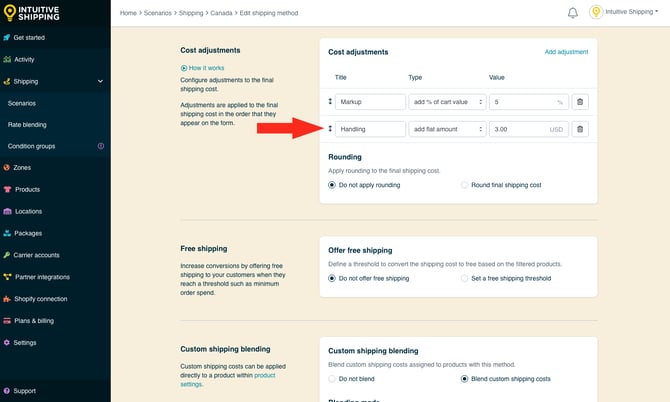
Costs adjustments can be rearranged by dragging and dropping them in your preferred order of operations. To move a cost adjustment, hover over the **up/down arrow** to the left of the adjustment row, then click and drag to move it up or down the list.
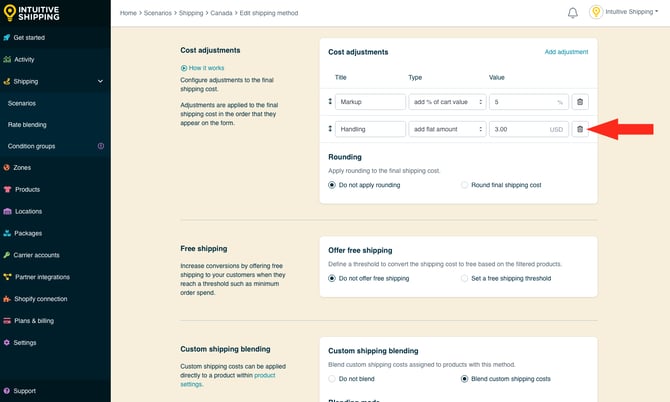
Click the **trash can** symbol to the right of the adjustment row to remove a cost adjustment.
#### Rounding
Rounding can be applied to the final shipping cost, even if no other cost adjustments are used. For example, if the final calculated shipping cost is $28.50 with no other adjustments, the amount can still be rounded up or down.
**1.** Select a **rounding** setting.
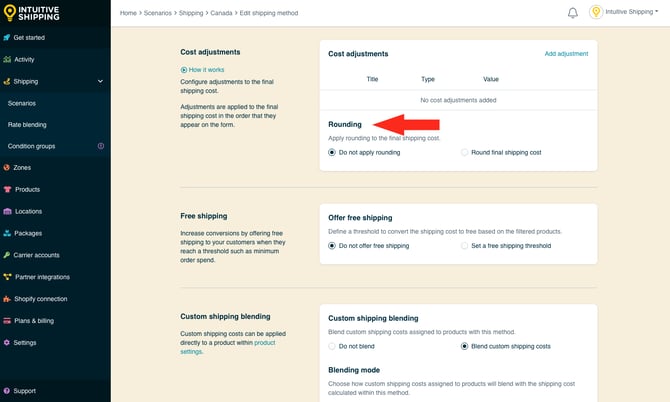
You have two (2) settings to choose from:
- **Do not apply rounding** - the final shipping cost, after any other cost adjustments, will be displayed exactly as calculated. This is the default setting.
- **Round final shipping cost** – the final shipping cost, after any other cost adjustments, will be rounded up or down, depending on the settings selected in the following two steps.
**2.** Choose the rounding **direction**.
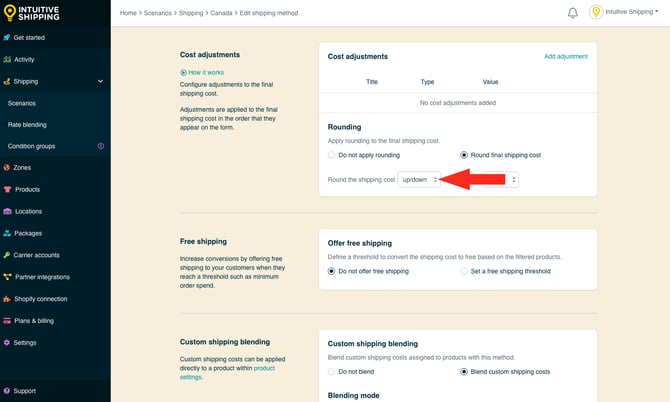
You have three (3) settings to choose from:
- **Up/down** - the final shipping cost will be rounded up or down to the nearest increment selected in the next step, whichever is closer.
- **Up** - the final shipping cost will always be rounded up to nearest the increment selected in the next step.
- **Down** - the final shipping cost will always be rounded down to the nearest increment selected in the next step.
**3.** Choose the increment **amount** to round the shipping cost.
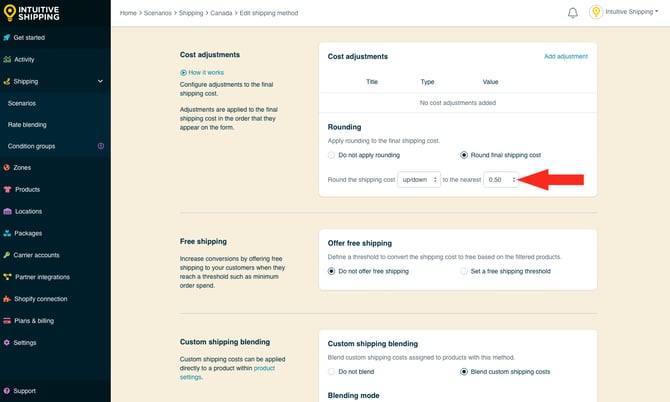
You have four (4) settings to choose from:
- **0.50** - the final shipping cost will be rounded up or down to the nearest 0.50 of your base currency. If the final shipping cost is $18.80, the cost will be rounded down to $18.50 or up to $19.00, depending on the setting selected in the previous step.
- **1.00** - the final shipping cost will be rounded up or down to the nearest 1.00 of your base currency. If the final shipping cost is $23.20, the cost will be rounded down to $23.00 or up to $24.00, depending on the setting selected in the previous step.
- **5.00** - the final shipping cost will be rounded up or down to the nearest 5.00 of your base currency. If the final shipping cost is $33.00, the cost will be rounded down to $30.00 or up to $35.00, depending on the setting selected in the previous step.
- **10.00** - the final shipping cost will be rounded up or down to the nearest 10.00 of your base currency. If the final shipping cost is $22.38, the cost will be rounded down to $20.00 or up to $30.00, depending on the setting selected in the previous step.
#### Save Your Settings
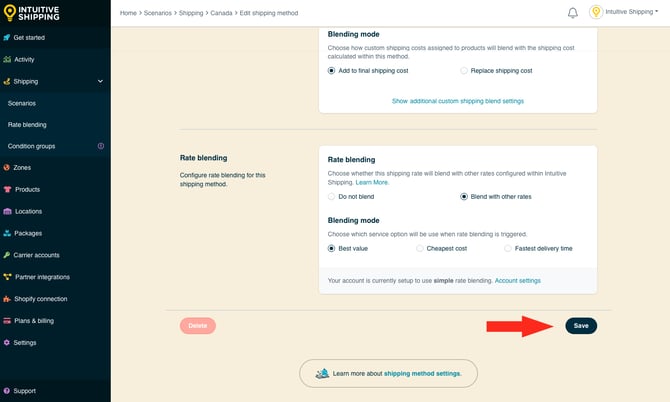
**1.** Click the **Save** button to apply the cost adjustments to your shipping method.
### Custom Shipping Cost Adjustments
If you have products with **custom shipping costs**, Intuitive Shipping can blend those product-specific rates with the rates calculated by the shipping method.

Learn how to set up custom shipping costs in [product shipping settings](https://knowledge.intuitiveshipping.com/update-product-settings?hsLang=en#custom-shipping).
For example, if a customer’s cart includes a product with a $100.00 custom shipping cost - meaning it always costs $100.00 to ship that product - and the shipping method calculates $25.00 to ship the other items in the cart, the customer will be charged a total of $125.00 at checkout
Learn more about [blending custom shipping costs with rates from shipping methods](https://knowledge.intuitiveshipping.com/create-a-parcel-service-shipping-method#custom-shipping-blending).
If you don't have products with custom shipping costs, skip ahead to [Package Costs](https://knowledge.intuitiveshipping.com/how-to-adjust-the-final-shipping-cost#package-costs).
**1.** Click **Shipping** on the sidebar menu, they select **Scenarios** from the drop-down list.

**2.** Click **Edit** beside an existing Scenario with a shipping method you want to apply cost adjustments to.


Learn more about [Scenarios](https://knowledge.intuitiveshipping.com/create-a-scenario?hsLang=en).
**3.** Scroll down to **Shipping rates and services** at the bottom of the Scenario page, then click **Edit** next to any shipping method that calculates paid shipping. For this example, we're adjusting a FedEx parcel service method. These steps also apply to custom service methods for flat rates or rate tables, integrated service methods for subscription services like ShipStation or Starshipit, local delivery methods for distance-based rates, and freight service methods for FedEx LTL.

**4.** Scroll to the bottom of the shipping method, then click **Show optional settings**.

#### Additional Custom Shipping Blending Settings
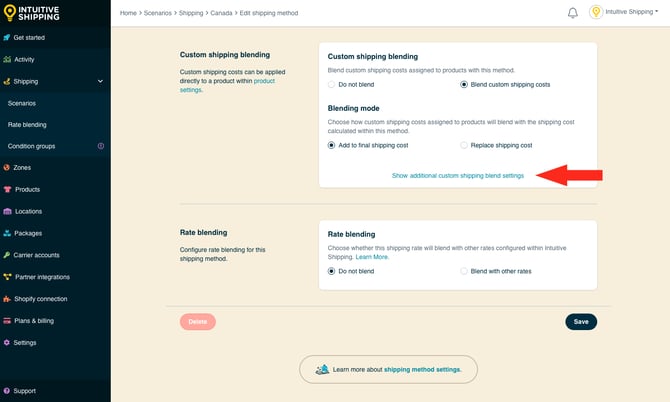
Additional custom shipping blending settings can be found in the **Custom shipping blending** section, and are available for **filtering**, **mark ups** and **discounts**.
- **Filtering** lets you decide if you want products with custom shipping costs included in or excluded from the rate calculation.
- **Mark ups** give you the option to increase the amount of the custom shipping costs before they're blended with the shipping method.
- **Discounts** give you the option to reduce the amount of custom shipping costs before they're blended with the the shipping method.
For this example, we're focusing strictly on the cost adjustments (mark ups and discounts).
Learn more about filtering while [blending custom shipping costs with rates from shipping methods](https://knowledge.intuitiveshipping.com/create-a-parcel-service-shipping-method#custom-shipping-blending).
**1.** Click **Show additional custom shipping blend settings**.
**2.** Add a **mark up** to the custom shipping costs.
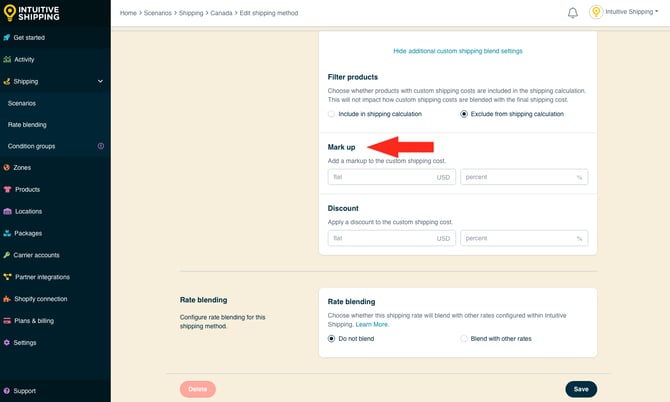
You have two (2) settings to choose from:
- **Flat** - the amount entered enter here will be added to the combined custom shipping costs when those products are included in the order. The adjusted total will be blended with the shipping method, based on the *Blending mode* selected in the main Custom Shipping Blending settings.
- **Percentage** - the percentage entered enter here will be applied to, then added to the combined custom shipping costs when those products are included in the order. The adjusted total will be blended with the shipping method, based on the *Blending mode* you selected.
For example, let's say a customer orders various products, including two products that have custom shipping costs of $50.00 and $30.00 respectively.
If the amount entered in '**Flat**' is $10.00, the combined custom shipping cost becomes $90.00.
- $50.00 + $30.00 = $80.00 (the combined custom shipping costs)
- $80.00 + $10.00 = $90.00 (the combined custom costs *plus* the flat mark-up)
The total custom shipping cost of $90.00 will be blended with the rate calculated by the shipping method. If that rate is $42.50, the customer will be charged $132.50 for shipping at checkout.
If the amount entered in '**Percentage**' is 10%, the combined custom shipping cost becomes $88.00.
- $50.00 + $30.00 = $80.00 (the combined custom shipping costs)
- $8.00 (10% of the combined custom costs)
- $80.00 + $8.00 = $88.00 (the combined custom costs *plus* the % mark-up)
The total custom shipping cost of $88.00 is blended with the rate calculated by the shipping method. If that rate is $42.50, the customer will charged $130.50 for shipping at checkout.
Both aflat amount and percentage amount can be applied to the same shipping method. The flat amount is added first, followed by the percentage amount.
Let's say the flat amount is $10.00 and the percentage is 5%, here's how the adjustment works:
- $50.00 + $30.00 = $80.00 (the combined custom shipping costs)
- $80.00 + $10.00 = $90.00 (the combined custom costs *plus* the flat mark-up)
- $4.50 (5% of $90.00)
- $90.00 + $4.50 = $94.50 (the adjusted combined custom cost plus the % mark-up)
The total custom shipping cost of $94.50 will be blended with the rate calculated by the shipping method. If the calculated rate is $42.50, the customer will be charged $137.00 for shipping at checkout
**4.** Add a **discount** to the custom shipping costs.
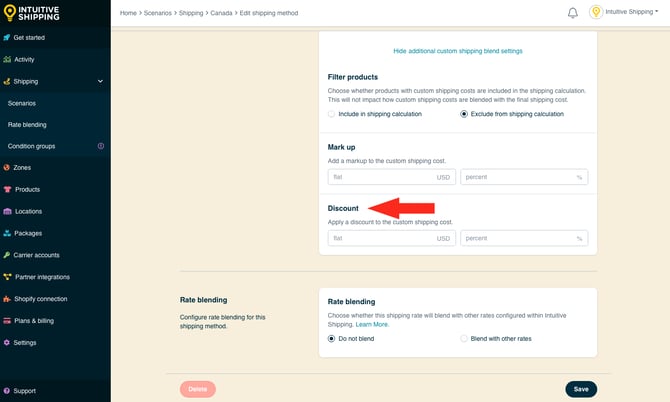
You have two (2) settings to choose from:
- **Flat** - the amount entered enter here will be subtracted from the combined custom shipping costs when those products are included in the order. The adjusted total will be blended with the shipping method, based on the *Blending mode* selected in the main Custom Shipping blending settings.
- **Percentage** - the percentage entered enter here will be applied to, then subtracted from the combined custom shipping costs when those products are included in the order. The adjusted total will be blended with the shipping method, based on the *Blending mode* you selected.
Using a similar example to the one used for 'mark up', let's say a customer orders various products, including two products that have custom shipping costs of $50.00 and $30.00 respectively.
If the amount entered in '**Flat**' is $10.00, the combined custom shipping cost becomes $70.00.
- $50.00 + $30.00 = $80.00 (the combined custom shipping costs)
- $80.00 - $10.00 = $70.00 (the combined custom costs *less* the flat discount)
The total custom shipping cost of $70.00 will be blended with the rate calculated by the shipping method. If that rate is $42.50, the customer will be charged $112.50 for shipping at checkout.
If the amount entered in '**Percentage**' is 10%, the combined custom shipping cost becomes $72.00.
- $50.00 + $30.00 = $80.00 (the combined custom shipping costs)
- $8.00 (10% of the combined custom costs)
- $80.00 - $8.00 = $72.00 (the combined custom costs *less* the % discount)
The total custom shipping cost of $72.00 is blended with the rate calculated by the shipping method. If that rate is $42.50, the customer will charged $114.50 for shipping at checkout.
Both a flat amount and percentage amount can be applied to the same shipping method. The flat amount is subtracted first, followed by the percentage amount.
Let's say the flat amount is $10.00 and the percentage is 5%, here's how the adjustment works:
- $50.00 + $30.00 = $80.00 (the combined custom shipping costs)
- $80.00 - $10.00 = $70.00 (the combined custom costs *less* the flat discount)
- $3.50 (5% of $70.00)
- $70.00 - $3.50 = $66.50 (the adjusted combined custom cost less the % mark-up)
The total custom shipping cost of $66.50 will be blended with the rate calculated by the shipping method. If the calculated rate is $42.50, the customer will be charged $109.00 for shipping at checkout.
#### Save Your Settings
**1.** Click the **Save** button to apply the custom shipping cost adjustments to your shipping method.

### Package Costs
Intuitive Shipping lets you roll package costs directly into the final shipping total, removing the need to add those markups to each shipping method individually. When a package is assigned to a shipping method and used in a calculation, the package cost is automatically included in the final shipping rate.
Packages can be added to Intuitive Shipping and used with [parcel service](https://knowledge.intuitiveshipping.com/create-a-parcel-service-shipping-method?hsLang=en), [freight service](https://knowledge.intuitiveshipping.com/create-an-integrated-service-shipping-method-0?hsLang=en), or [integrated service](https://knowledge.intuitiveshipping.com/create-an-integrated-service-shipping-method?hsLang=en) shipping methods. If you have not added packages yet, follow the full package setup guide, which includes steps for assigning package costs.

Learn more about [adding packages](https://knowledge.intuitiveshipping.com/add-a-package?hsLang=en).
If you use [custom service](https://knowledge.intuitiveshipping.com/create-a-custom-service-shipping-method?hsLang=en) shipping methods for flat rates, rate tables, or free shipping, packages do not apply. In these cases, you can use [cost adjustments](https://knowledge.intuitiveshipping.com/how-to-adjust-the-final-shipping-cost#shipping-method-cost-adjustments) within the shipping method to account for packaging expenses.
Package costs are added to the final shipping total and are not shown as separate line items.
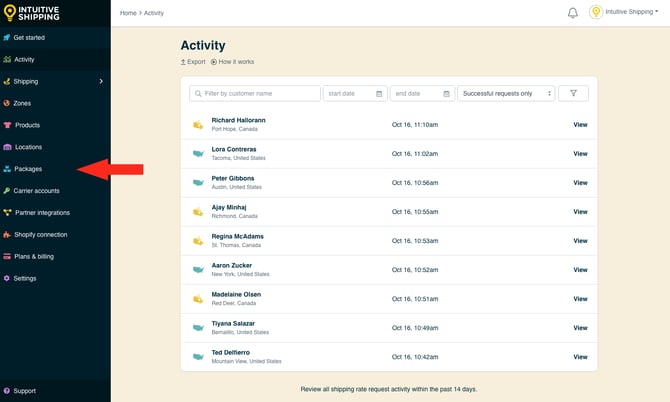
**1.** Click **Packages** on the sidebar menu.
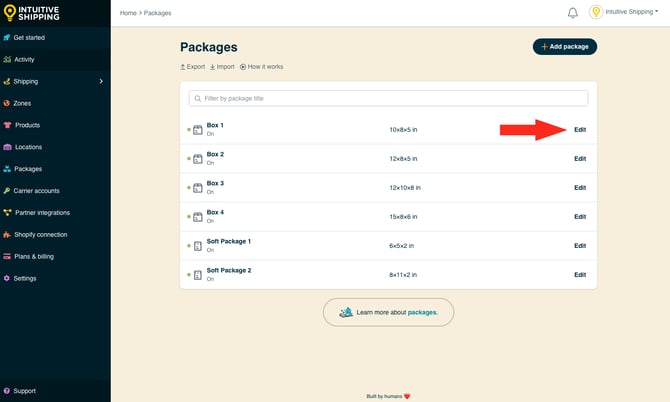
**2.** Click **Edit** beside any box or soft package.
#### Cost
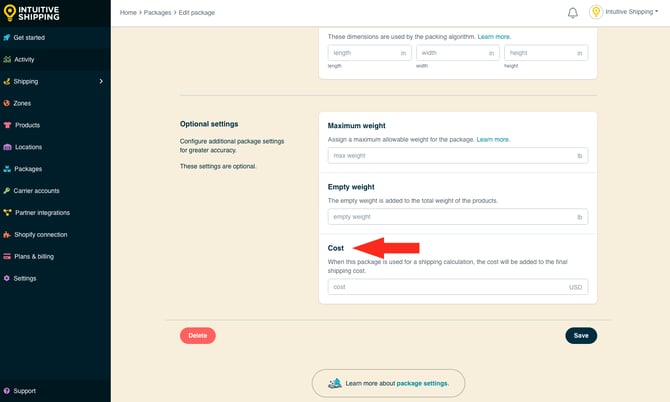
**1.** Scroll down to the **Optional settings** section.
**2.** Enter the package **cost**. Intuitive Shipping will add this amount to the total shipping cost when the package is used by a shipping method to calculate shipping.
#### Save Your Settings
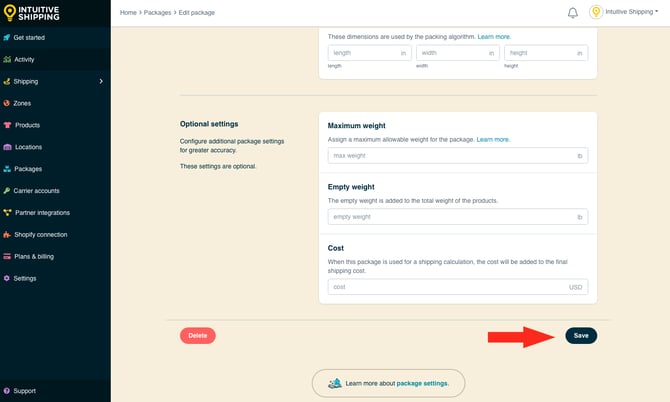
**1.** Click the **Save** button to save your updated package cost settings.
### Learn more:
- [Common setups](https://knowledge.intuitiveshipping.com/common-setups?hsLang=en)
- [Additional setups](https://knowledge.intuitiveshipping.com/additional-setups?hsLang=en)
- [How-to guides](https://knowledge.intuitiveshipping.com/how-to?hsLang=en)
- [Connect a carrier](https://knowledge.intuitiveshipping.com/connect-a-carrier?hsLang=en)
- [General info](https://knowledge.intuitiveshipping.com/general-info?hsLang=en)
- [FAQ](https://knowledge.intuitiveshipping.com/faq-page?hsLang=en)
- [Get Started](https://knowledge.intuitiveshipping.com/get-started?hsLang=en)
- [Common Setups](https://knowledge.intuitiveshipping.com/common-setups?hsLang=en)
- [Additional Setups](https://knowledge.intuitiveshipping.com/additional-setups?hsLang=en)
- [How-To](https://knowledge.intuitiveshipping.com/how-to?hsLang=en)
- [Connect A Carrier](https://knowledge.intuitiveshipping.com/connect-a-carrier?hsLang=en)
- [Black Friday](https://knowledge.intuitiveshipping.com/black-friday?hsLang=en)
- [Billing & Account](https://knowledge.intuitiveshipping.com/billing-account?hsLang=en)
- [General Info](https://knowledge.intuitiveshipping.com/general-info?hsLang=en)
- [Get Help](https://knowledge.intuitiveshipping.com/get-help?hsLang=en)
- [Main Site](https://intuitiveshipping.com/)
- [FAQ](https://knowledge.intuitiveshipping.com/faq-page)
- [Privacy Policy](https://intuitiveshipping.com/legal/privacy)
- [Terms](https://intuitiveshipping.com/legal/terms)
- [EULA](https://intuitiveshipping.com/legal/eula)
[](http://intuitiveshipping.com)
The shipping solution for serious sellers.
© Copyright 2019-2025 Intuitive Shipping Inc.