---
title: How To Use Delivery Dates
description: How to use Intuitive Shipping to display estimated delivery dates at checkout instead of an estimated number of days.
---
[Skip to content](https://knowledge.intuitiveshipping.com/how-to-use-delivery-dates#main-content)
[](https://knowledge.intuitiveshipping.com?hsLang=en)
- [FAQ](https://knowledge.intuitiveshipping.com/faq-page)
- [Main Site](https://intuitiveshipping.com/)
Open main navigation
Close main navigation
- [FAQ](https://knowledge.intuitiveshipping.com/faq-page)
- [Main Site](https://intuitiveshipping.com/)
- [Contact us](https://knowledge.intuitiveshipping.com/contact)
[Contact us](https://knowledge.intuitiveshipping.com/contact?hsLang=en)
How can we help?
- There are no suggestions because the search field is empty.
1. [Intuitive Shipping Help Center](https://knowledge.intuitiveshipping.com/?hsLang=en)
2. [How-To](https://knowledge.intuitiveshipping.com/how-to?hsLang=en)
# How To Use Delivery Dates
## Give customers greater context by providing an estimated date of delivery at checkout.
**Contents:**
- [How It Works](https://knowledge.intuitiveshipping.com/how-to-use-delivery-dates#how-it-works)
- [Enable Delivery Dates](https://knowledge.intuitiveshipping.com/how-to-use-delivery-dates#enable-delivery-dates)
- [Adjust Shipping Method Delivery Date Settings](https://knowledge.intuitiveshipping.com/how-to-use-delivery-dates#adjust-shipping-method-delivery-date-settings)
Intuitive Shipping lets you display estimated delivery dates at checkout instead of a delivery time in days. You can also add order processing time, configure your regular dispatch schedule, and set blackout dates to ensure the delivery dates shown to customers are as accurate as possible.
### How It Works
By default, Intuitive Shipping displays estimated delivery times as a number of days, whether the estimate comes from a carrier or is configured manually using the Custom delivery days setting in a shipping method. If you prefer, you can display estimated delivery as a **specific date** instead.
**When enabled, delivery date settings apply to all shipping methods that return an estimated delivery time.**
Additional delivery date settings let you customize how delivery dates are calculated and displayed at checkout:
- **Order processing days** - Select the days of the week your warehouse processes orders so non-processing days aren't included in the delivery estimate.
- **Order processing time** - Improve delivery date accuracy by accounting for the time required to process orders before they're dispatched.
- **Dispatch days** - Choose the days of the week orders are dispatched to customers.
- **Cutoff time** - Set the latest time orders can be received and still be dispatched on the same day. Orders placed after the cutoff time are considered for dispatch on the next available dispatch day.
- **Order fulfillment capacity (beta)**- Specify the maximum number of orders that can be fulfilled on a given day to improve the accuracy of the delivery date when there are unfulfilled orders.
- **Blackout dates** - Exclude specific dates from delivery estimates, such as holidays, company closures, vacations, or other dates when orders won't be processed or dispatched.
Once your delivery date settings are configured, you can adjust delivery estimate settings in your shipping methods to improve the accuracy of your calculated delivery date estimate.
### Enable Delivery Dates
**1.** Click **Settings** in the sidebar menu.
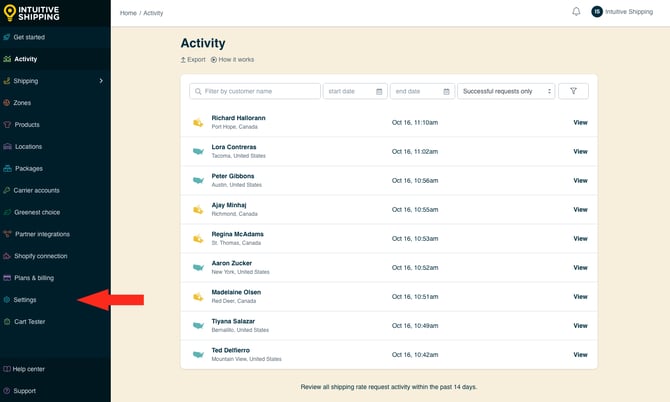
2\. Scroll down to the **'Delivery dates'** section, then select **Display delivery date**.
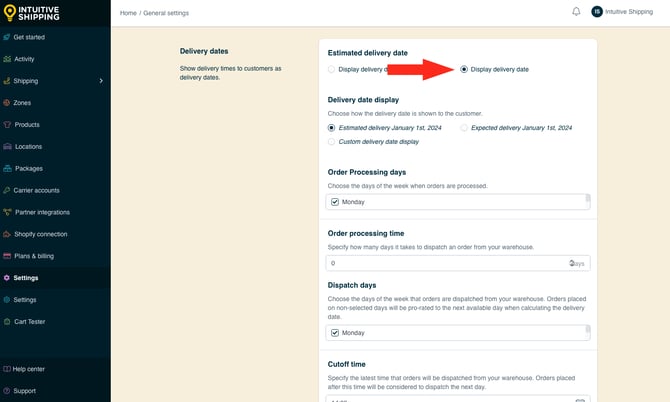
**2.** Choose how **delivery dates will be displayed** to customers at checkout.
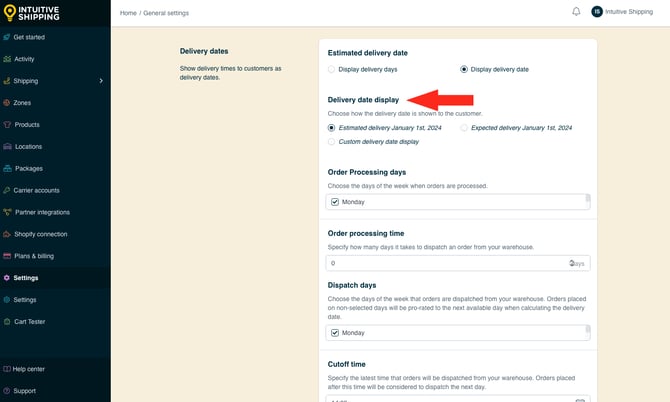
You have three options to choose from:
- **Estimated** - Delivery dates are shown with the word ‘Estimated’. For example, a date of January 4, 2027 will be displayed as ‘Estimated delivery January 4th, 2027’. This is the default setting.
- **Expected** - Delivery dates are shown with the word ‘Expected’. For example, a date of January 4, 2027 will be displayed as ‘Expected delivery January 4th, 2027’.
- **Custom delivery date display** **(beta)** - A custom message will be displayed with the delivery date.
If you selected 'Estimated' or 'Expected', skip ahead to **Step 4**.
**3.** If you selected 'Custom delivery date display', enter a **custom message**, such as 'Your order will be delivered ', followed by the word **date** enclosed in double curly brackets.
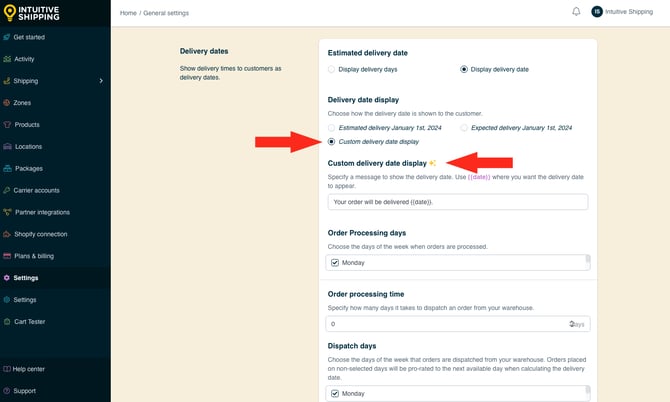
Intuitive Shipping replaces the double-bracketed 'date' placeholder with the estimated delivery date. For example, if the estimated delivery date is calculated as January 4, 2027, the message displayed at checkout will be **Your order will be delivered January 4th, 2027.**
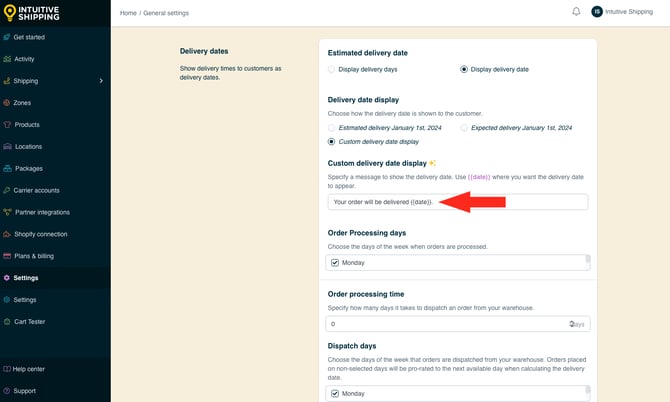
Be sure to include the word 'date' enclosed in double curly brackets for your estimated delivery date to be included in the custom message.
**4.** Hover over the **Order processing days** selection box to **expand the list**, then select the **days of the week** when your orders are picked, packed, and prepared for shipment. If a customer places an order on a day that isn't selected, Intuitive Shipping begins calculating the estimated delivery date from the next available order processing day.
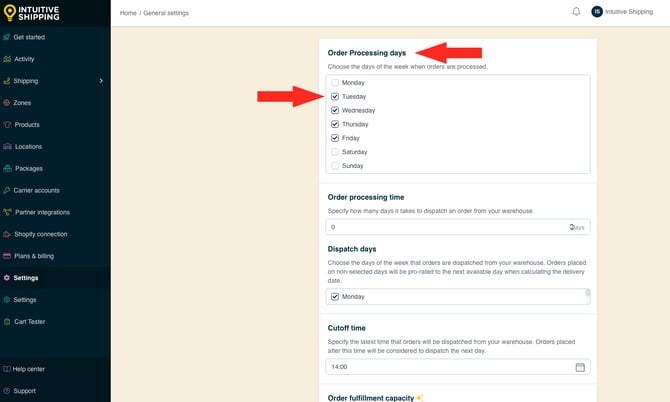
For example, let's say you select **Monday**, **Tuesday**, and **Wednesday** as your Order processing days. If a customer places an order on **Thursday afternoon**, Intuitive Shipping begins calculating the estimated delivery date from the next available order processing day, **Monday**.

At least one Order processing day must be selected to save your settings.
**5.** Add **Order processing time** in days by **entering a number** or **using the arrows to increase or decrease the value**. When a customer places an order, Intuitive Shipping adds the specified number of order processing days before calculating the estimated delivery date.
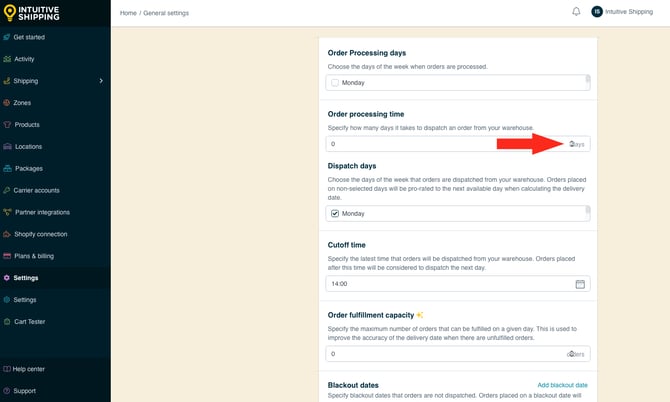
For example, if you select **Monday**, **Tuesday**, and **Wednesday** as your Order processing days and set the Order processing time to **3 days** and a customer places an order on **Sunday, March 3**, Intuitive Shipping skips the next three order processing days, **Monday, March 4**, **Tuesday, March 5**, and **Wednesday, March 6**. Delivery date calculations begin on the next available order processing day, **Monday, March 11**.
If you leave Order Processing time blank, Intuitive Shipping assumes the order can be processed immediately after the order has been placed.
In other words, if you enter **1** (one order processing day), Intuitive Shipping begins calculating the estimated delivery date from the next available Order processing day after the order is placed.
**6.** Hover over the **Dispatch days** selection box to **expand the list**, then select the **days of the week** when orders are dispatched from your warehouse. If a customer places an order on a day that isn't selected, Intuitive Shipping calculates the estimated delivery date using the next available dispatch day.
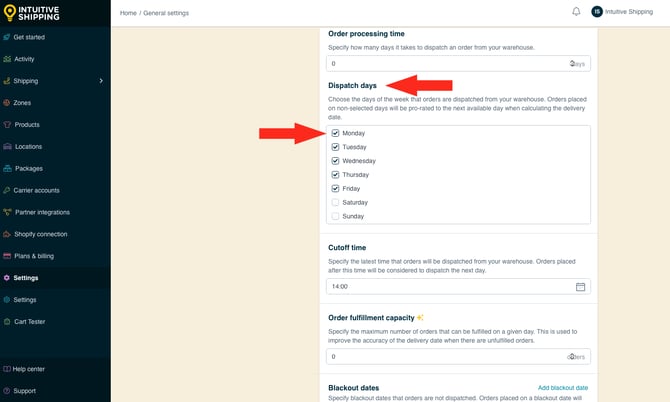
For example, let's say you select **Wednesday**, **Thursday**, and **Friday** as your **Dispatch days**. A customer places an order on **Thursday, March 7**. After Intuitive Shipping applies your **Order processing days** and **Order processing time** settings, the calculated dispatch date falls on **Monday, March 18**. Because Monday isn't one of your selected Dispatch days, Intuitive Shipping moves the dispatch date to the next availableDispatch day, **Wednesday, March 20**.

At least one Dispatch day must be selected to save your settings.
**7.** Enter or select a **cutoff** **time**. Selectable times are displayed in one-hour increments in 24-hour time from 0:00 to 23:00. For example, 2:00 PM is displayed as '14:00'.
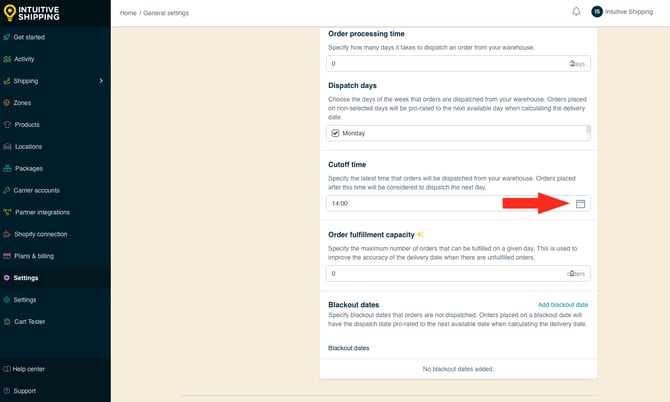
When a customer places an order after theCutoff time, Intuitive Shipping begins counting Order processing time from the next available Order processing day.
For example, let's say you have theseOrder processing and Dispatch settings:
- **Order processing days:** Monday, Tuesday, Wednesday
- **Order processing time:** 2 days
- **Dispatch days:** Tuesday, Wednesday, Thursday, Friday
- **Cutoff time:** 14:00 (2:00 PM)
If a customer places an order at **3:45 PM on Tuesday, March 5**, the order misses that day's cutoff, so Intuitive Shipping begins processing on **Wednesday, March 6**. The two order processing days are **Wednesday, March 6** and **Monday, March 11**. Because **Monday** isn't one of the selected Dispatch days, Intuitive Shipping moves the dispatch to the next available Dispatch day, **Tuesday, March 12**.
Times entered manually must be in the 24-hour format to be accepted. If your cutoff time is 2:30 PM, enter '14:30'.
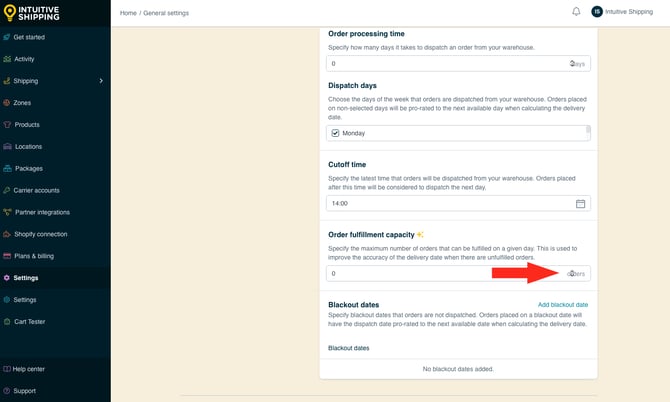
**8.** Add **Order fulfillment capacity** by **entering the maximum number** of orders your warehouse can fulfill each day or **using the arrows to increase or decrease** the value. Intuitive Shipping uses this value to improve the accuracy of estimated delivery dates by accounting for any unfulfilled orders waiting to be processed.
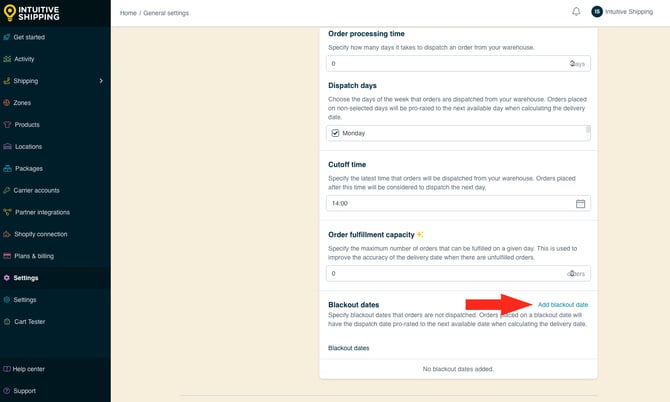
**9.** Click **Add** **blackout date** to exclude specified dates from the delivery date calculation.
**10.** Click the **calendar icon**, then select a specific **blackout date** from the calendar selector.
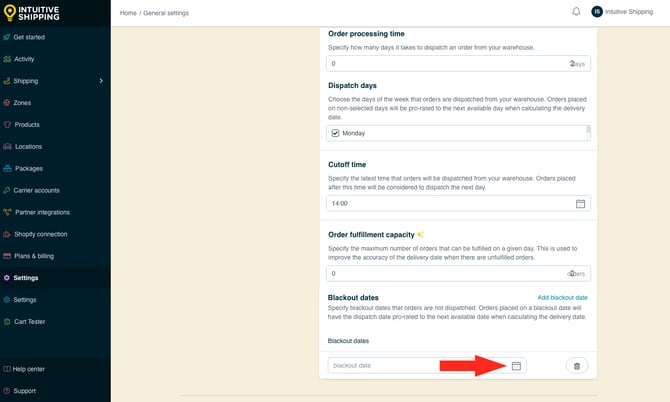
When an order is placed on a **Blackout date**, Intuitive Shipping skips that date and uses the next available dispatch day when calculating the estimated delivery date.
For example, let's say you select **Wednesday**, **Thursday**, and **Friday** as your **Dispatch days** and add **April 3, 2026** as a **Blackout date**. If a customer places an order on **Friday, April 3** - and the order can be processed immediately, Intuitive Shipping skips that dispatch day and begins the delivery calculation on the next available dispatch day, **Wednesday, April 8**.
**11.** Repeat **Steps 9 and 10** to add more blackout dates.
You can remove blackout dates at any time by clicking the **trash can icon** next to a blackout date.
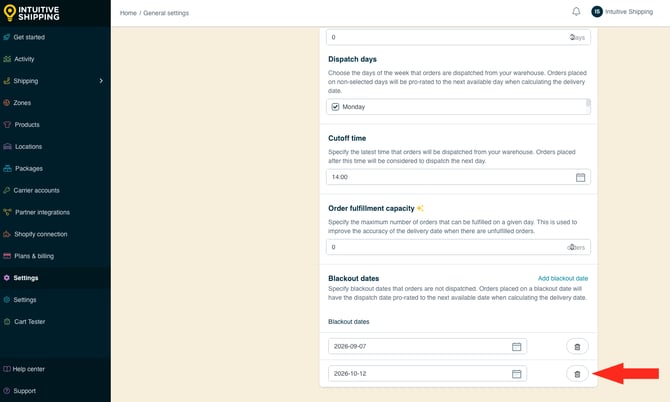
Blackout dates apply to a single calendar date only and don't automatically recur each year. To exclude the same date annually, you must add a separate blackout date for each year.
### Adjust Shipping Method Delivery Date Settings
The Delivery date settings you just configured are global settings that apply to every shipping method capable of returning an estimated delivery date. They work together with the delivery estimate settings available in your shipping methods' **General** and **Optional** settings sections.
These shipping method settings let you fine-tune delivery estimates for individual shipping methods, whether the estimates are provided by a carrier in real time or customized by you.
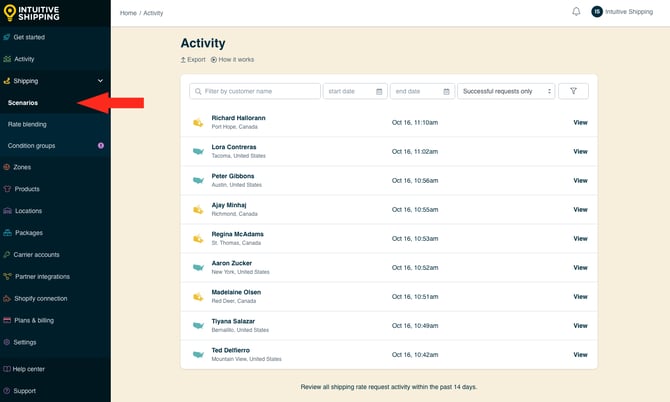
**1.** Click **Shipping** on the sidebar menu, then select **Scenarios** from the drop-down list.
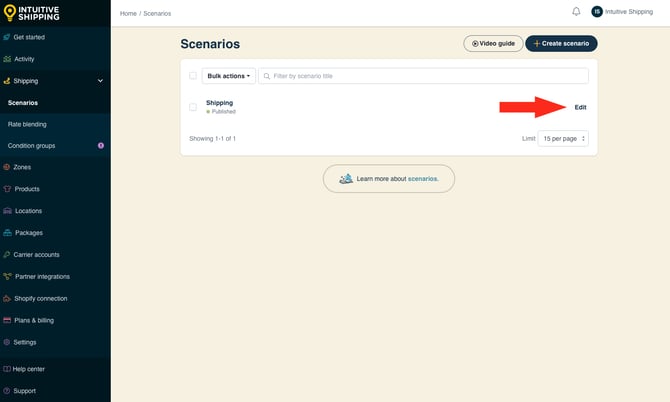
**2.** Click **Edit** next to a Scenario.
#### **Custom Service Shipping Methods**
This section shows you how to adjust additional display settings in **custom service shipping methods** (flat rates, rate tables, and free shipping).
Learn how to create a [custom service shipping methods](https://knowledge.intuitiveshipping.com/create-a-custom-service-shipping-method?hsLang=en).
To adjust additional display settings in parcel service shipping methods (real-time carrier rates), go [here](https://knowledge.intuitiveshipping.com/how-to-use-delivery-dates#parcel-service-delivery-dates).
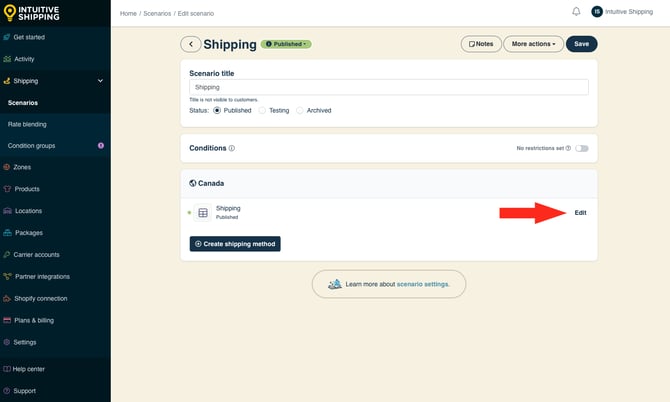
**1.** Click **Edit** next to a custom service shipping method.
**2.** In the 'General' section, click **Show additional display settings**.
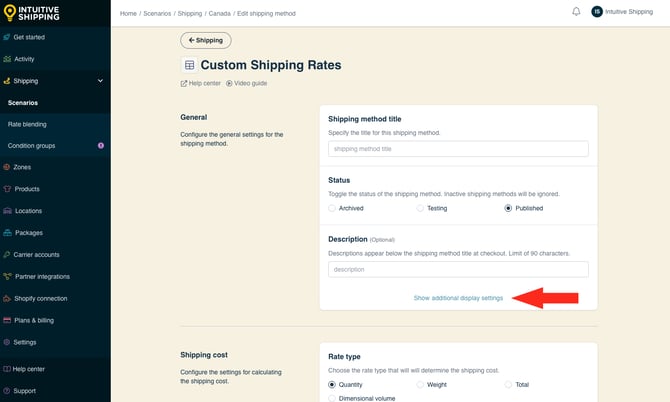
**3.** Enter the **number of days** to add to the estimated delivery date. This value represents the typical delivery time for this shipping method **in business days** and should be based on the carrier or service you normally use to deliver orders. Intuitive Shipping adds this value to the estimated delivery date calculated using your global **Delivery date** settings.
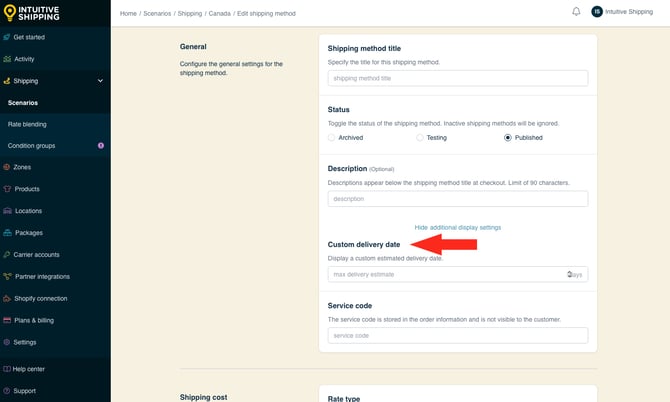
For example, let's say you set your **Custom delivery date** to **3 days**. In your [Delivery date settings](https://knowledge.intuitiveshipping.com/how-to-use-delivery-dates#enable-delivery-dates), you've configured these global settings:
- **Order processing days:** Monday, Tuesday, Thursday, Friday
- **Order processing time:** 3 days
- **Dispatch days:** Wednesday, Thursday, Friday
- **Cutoff time:** 14:00 (2:00 PM)
- **Blackout date:** December 25, 2026
If a customer places an order at **3:45 PM on Thursday, December 24, 2026**, the order misses the **2:00 PM cutoff**. Intuitive Shipping:
- calculates the next available **Order processing day** (Monday, December 28)
- counts **3 order processing days** (Monday, Tuesday, and Thursday)
- calculates a dispatch date of **Thursday, December 31**.
With a **3-business-day** delivery estimate added to the shipping method, Intuitive Shipping calculates an estimated delivery date of **Tuesday, January 5, 2027**.
#### Optional Settings for Free Shipping Threshold
If your custom service shipping method is configured to offer **free shipping** based on a threshold, you can override the [custom delivery date setting](https://knowledge.intuitiveshipping.com/how-to-use-delivery-dates#custom-delivery-date-general) when the free shipping rate is displayed. This is useful if you use different carrier services for paid and free shipping, and each service has a different typical delivery time.

Learn more about [optional settings for customer service shipping methods](https://knowledge.intuitiveshipping.com/create-a-custom-service-shipping-method#optional-settings-custom).
**1.** Click **Show optional settings** near the bottom of the shipping method.
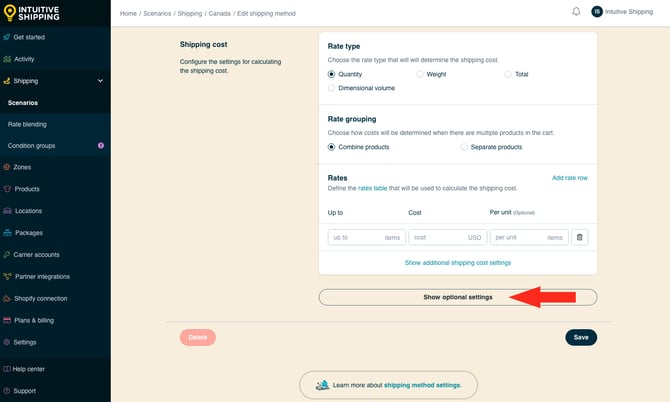
**2.** Scroll down to the **Free shipping** section.
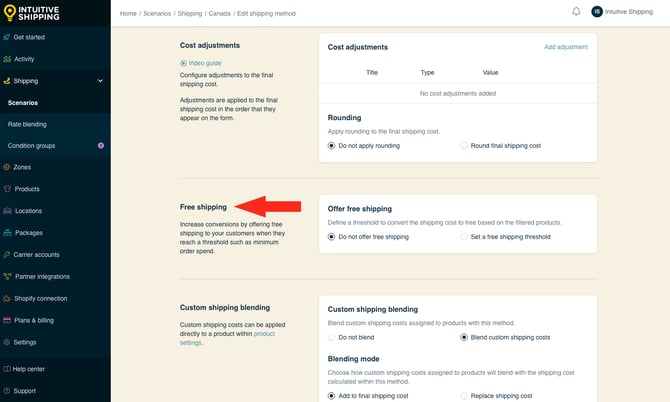
**3.** If free shipping hasn't previously been enabled, select **Set a free shipping threshold**.
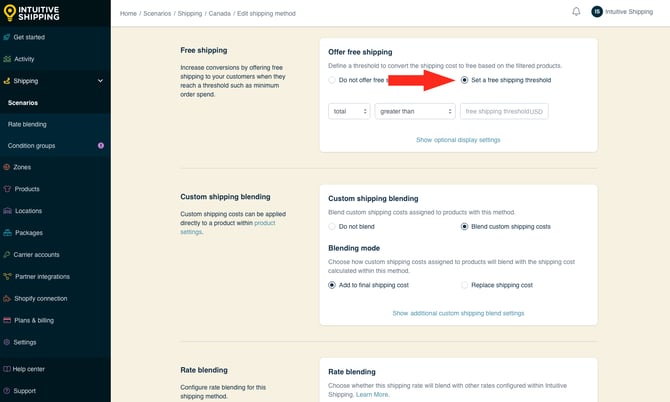
**4.** Click **Show optional display settings**.
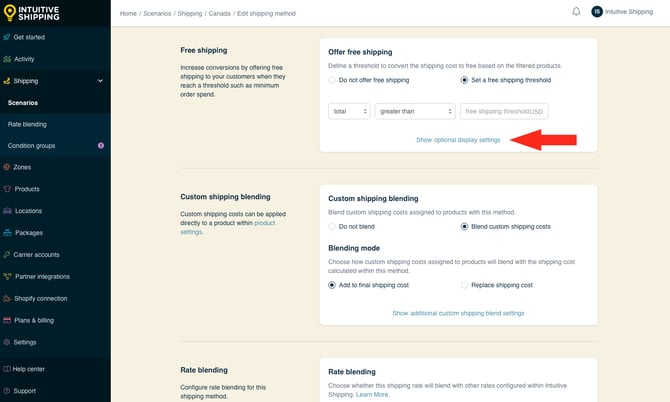
**5.** If you want to override the [custom delivery date setting](https://knowledge.intuitiveshipping.com/how-to-use-delivery-dates#custom-delivery-date-general) in the shipping method's General display settings, enter the **number of days** to add to the estimated delivery date. This value represents the typical delivery time for this shipping method **in business days** - only when **free shipping is displayed** - and should be based on the carrier or service you normally use to deliver orders that qualify for free shipping. Intuitive Shipping adds this value to the estimated delivery date calculated using your global **Delivery date** settings.
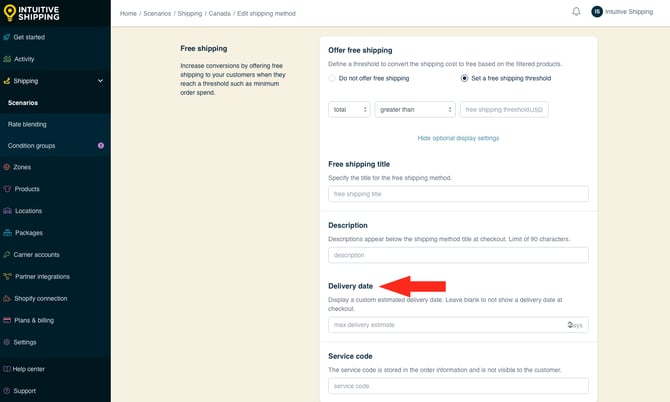
**6.** Scroll to the bottom of the page, then click the **Save** button to save your updated custom shipping method settings.
#### Parcel Service Shipping Methods
This section shows you how to adjust additional display settings in **parcel service shipping methods** (real-time carrier rates). If you have an **integrated service shipping method** (rates from subscription services like ShipStation), the steps are the same.
Learn how to create a [parcel service](https://knowledge.intuitiveshipping.com/create-a-parcel-service-shipping-method?hsLang=en) or [integrated service](https://knowledge.intuitiveshipping.com/create-an-integrated-service-shipping-method?hsLang=en) shipping method.
**1.** Click **Edit** next to a parcel service (or integrated service) shipping method.
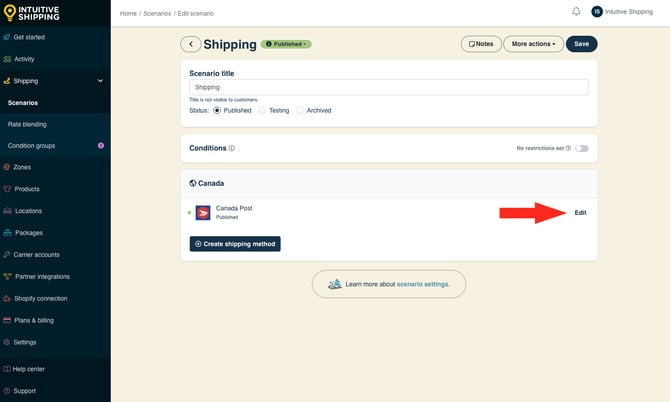
**2.** In the 'General' section, click **Show additional display settings**.
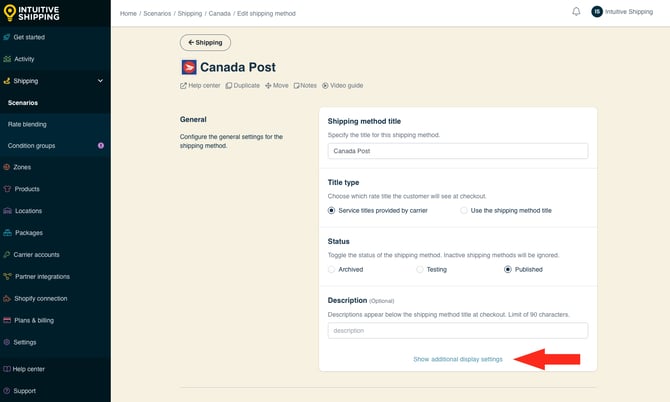
When you created your **Parcel service** shipping method, selecting **Show delivery estimate** (the default setting) gave you the option to use either the **Carrier delivery time** or **Custom delivery days**. You can keep your original selection or change it, depending on how you want the shipping method to work with your global **Delivery date** settings.
**3.** Ensure '**Delivery estimate**' is set to **Show delivery estimate**. If 'Do not show delivery estimate' is selected, the settings in Steps 4 and 5 will not be accessible.
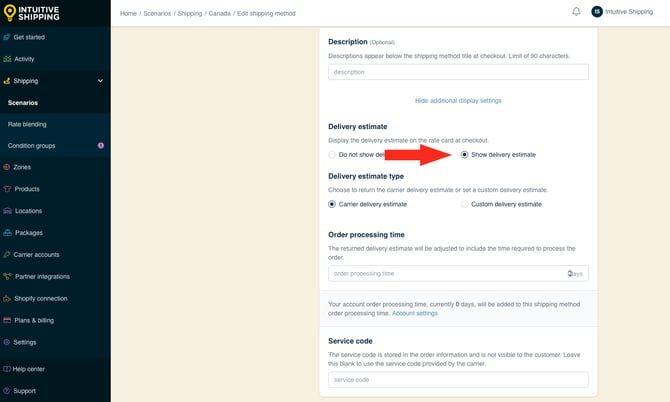
Selecting 'Do not show delivery estimates' means estimated delivery dates from this shipping method aren't displayed to customers at checkout, regardless of your [global Delivery date settings](https://knowledge.intuitiveshipping.com/how-to-use-delivery-dates#enable-delivery-dates).
**4.** Choose which **delivery estimate** to use with delivery dates.
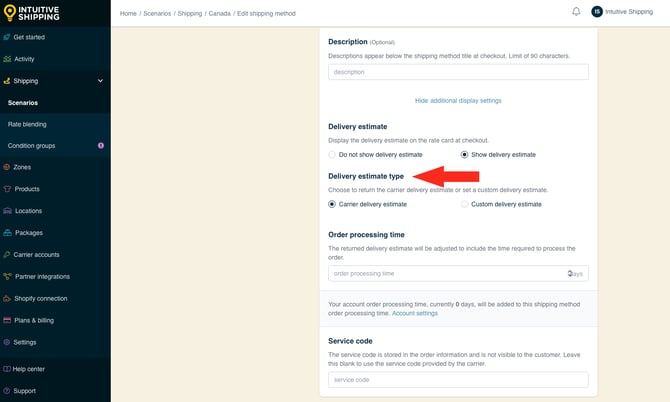
You have two options to chooose from:
- **Carrier delivery estimate** - Delivery times displayed at checkout are estimates provided directly from the carrier as part of the rate calculation. This is the default setting.
- **Custom delivery estimate** - Delivery times displayed at checkout are based on values entered in the next step.
For example, let's say your [global Delivery date settings](https://knowledge.intuitiveshipping.com/how-to-use-delivery-dates#enable-delivery-dates) are configured like this:
- **Order processing days:** Monday, Tuesday, Wednesday
- **Order processing time:** 3 days
- **Dispatch days:** Wednesday, Thursday, Friday
- **Cutoff time:** 14:00 (2:00 PM)
- **Blackout dates:** December 25, 2026
With your parcel service shipping method, you're offering customers overnight shipping (typically a 1-business day carrier estimate) and ground shipping (typically a 4-business days estimate).
If a customer places an order at **3:45 PM on Thursday, December 24, 2026**, the order misses the **2:00 PM cutoff**. Intuitive Shipping:
- calculates the next available **Order processing day** (Monday, December 28)
- counts **3 order processing days** (Monday through Wednesday)
- calculates a dispatch date of **Wednesday, December 30**.
With a **1-business-day** delivery estimate *from the carrier* (Overnight shipping), the estimated delivery date is **Thursday, December 31, 2026**.
With a **4-business-day** delivery estimate *from the carrier* (Ground shipping), the estimated delivery date is **Tuesday, January 5, 2027**.
If you selected 'Carrier delivery estimate' in Step 4, skip ahead to **Step 6.**
**5.** If you selected 'Custom delivery estimate' in Step 4, enter the **number of days** to add to the estimated delivery date. This value represents the typical delivery time for this shipping method **in business days** and should be based on the carrier service used by this shipping method. Intuitive Shipping adds this value to the estimated delivery date calculated using your global **Delivery date** settings.
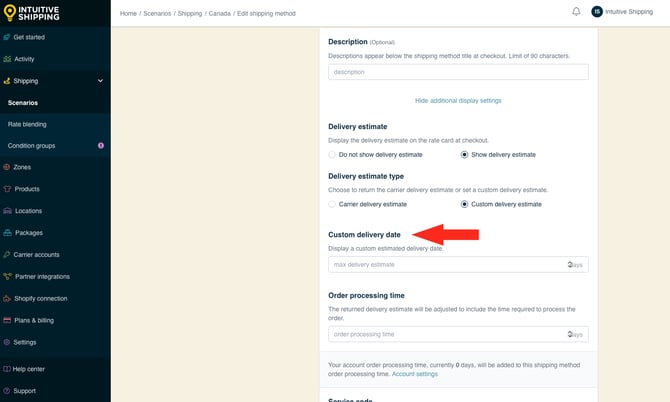
For example, let's say you set your **Custom delivery date** to **3 days**. In your [Delivery date settings](https://knowledge.intuitiveshipping.com/how-to-use-delivery-dates#enable-delivery-dates), you've configured these global settings:
- **Order processing days:** Monday, Tuesday, Thursday, Friday
- **Order processing time:** 3 days
- **Dispatch days:** Wednesday, Thursday, Friday
- **Cutoff time:** 14:00 (2:00 PM)
- **Blackout date:** December 25, 2026
If a customer places an order at **3:45 PM on Thursday, December 24, 2026**, the order misses the **2:00 PM cutoff**. Intuitive Shipping:
- calculates the next available **Order processing day** (Monday, December 28)
- counts **3 order processing days** (Monday, Tuesday, and Thursday)
- calculates a dispatch date of **Thursday, December 31**.
With a **3-business-day** delivery estimate added to the shipping method, Intuitive Shipping calculates an estimated delivery date of **Tuesday, January 5, 2027**.
**6.** Enter **order** **processing time** in days (if necessary). This processing time is specific to your shipping method and is *added to* the order processing time in your [global Delivery dates settings](https://knowledge.intuitiveshipping.com/how-to-use-delivery-dates#order-processing-time-general).
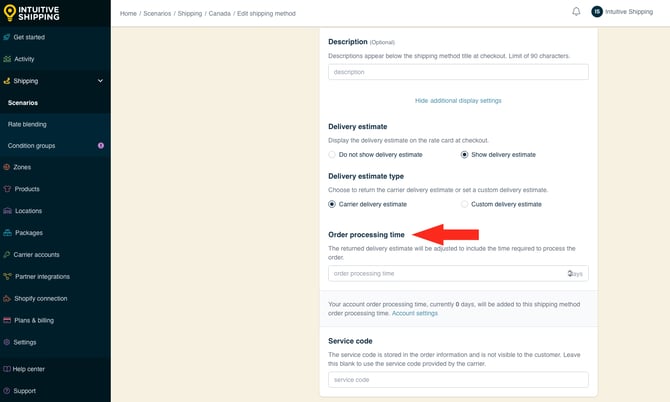
Order processing time can be applied to a parcel shipping method with either [carrier delivery estimates or custom delivery estimates](https://knowledge.intuitiveshipping.com/how-to-use-delivery-dates#delivery-estimate-setting) selected.
For example, let's say you selected **Carrier delivery estimate** in Step 4 and you're offering customers Overnightdelivery (typically 1 business day) and Ground delivery (typically 4 business days).
If you **add 2 Order processing days** in Step 6, combined with your global Delivery date settings, the total order processing time becomes **5 business days**.
Your global delivery date settings are:
- **Order processing days:** Monday, Tuesday, Thursday, Friday
- **Order processing time:** 3 days
- **Dispatch days:** Wednesday, Thursday, Friday
- **Cutoff time:** 14:00 (2:00 PM)
- **Blackout date:** December 25, 2026
If a customer places an order at **3:45 PM on Thursday, December 24, 2026**, the order misses the **2:00 PM cutoff**. Intuitive Shipping:
- calculates the next available **Order processing day** (Monday, December 28)
- counts **5 order processing days** (Monday, Tuesday, Thursday, Friday, then Monday of the following week)
- calculates a dispatch date of **Wednesday, January 6, 2027**.
With a **1-business-day** delivery estimate *from the carrier* (Overnight shipping), the estimated delivery date is **Thursday, January 7, 2027**.
With a **4-business-day** delivery estimate *from the carrier* (Ground shipping), the estimated delivery date is **Tuesday, January 12, 2027**.
Alternatively, let's say you selected **Custom delivery estimate** in Step 4 and you added **3 business days** in Step 5.
If you **add 2 Order processing days** in Step 6, combined with your global settings, the total order processing time becomes **5 business days**.
Your global delivery date settings are:
- **Order processing days:** Monday, Tuesday, Thursday, Friday
- **Order processing time:** 3 days
- **Dispatch days:** Wednesday, Thursday, Friday
- **Cutoff time:** 14:00 (2:00 PM)
- **Blackout date:** December 25, 2026
If a customer places an order at **3:45 PM on Thursday, December 24, 2026**, the order misses the **2:00 PM cutoff**. Intuitive Shipping:
- calculates the next available **Order processing day** (Monday, December 28)
- counts **5 order processing days** (Monday, Tuesday, Thursday, Friday, then Monday of the following week)
- calculates a dispatch date of **Wednesday, January 6, 2027**.
With a **3-business-day custom delivery estimate** configured for the shipping method, Intuitive Shipping uses that estimate instead of the carrier's delivery estimate. Based on the calculated dispatch date of **Wednesday, January 6**, the estimated delivery date is **Monday, January 11, 2027**.
#### Optional Settings for Free Shipping Threshold
If your parcel service (or integrated service) shipping method is configured to offer **free shipping** based on a threshold, you can override the [delivery date setting](https://knowledge.intuitiveshipping.com/how-to-use-delivery-dates#delivery-estimate-setting) (carrier estimate or custom estimate) when the free shipping rate is displayed. This is useful if you use different carrier services for paid and free shipping, and each service has a different typical delivery time.

Learn more about [optional settings for parcel service shipping methods](https://knowledge.intuitiveshipping.com/create-a-parcel-service-shipping-method#optional-settings).
**1.** Click **Show optional settings** near the bottom of the shipping method.
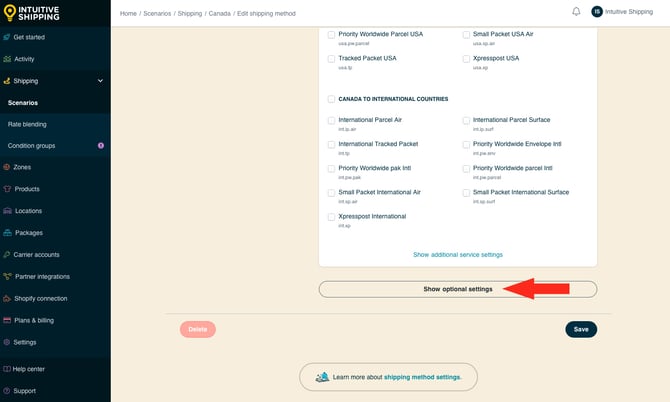
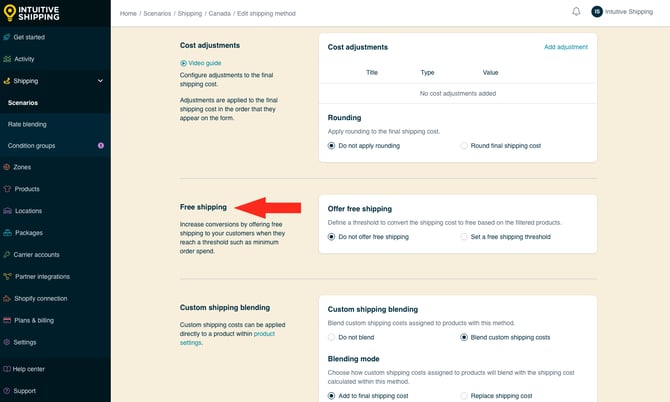
**2.** Scroll down to the **Free shipping** section.
**3.** If free shipping hasn't previously been enabled, select **Set a free shipping threshold**.
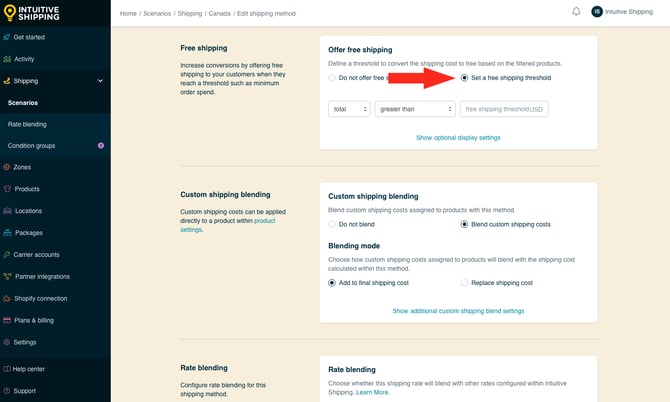
**4.** Click **Show optional display settings**.
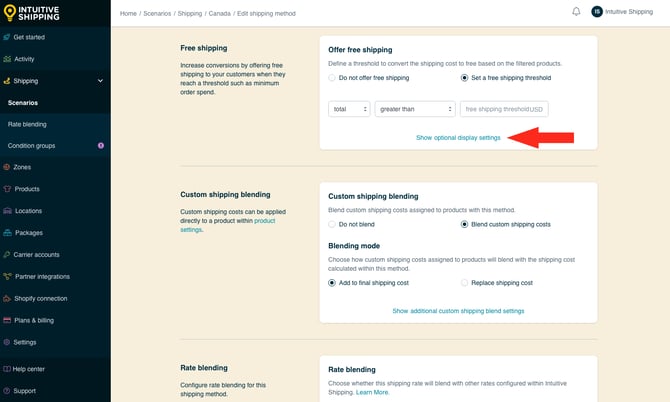
**5.** If you want to override the [carrier delivery estimate or custom delivery estimate](https://knowledge.intuitiveshipping.com/how-to-use-delivery-dates#delivery-estimate-setting) in the shipping method's General display settings, enter the **number of days** to add to the estimated delivery date. This value represents the typical delivery time for this shipping method **in business days** - only when **free shipping is displayed** - and should be based on the carrier or service you normally use to deliver orders that qualify for free shipping. Intuitive Shipping adds this value to the estimated delivery date calculated using your global **Delivery date** settings.

**6.** Scroll to the bottom of the page, then click the **Save** button to save your updated custom shipping method settings.
### Learn more:
- [Common setups](https://knowledge.intuitiveshipping.com/common-setups?hsLang=en)
- [Additional setups](https://knowledge.intuitiveshipping.com/additional-setups?hsLang=en)
- [How-to guides](https://knowledge.intuitiveshipping.com/how-to?hsLang=en)
- [Connect a carrier](https://knowledge.intuitiveshipping.com/connect-a-carrier?hsLang=en)
- [General info](https://knowledge.intuitiveshipping.com/general-info?hsLang=en)
- [FAQ](https://knowledge.intuitiveshipping.com/faq-page?hsLang=en)
- [Get Started](https://knowledge.intuitiveshipping.com/get-started?hsLang=en)
- [Common Setups](https://knowledge.intuitiveshipping.com/common-setups?hsLang=en)
- [Additional Setups](https://knowledge.intuitiveshipping.com/additional-setups?hsLang=en)
- [How-To](https://knowledge.intuitiveshipping.com/how-to?hsLang=en)
- [Connect A Carrier](https://knowledge.intuitiveshipping.com/connect-a-carrier?hsLang=en)
- [Black Friday](https://knowledge.intuitiveshipping.com/black-friday?hsLang=en)
- [Billing & Account](https://knowledge.intuitiveshipping.com/billing-account?hsLang=en)
- [General Info](https://knowledge.intuitiveshipping.com/general-info?hsLang=en)
- [Get Help](https://knowledge.intuitiveshipping.com/get-help?hsLang=en)
- [Main Site](https://intuitiveshipping.com/)
- [FAQ](https://knowledge.intuitiveshipping.com/faq-page)
- [Privacy Policy](https://intuitiveshipping.com/legal/privacy)
- [Terms](https://intuitiveshipping.com/legal/terms)
- [EULA](https://intuitiveshipping.com/legal/eula)
[](http://intuitiveshipping.com)
The shipping solution for serious sellers.
© Copyright 2019-2025 Intuitive Shipping Inc.