---
title: How To Customize Carrier Delivery Times
description: How To Customize Carrier Delivery Times
---
[Skip to content](https://knowledge.intuitiveshipping.com/how-to-customize-carrier-delivery-times#main-content)
[](https://knowledge.intuitiveshipping.com?hsLang=en)
- [FAQ](https://knowledge.intuitiveshipping.com/faq-page)
- [Main Site](https://intuitiveshipping.com/)
Open main navigation
Close main navigation
- [FAQ](https://knowledge.intuitiveshipping.com/faq-page)
- [Main Site](https://intuitiveshipping.com/)
- [Contact us](https://knowledge.intuitiveshipping.com/contact)
[Contact us](https://knowledge.intuitiveshipping.com/contact?hsLang=en)
How can we help?
- There are no suggestions because the search field is empty.
1. [Intuitive Shipping Help Center](https://knowledge.intuitiveshipping.com/?hsLang=en)
2. [How-To](https://knowledge.intuitiveshipping.com/how-to?hsLang=en)
# How To Customize Carrier Delivery Times
## Control how carrier-provided delivery dates are displayed to customers at checkout.
**Contents**
- [How It Works](https://knowledge.intuitiveshipping.com/how-to-customize-carrier-delivery-times#how-it-works)
- [Customize Carrier Delivery Times](https://knowledge.intuitiveshipping.com/how-to-customize-carrier-delivery-times#customize-carrier-delivery-times)
- [Using Custom Descriptions](https://knowledge.intuitiveshipping.com/how-to-customize-carrier-delivery-times#using-custom-descriptions)
When setting up shipping methods with real-time carrier rates, Intuitive Shipping lets you control how delivery times are shown at checkout.
### How It Works
By default, carrier-based shipping methods, such as parcel service and integrated service, display delivery time estimates directly from the carrier, shown as a number of days like ‘3 business days’. If you need extra time to prepare an order, Intuitive Shipping lets you add order processing time to the carrier’s estimated delivery results.
If you prefer, you can override the carrier’s delivery time entirely by setting your own custom delivery estimates as a single number of days or a range of days, or you can hide delivery times altogether.
Carrier-provided delivery times are estimates and are not guaranteed. Contact your preferred carrier for additional details about their delivery time estimates.
Alternatively, you can display carrier estimates as dates instead of number of days.

**Coming soon:** Learn how to use delivery dates.
### Customize Carrier Delivery Times
This guide will show you how to customize delivery estimates in number of days. To customize carrier delivery time settings:
**1.** Click **Shipping** on the sidebar menu, then select **Scenarios** from the drop-down list.
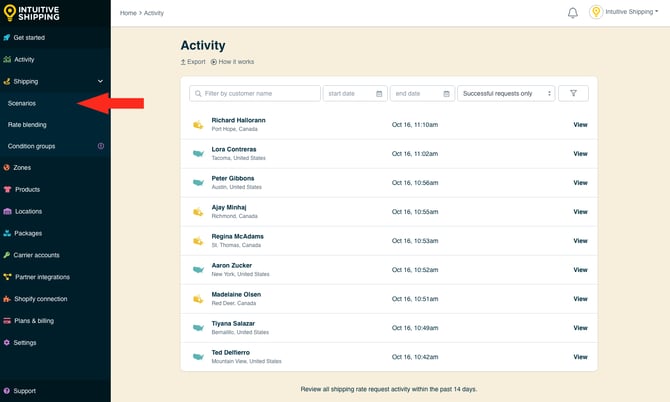
**2.** Click **Edit** beside an existing Scenario or create a new one.
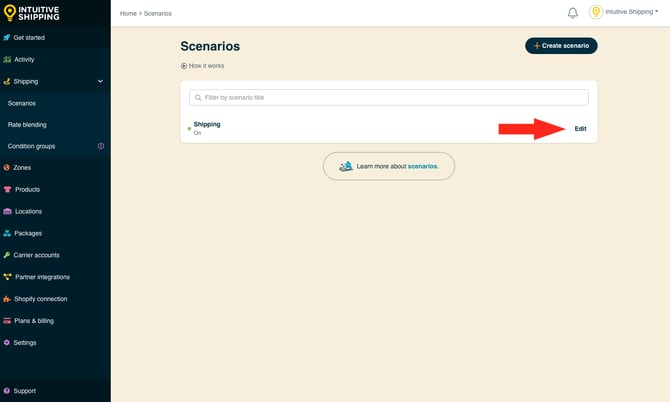

Learn more about [Scenarios](https://knowledge.intuitiveshipping.com/create-a-scenario?hsLang=en).
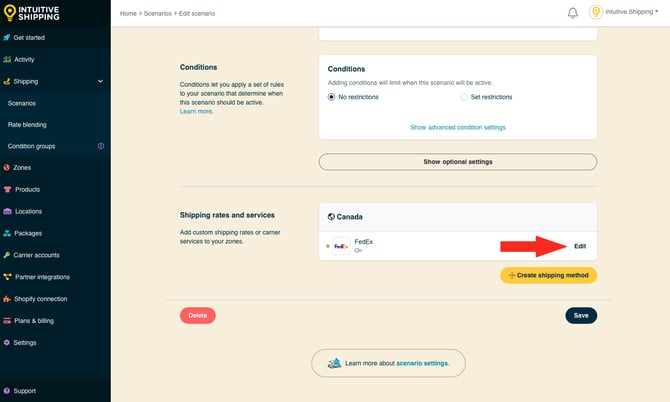
**3.** Scroll down to **Shipping rates and services**, then click **Edit** beside an existing parcel service or integrated service shipping method, or create a new one. For this example, we’re editing a parcel service shipping method for FedEx, but you can follow the remaining steps to customize any new or existing carrier or integrated service, such as ShipStation.
#### Additional Display Settings
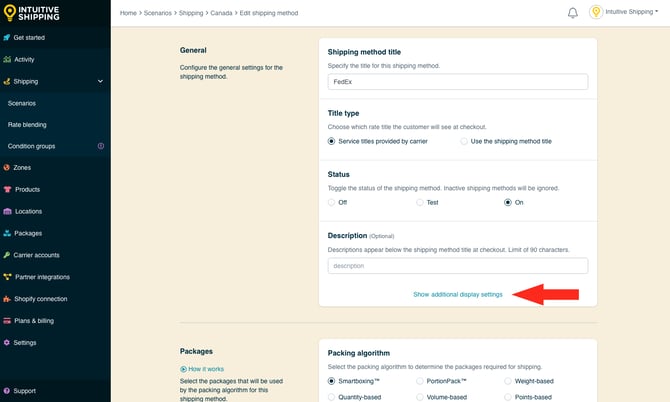
Delivery times can be customized using the **Additional display settings** in the 'General' section.
**1.** Click **Show additional display settings**.
**2.** Choose whether or not to have a **delivery time** displayed at checkout along with the rate.
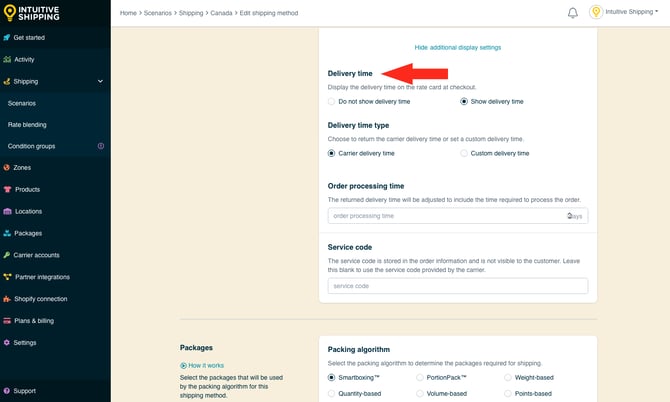
You have two (2) settings to choose from:
- **Do not show delivery time** - the shipping method(s) displayed at checkout will not include a delivery time.
- **Show delivery time** - the shipping method(s) displayed at checkout will include a delivery time based on the settings selected in the next step. This is the default setting.
If you selected ‘Do not show delivery time’, skip ahead to [save your settings](https://knowledge.intuitiveshipping.com/how-to-customize-carrier-delivery-times#save)**.**
**3.** Select the **delivery time type**.
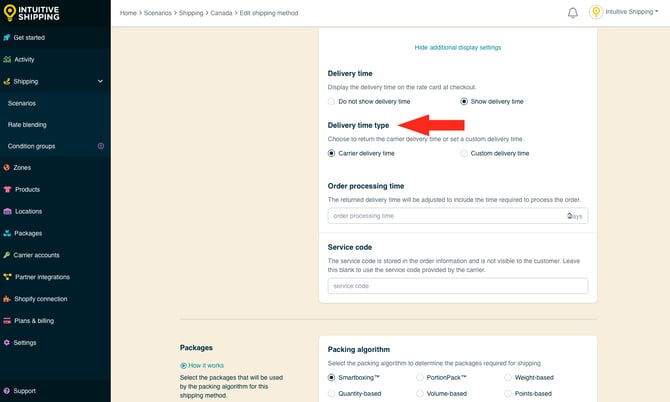
You have two (2) settings to choose from:
- **Carrier delivery time** - delivery times displayed at checkout are estimates provided directly from the carrier as part of the rate calculation. This is the default setting.
- **Custom delivery time** - delivery times displayed at checkout are based on values entered in the next step.
If you selected 'Carrier delivery time', skip ahead to **Step 5**.
**4.** Enter a **custom delivery time** in days.
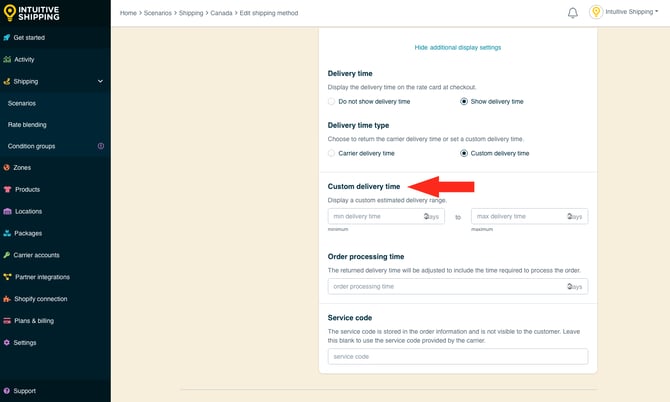
- **Min delivery time** - the lower limit of the delivery time range.
- **Max delivery time** - the upper limit of the delivery time range.
**Number of days**: Enter a number in either 'Min' or 'Max' and leave the other field blank. For example, to display delivery time as '3 business days', enter '3' in 'Min' and leave the 'Max' field blank (or vice versa).
**Range of days**: Enter different numbers in each field. For example, to display delivery time as '3 to 5 business days', enter '3' in 'Min' and enter '5' in 'Max'.
Delivery times are displayed below the shipping method title at checkout.
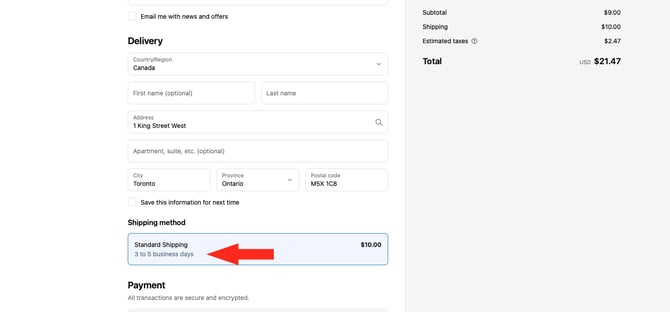
**5.** Enter **order** **processing time** in days. This is useful when you sell products that cannot be shipped out the same day the order is placed. Order processing time is combined with either the carrier’s delivery time or your custom delivery time, depending on your selection, and shown as a single estimated time. It is not displayed separately.
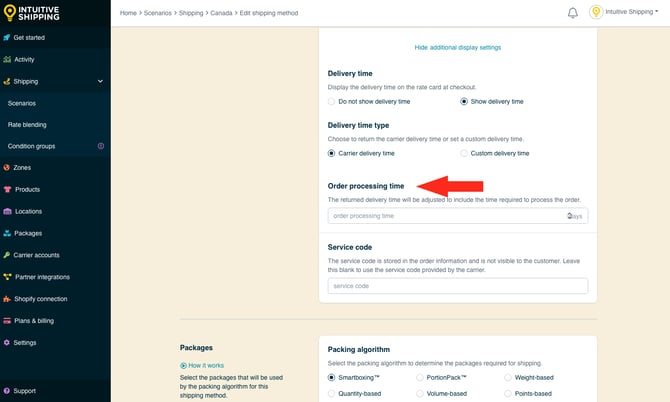
For example, if you set a 3-day processing time and the carrier estimates 2-day delivery, Intuitive Shipping will display ‘5 business days’ at checkout.
#### Save Your Settings
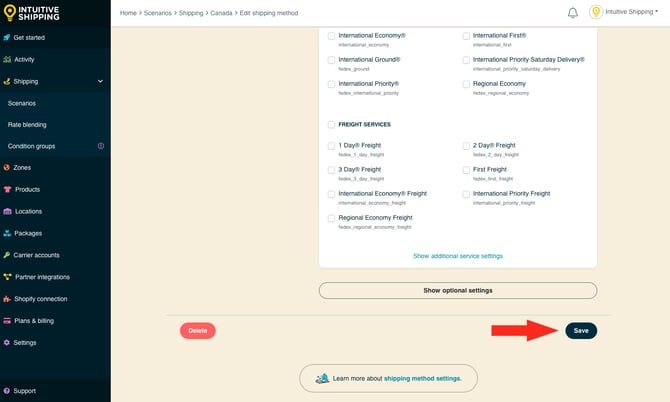
**1.** Click the **Save** button to save your delivery time settings.
### Using Custom Descriptions
If you want to give customers more clarity or transparency about delivery times, you can use the description field, which is located above the additional delivery time settings in the shipping method. For example, if you’ve added 2 days of order processing time to your carrier delivery estimates, you could enter a description like ‘Delivery times include 2 business days for order processing’.
You can also use this field to remind customers that delivery times are estimates, helping manage expectations for those who might assume delivery dates are guaranteed.
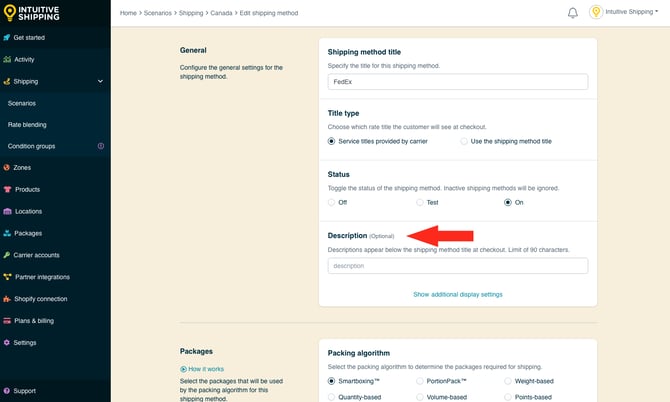
We recommend keeping your description to 90 characters or fewer to ensure it displays properly at checkout.
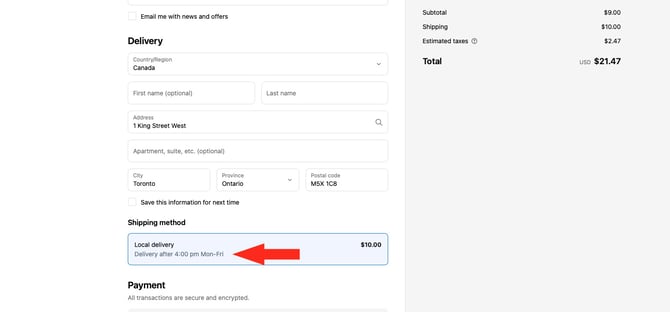
Descriptions are displayed below the shipping method title at checkout.
### Learn more:
- [Common setups](https://knowledge.intuitiveshipping.com/common-setups?hsLang=en)
- [Additional setups](https://knowledge.intuitiveshipping.com/additional-setups?hsLang=en)
- [How-to guides](https://knowledge.intuitiveshipping.com/how-to?hsLang=en)
- [Connect a carrier](https://knowledge.intuitiveshipping.com/connect-a-carrier?hsLang=en)
- [General info](https://knowledge.intuitiveshipping.com/general-info?hsLang=en)
- [FAQ](https://knowledge.intuitiveshipping.com/faq-page?hsLang=en)
- [Get Started](https://knowledge.intuitiveshipping.com/get-started?hsLang=en)
- [Common Setups](https://knowledge.intuitiveshipping.com/common-setups?hsLang=en)
- [Additional Setups](https://knowledge.intuitiveshipping.com/additional-setups?hsLang=en)
- [How-To](https://knowledge.intuitiveshipping.com/how-to?hsLang=en)
- [Connect A Carrier](https://knowledge.intuitiveshipping.com/connect-a-carrier?hsLang=en)
- [Black Friday](https://knowledge.intuitiveshipping.com/black-friday?hsLang=en)
- [Billing & Account](https://knowledge.intuitiveshipping.com/billing-account?hsLang=en)
- [General Info](https://knowledge.intuitiveshipping.com/general-info?hsLang=en)
- [Get Help](https://knowledge.intuitiveshipping.com/get-help?hsLang=en)
- [Main Site](https://intuitiveshipping.com/)
- [FAQ](https://knowledge.intuitiveshipping.com/faq-page)
- [Privacy Policy](https://intuitiveshipping.com/legal/privacy)
- [Terms](https://intuitiveshipping.com/legal/terms)
- [EULA](https://intuitiveshipping.com/legal/eula)
[](http://intuitiveshipping.com)
The shipping solution for serious sellers.
© Copyright 2019-2025 Intuitive Shipping Inc.