---
title: Create A Signature Required Shipping Method
description: How to Create A Signature Required Shipping Method
---
[Skip to content](https://knowledge.intuitiveshipping.com/create-a-signature-required-shipping-method#main-content)
[](https://knowledge.intuitiveshipping.com?hsLang=en)
- [FAQ](https://knowledge.intuitiveshipping.com/faq-page)
- [Main Site](https://intuitiveshipping.com/)
Open main navigation
Close main navigation
- [FAQ](https://knowledge.intuitiveshipping.com/faq-page)
- [Main Site](https://intuitiveshipping.com/)
- [Contact us](https://knowledge.intuitiveshipping.com/contact)
[Contact us](https://knowledge.intuitiveshipping.com/contact?hsLang=en)
How can we help?
- There are no suggestions because the search field is empty.
1. [Intuitive Shipping Help Center](https://knowledge.intuitiveshipping.com/?hsLang=en)
2. [Common Setups](https://knowledge.intuitiveshipping.com/common-setups?hsLang=en)
# Create A Signature Required Shipping Method
## Offer a signature-required shipping option for delivery of sensitive or confidential products.
**Contents:**
- [How It Works](https://knowledge.intuitiveshipping.com/create-a-signature-required-shipping-method#how-it-works)
- [Create A New Signature Required Shipping Method](https://knowledge.intuitiveshipping.com/create-a-signature-required-shipping-method#create-new-signature-required-method)
- [Create A New Signature Required Shipping Method From A Copy](https://knowledge.intuitiveshipping.com/create-a-signature-required-shipping-method#create-signature-required-method-from-copy)
Shipping products that are confidential, intimate, or age-restricted may call for a ‘**signature required**’ shipping option, ensuring the delivery is received by the intended recipient. Carriers typically charge a flat-rate add-on fee to include this option with a standard shipping method.
### How It Works
To complete this setup, you'll need at least **one Scenario**.
With Intuitive Shipping, you can easily create a shipping method that adds a **signature fee** to your real-time carrier rates. You can create a new ‘signature required’ shipping method from scratch by following the steps in [the next section](https://knowledge.intuitiveshipping.com/create-a-signature-required-shipping-method#create-new-signature-required-method), or skip ahead to learn how to [copy an existing method](https://knowledge.intuitiveshipping.com/create-a-signature-required-shipping-method#create-signature-required-method-from-copy) and add the fee, giving your customers the choice between standard shipping and a ‘signature required’ option.
### Create A New Signature Required Shipping Method
If you don’t have an existing shipping method to copy, or if you prefer to offer only a ‘signature required’ shipping method without giving customers a choice, you can create a new one from scratch. This section will guide you through setting up a 'signatuire required' shipping service with real-time rates directly from your preferred carrier.
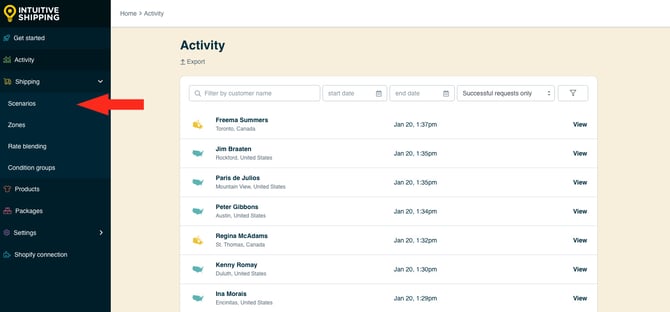
**1.** Click **Shipping** on the sidebar menu, then select **Scenarios** from the drop-down list.
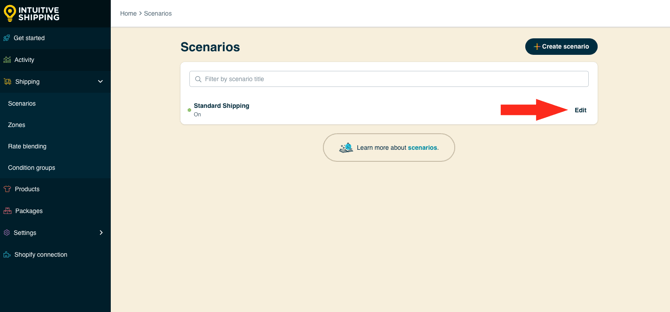
**2.** Click **Edit** next to the Scenario where you want to assign your 'signature required' shipping method.
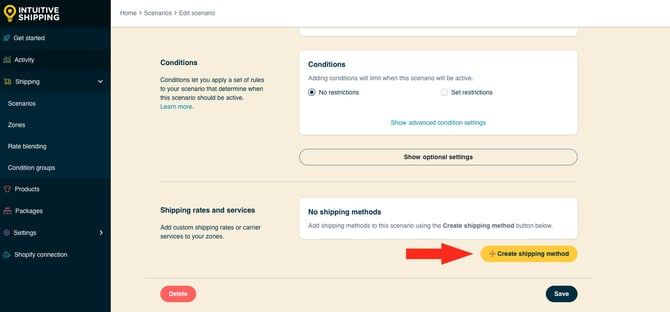
**3.** Scroll down to '**Shipping rates and services'**, then click the **Create shipping method** button.
#### Select A Parcel Service
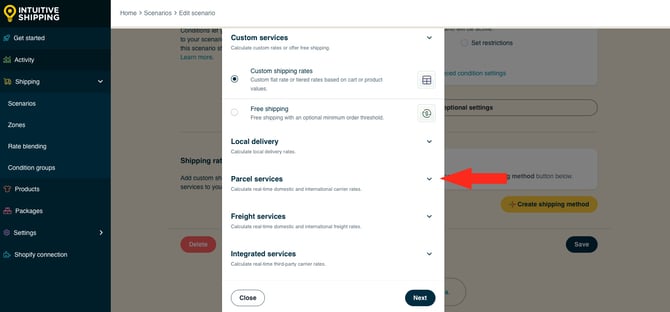
**1.** Click the **downward arrow** beside ‘**Parcel services**’ to display a list of live rate carriers.
**2.** Select the **carrier service** you'll be using for your 'signature required' shipping method, such as Canada Post. Use the search bar at the top to search for specific carriers.
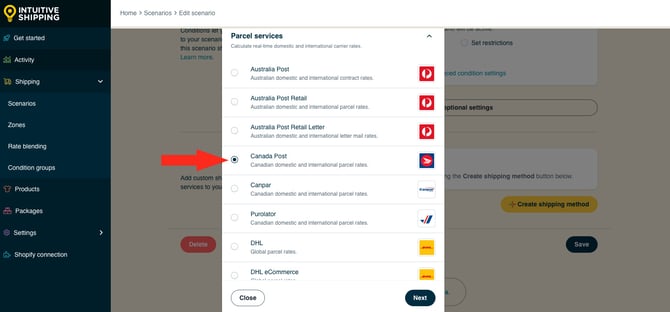
**3.** Click the **Next** button.
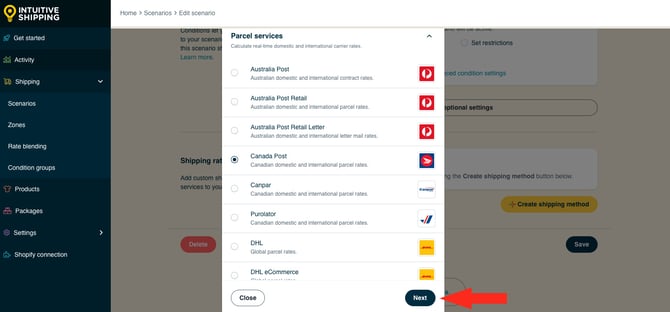
**4.** Select a **zone**. If you have a lot of zones, type the zone name into the search field to narrow the list.
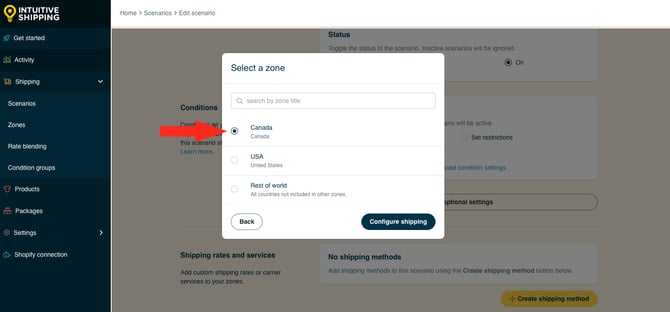
**5.** Click the **Configure shipping** button.
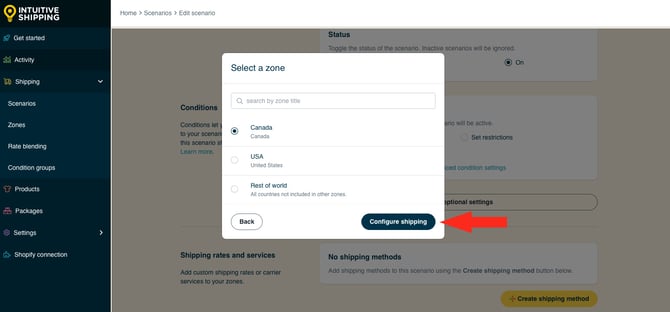
#### General
**1.** Enter a **shipping method title**.
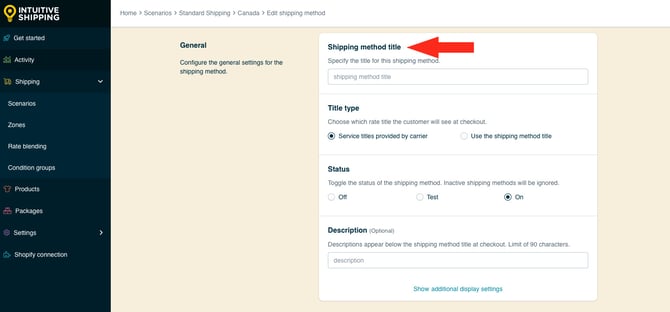
Depending on the option you choose in the next step, this title may or may not be shown to customers at checkout.
**2.** Select the **title type**.
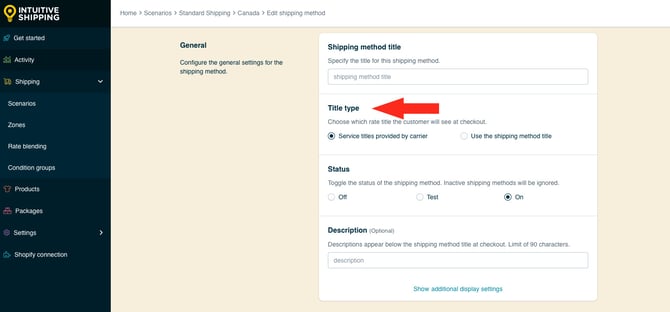
You have two (2) settings to choose from:
- **Service title provided by carrier** - The service title (or titles) returned by the carrier during rate calculation will be the shipping method title(s) displayed at checkout. This is the default setting.
- **Use the shipping method title** - The shipping method title entered in the previous step will be displayed at checkout. If multiple carrier service options, all of the service titles provided by the carrier are replaced with the shipping method title.
**Service title provided by carrier:** If the carrier returns multiple titles, such as ‘Canada Post Expedited Parcel’ and ‘Canada Post Priority’, each unique title is displayed at checkout as it's provided by the carrier, regardless of the shipping method title entered in the previous step.
**Use the shipping method title:** If you entered 'Canada Post' as the shipping method title in the previous step, both carrier titles - 'Canada Post Expedited Parcel' and 'Canada Post Priority' will be displayed as 'Canada Post'
In Shopify, if multiple shipping methods share an identical title, only the cheapest one appears at checkout. To offer multiple carrier service options from a single method, we strongly recommend using the carrier’s service titles.
**3.** Choose the **shipping method** **status**.
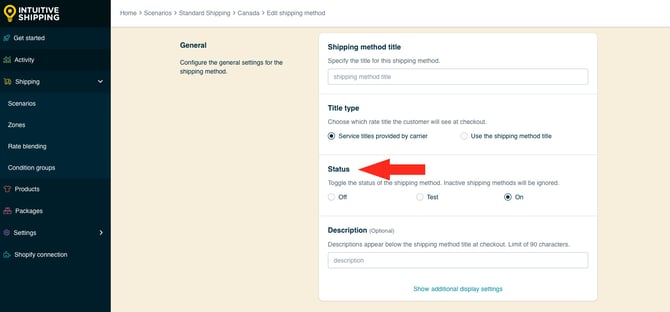
You have three (3) settings to choose from:
- **Off** - when Scenario conditions are met, the shipping method will be ignored and will not display rates, even in Sandbox mode.
- **Test** - when Scenario conditions are met, the shipping method will be displayed at checkout only when using ‘Intuitive’ on the checkout page (see below).
- **On** - when Scenario conditions are met, the shipping method will be displayed at checkout. This is the default setting.
When using the '**Test**' setting:
- For **Shopify** - enter ‘Intuitive’ as either the customer’s first or last name.
- For **BigCommerce** - enter ‘Intuitive’ in the optional address field for ‘Apartment/ Suite/ Building’.
While in Sandbox mode, the 'On' setting behaves the same as 'Test' until a billing plan is selected. Learn more about[how to test your Intuitive Shipping setup](https://knowledge.intuitiveshipping.com/test-your-setup?hsLang=en).
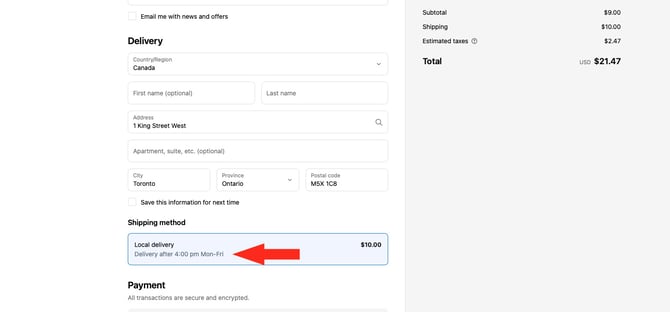
**4.** Enter a **description** for your shipping method, such as ‘Signature required upon delivery’. We recommend limiting your description to 90 characters or less to ensure it displays properly on the checkout page.
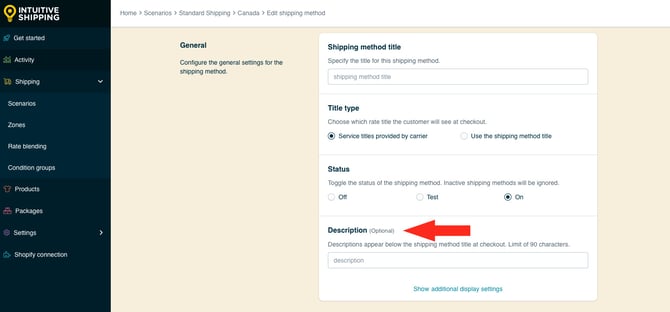
Descriptions are displayed below the shipping method title at checkout.
#### Additional Display Settings
Additional display settings are available for **custom delivery times**, **order processing time** and **service codes**.
- **Delivery times** are displayed at checkout and help manage expectations for customers.
- **Order processing time** lets you add buffer time to start the fulfillment process, if the products can't be packaged, picked or completed the same day the order is received.
- **Service codes** are not displayed to customers, but get pushed to your fulfilment service, if applicable) once a checkout is successfully completed.
To configure delivery times, order processing times and service codes:
**1.** Click **Show additional display settings**.
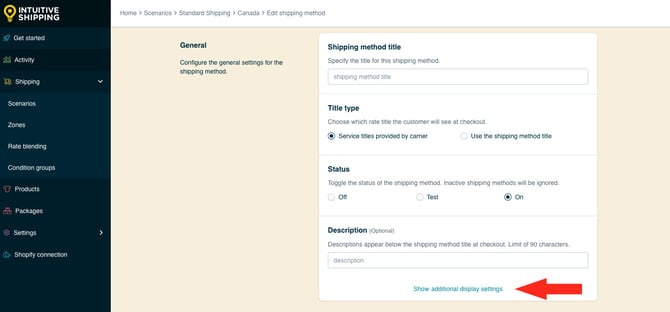
**2.** Configure **delivery time**, **order processing** and **service code** settings as needed.
#### Packages
You can control how the customer’s order is packaged by choosing a packing algorithm and assigning the packages you want this shipping method to use.
**1.** Select a **packing algorithm**.
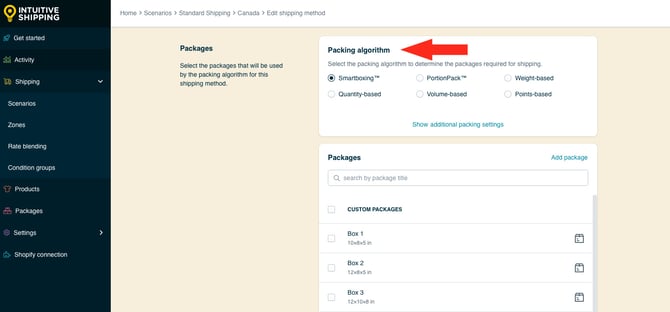
Your have six (6) options to choose from:
- **SmartBoxing** - Intuitive Shipping will select the best package combination based on both the weight and the dimensional volume of the order.
- **PortionPack** - Intuitive Shipping will select the best package combination based on the portion weight of the order.
- **Weight-based** – Intuitive Shipping will select the best package combination based only on the whole weight of the order.
- **Quantity-based** - Intuitive Shipping will select the best package combination based only on the number of items in the order.
- **Volume-based** - Intuitive Shipping will select the best package combination based only on the dimensional volume of order.
- **Points-based** - Intuitive Shipping will select the best package combination based on a point system. Points are arbitrary values assigned by you.
For SmartBoxing and volume-based algorithms to work with Shopify, you must assign product dimensions in your Intuitive Shipping [product settings](https://knowledge.intuitiveshipping.com/update-product-settings?hsLang=en).
**PortionPack vs. Weight-based**
Both PortionPack and weight-based packing algorithms consider the combined weight of the products being ordered. PortionPack allows you to sell items in bulk or 'portions', such as raw meat, whereas weight-based considers the weight as a whole.
Let's say you only use **one package** for every order and that package has a maximum weight of 25 lbs. If a customer orders 40 lbs worth of product:
- **PortionPack** - the order will be packed in 2 packages - one with 25 lbs, one with 15 lbs.
- **Weight-based** - the order will fail at checkout because the the only available package cannot hold the entire weight of the order. An additional package (or packages) capable of of holding up to 40 lbs would be required.
#### Additional Packing Settings
Additional packing settings are available for **packing method,** **multiple package blending** and **product dimensions**.
- **Packing method** lets you choose if different products in the order are packed together or separately.
- **Multiple package blending** gives you the option blend shipping costs for different packages when carrier services don't match.
- **Product dimensions** can be used to limit packing when the packing algorithm doesn't otherwise consider dimensions, such as weight-based.
If you don't need to adjust the packing method, multiple package blending or product dimensions settings, skip ahead to [add packages](https://knowledge.intuitiveshipping.com/create-a-signature-required-shipping-method#add-packages).
To adjust these settings:
**1.** Click **Show additional packing settings**.
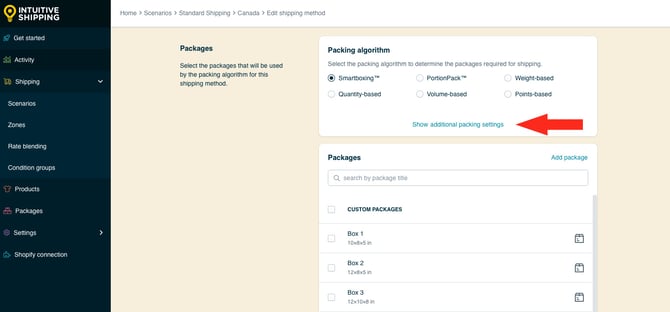
**2.** Configure **packing method**, **multiple package blending** and **product dimensions** settings as needed.
#### Add Packages
All packages saved in the [Package management system](https://knowledge.intuitiveshipping.com/add-a-package?hsLang=en) are listed in this section of the shipping method. If needed, you can add more packages directly from here. Any new packages you add will also be saved to your central package settings, so they’re available for other shipping methods that use packages.
If all the packages you need are listed and you don't need to add more, skip ahead to [select packages](https://knowledge.intuitiveshipping.com/create-a-signature-required-shipping-method#select-packages).
To add a package that is not currently listed:
**1.** Click **Add package**, then **enter the package details**.
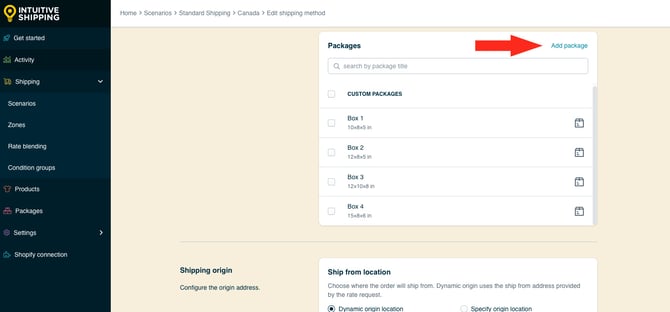
The newly added package will appear as a selectable option in this shipping method and will also be saved in the [Package management system](https://knowledge.intuitiveshipping.com/add-a-package?hsLang=en) for use in other shipping methods.
#### Select Packages
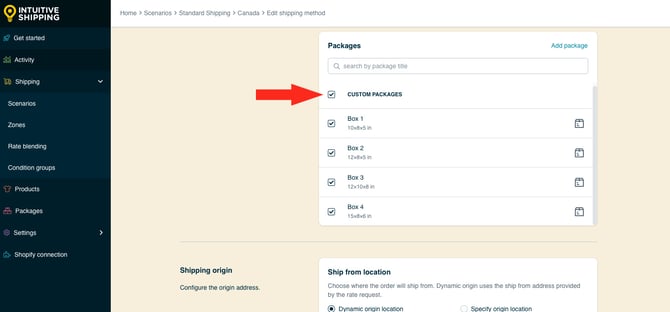
All packages you’ve added to Intuitive Shipping are listed in the shipping method. Only the ones with a checkmark next to them will be used by the packing algorithm during carrier rate calculations.
**1.** To make all of your packages available, **check the box** beside 'Custom Packages', which behaves like a ‘select all’ feature.
**2.** If you don’t want to use all packages, **check the boxes** next to the ones you do want. If you have a long list, you can use the search bar or scroll to find specific packages.
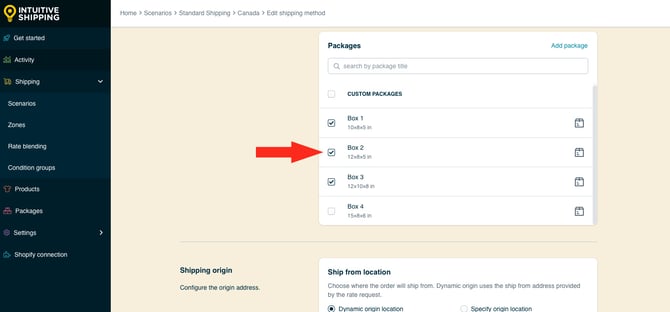
Packages that aren't selected **will be ignored** by the packing algorithm during carrier rate calculations.
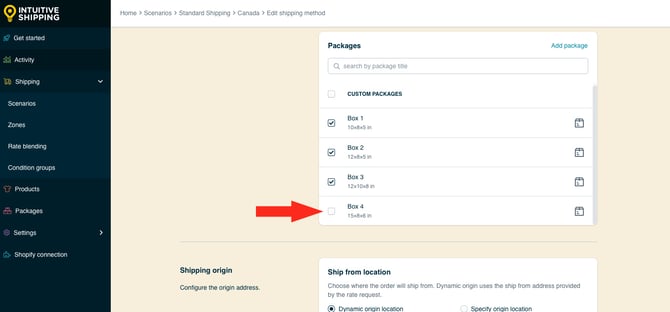
Packages that have been **turned off** in the package management system appear muted and show a ‘Package not available’ message. They will be ignored by the packing algorithm during carrier rate calculations, regardless of whether their checkbox is selected.
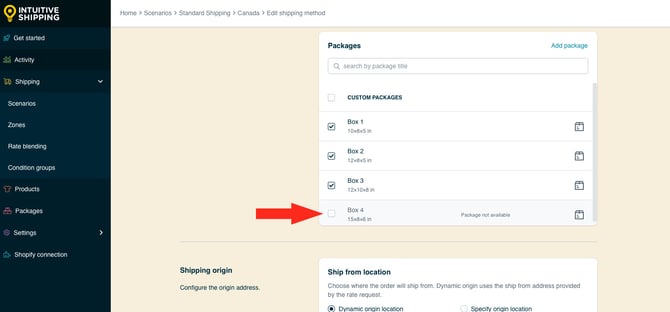
Learn how to change the [On/Off status of a package](https://knowledge.intuitiveshipping.com/add-a-package?hsLang=en#package-status) in the package management system.
#### Shipping Origin
Carrier rates can be calculated using the primary location set up in your eCommerce platform or one of any custom locations saved in Intuitive Shipping. This is useful if you ship products from different retail or warehouse locations.
**1.** Select the **ship from location** for the shipping method.
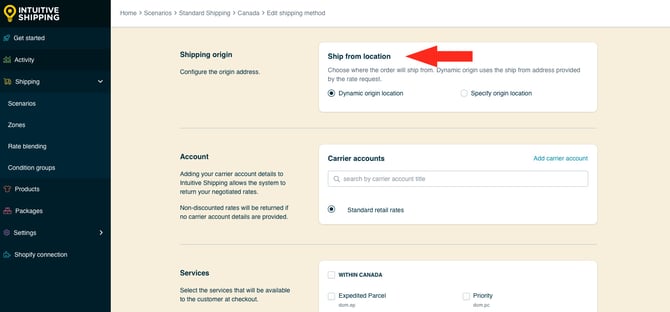
You have two (2) settings to choose from:
- **Dynamic origin location** - carrier rates for the shipping method will be calculated based on the distance between the customer’s address and your primary eCommerce platform address. This is the default setting.
- **Specify origin location** - carrier rates for the shipping method will be calculated based on the address specified in the next step.
If you selected 'Dynamic origin location', skip ahead to [Account](https://knowledge.intuitiveshipping.com/create-a-signature-required-shipping-method#account).
#### Add And Select A Custom Origin Location
All custom locations saved in the[Location management system](https://knowledge.intuitiveshipping.com/add-a-location?hsLang=en) are listed in this section of the shipping method. If needed, you can add more origin locations directly from here. Any new origin locations you add will also be saved to your central locations settings, so they’re available for other shipping methods that use custom locations.
The next few steps will show you how to **add** a custom origin location directly from the shipping method. If the location you need are listed and you don't need to add more, skip ahead to [select a location](https://knowledge.intuitiveshipping.com/create-a-signature-required-shipping-method#select-location).
To add a location that is not currently listed:
**1.** Click **Add location**, then **enter the location details**.
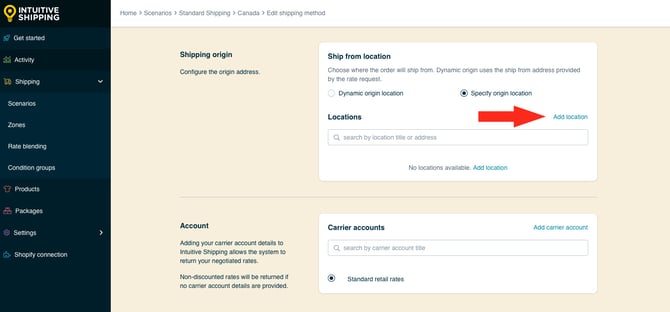
The newly added location will appear as a selectable option in this shipping method and will also be saved in the [Location management system](https://knowledge.intuitiveshipping.com/add-a-location?hsLang=en) for use in other shipping methods.
**2.** Select a **location**. This location will be used as the starting point for carrier rate calculations in this shipping method.
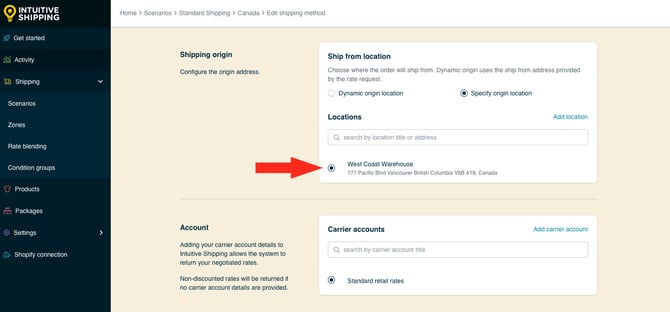
Intuitive Shipping cannot see inventory and doesn’t use inventory-based rules. Locations are used to improve the accuracy of carrier calculations when shipping from multiple warehouse locations.
#### Account
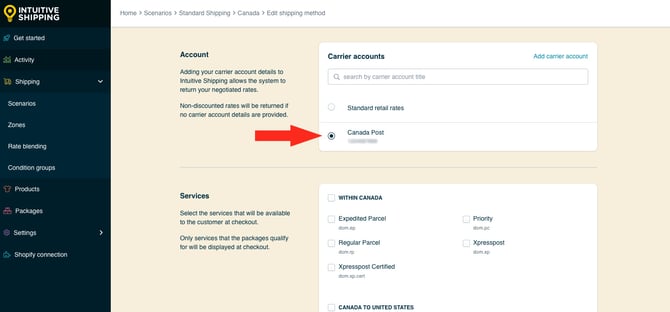
If you have an account with the carrier you selected at the start of this guide, you can use it to access your discounted or negotiated rates. If you’ve already connected your carrier account to Intuitive Shipping, it will appear under 'Carrier accounts' as a selectable option.
Some carriers also offer standard retail rates, which are available to anyone without needing an account. If the selected carrier provides retail rates, a ‘Standard retail rates’ option will appear under 'Carrier accounts' and be selected by default. If the carrier doesn’t offer retail rates, no option will be shown.
If the carrier requires an account and no ‘Standard retail rates’ option is available, you will be unable to save the shipping method unless a valid carrier account is available and selected.
#### Add A Carrier Account
Carrier accounts saved in the Carrier accounts management system are listed in this section of the shipping method. If needed, you can add a carrier account directly from here. Any new carrier account you add will also be saved to your central carrier accounts settings, so they’re available for other shipping methods that use the same account.
The next few steps will show you how to add a carrier account directly from the shipping method.
If the account you need is listed or 'Standard retail rates' is available and preferred, skip ahead to [select a carrier account](https://knowledge.intuitiveshipping.com/create-a-signature-required-shipping-method#select-carrier-account).
**1.** Click **Add a carrier account**, then **enter the account details**.
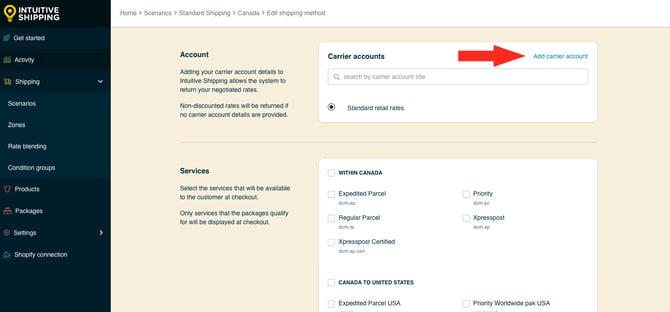

Theform fields are suited to the carrier selected at the beginning of this guide.
The newly added carrier account will appear as a selectable option in this shipping method and will also be saved in the Carrier account management system for use in other shipping methods.
**5.** Select a **carrier account** or use **standard retail rates**, if available.
#### Services
Carriers usually offer a range of delivery services, both domestic and international. Intuitive Shipping supports most services provided by our integrated carrier partners. If you don’t see a specific carrier service listed in your shipping method, please [contact us](https://knowledge.intuitiveshipping.com/contact?hsLang=en) so we can look into it.
If the shipping method is assigned to a domestic zone, make sure to select domestic services. If it’s assigned to an international zone, select international services instead.
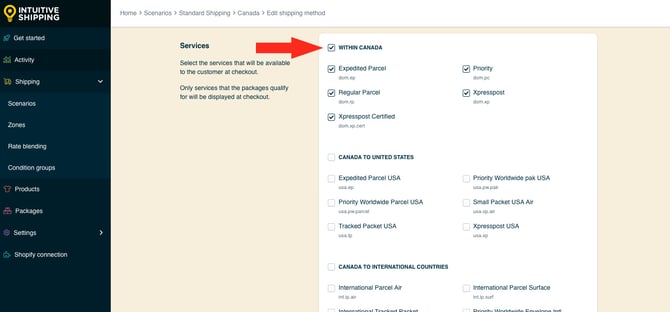
**1.** Select **all** 'signature required' services within a region by checking the box beside the region heading.
**2.** If you don’t want to offer all services, **check the boxes** next to the ones you do want.
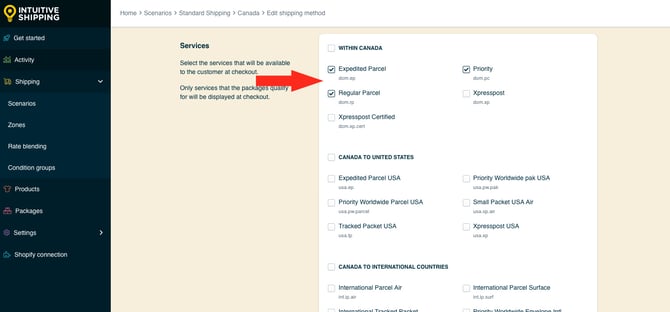
Selected services must be available in the customer’s location to be displayed at checkout.
Let’s say you’ve selected Canada Post Expedited Parcel, Regular Parcel and Priority. If a customer lives at an address where Priority is not offered by Canada Post, they will only see Expedited and Regular services as shipping options at checkout.
#### Additional Service Settings
Additional settings are available to **filter services**. By default, each service you selected in the steps above is displayed at checkout if it's available in the customer's postal code or zip code. You can choose to limit which services are offered based on their cost or estimated delivery time.
If you don't want to filter the services offered to customers at checkout, skip ahead to [Optional Settings](https://knowledge.intuitiveshipping.com/create-a-signature-required-shipping-method#optional-settings).
To filter services:
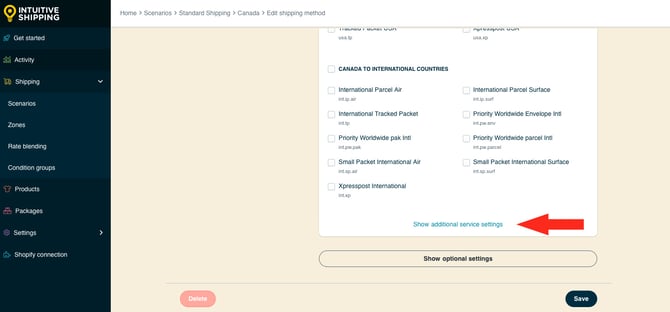
**1.** Click **Show additional service settings**, then configure the service filtering as needed.
#### Optional Settings
Optional settings for **carrier settings, fallback rating,** **cost adjustments**, **free shipping**, **custom shipping blending** and **rate blending** give you further control of your custom shipping rates at checkout. Most of these settings are not required for this setup, with the exception of **cost adjustments**, which is how we'll add the 'signature required' fee.
- **Carrier settings** provide additional controls, such as address type (residential or commercial) and package insurance, allowing you to match the settings used at the fulfillment stage.
- **Carrier service fallback rating** can be enabled to ensure your customers receives a shipping rate at checkout even when rate request times out.
- **Cost adjustments** let you fully customize the final cost presented at checkout, regardless of the original rate calculation.
- **Free shipping** allows you to set a threshold for when free shipping is applicable on carts that would otherwise be charged for shipping.
- **Custom shipping blending** gives you the option to blend rates from the shipping method with product-specific shipping costs.
- **Rate blending** lets you combine rates from one shipping method with other shipping methods using simple or advanced blending.

Carrier settings are not available for all carriers.

Learn more about [optional settings for parcel service shipping methods](https://knowledge.intuitiveshipping.com/create-a-parcel-service-shipping-method?hsLang=en#optional-settings).
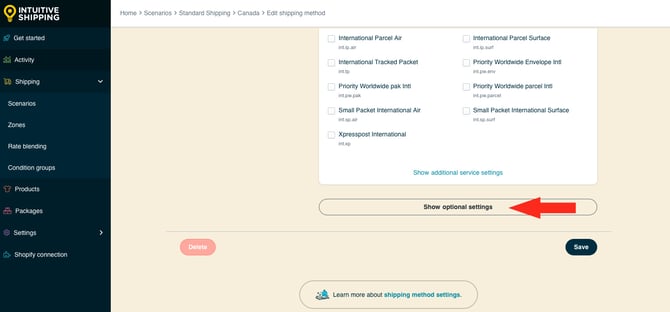
**1.** Click **Show optional settings**.
#### Carrier Settings (Optional)
Some carriers have additional settings that can be customized. For example, FedEx lets you choose destination address type, package insurance, pickup method, packaging type and whether or not you want to use FedEx One Rate. Whereas, USPS lets you choose between retail or discounted rates. Each carrier has different optional settings, and some carriers, like Canada Post, don’t have any.
**1.** Adjust the carrier settings as needed and **if available**.
#### Carrier Service Fallback Rate (Optional)
Intuitive Shipping lets you decide if a fallback rate will be shown at checkout in situations when the carrier service reaches the **timeout limit**. This is useful when the carrier’s servers are down or when they’re overwhelmed during peak periods like Black Friday.
Fallback rates are only activated when the system times out waiting for a response from the carrier.
The timeout limit is how long Intuitive Shipping has to send carrier-provided rates to your checkout page within your eCommerce platform’s established time limit.
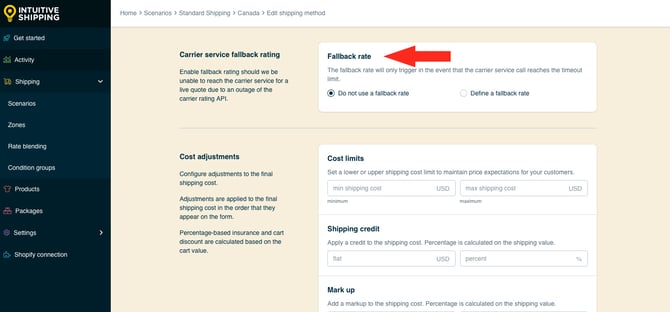
**1.** Choose whether or not to **enable a fallback rate**.
You have two (2) settings to choose from:
- **Do not use a fallback rate** - when carrier service calls time out, rates from the shipping method will not be displayed at checkout. This is the default setting.
- **Define a fallback rate** - when carrier service calls time out, the fallback rate entered in the next step will be displayed at checkout, along with any fallback rate display settings entered in the steps immediately following.
Fallback rates willnot be displayed if there are rate calculation errors, such as missing dimensions, weights, unauthenticated account credentials, invalid shipping addresses, or if the carrier does not return rates for any reason.
If you selected '**Define a fallback rate'** in the previous step:
**2.** Enter a fallback **shipping cost**.
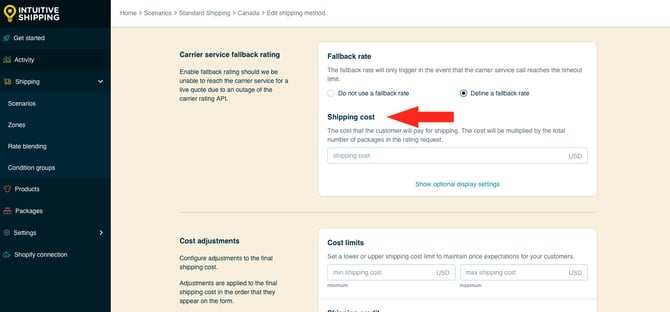
Fallback shipping costs are multiplied by the number of packages required for the customer order.
Let’s say your fallback rate is $15.00, and a customer order results in three (3) packages being required based on the selected packing algorithm. If the carrier rates time out and the fallback rate is activated, the customer will be charged $45.00 for shipping at checkout ($15.00 x 3 packages).
#### Additional Fallback Rate Display Settings
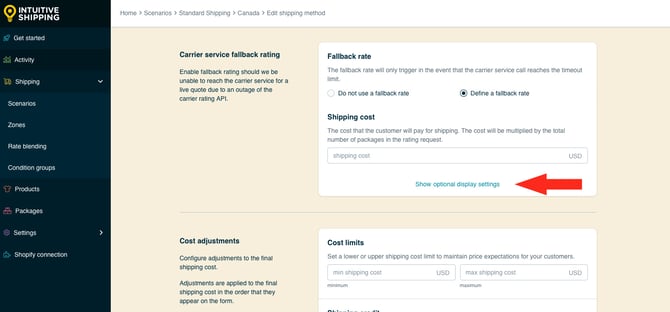
Additional settings are available for **fallback rate titles**, **descriptions**, **delivery times** and s**ervice codes** can override the shipping method's general display settings when the fallback rate is activated and displayed at checkout.
To configure display settings for a fallback rate:
**1.** Click **Show optional display settings**, then configure the additional display settings as needed.
#### Cost Adjustments (Required)
Customize how shipping costs appear at checkout by making final adjustments to the carrier rate calculation. These adjustments are applied in the order they're listed in the app:
1. Cost limits
2. Shipping credits
3. Mark ups
4. Handling fees
5. Insurance
6. Discounts
7. Rounding
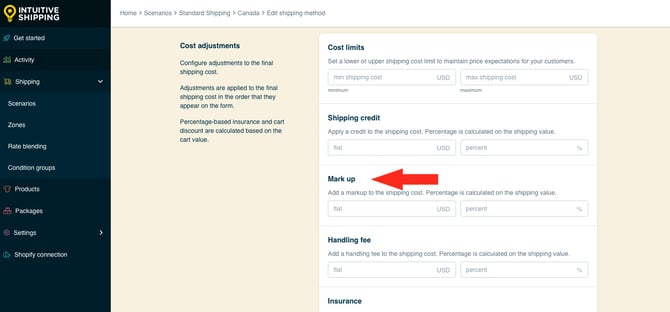
For this setup, only a **mark up** is required for the signature add-on fee. That means any cost limit or shipping credit adjustments will be calculated *before* your mark up.
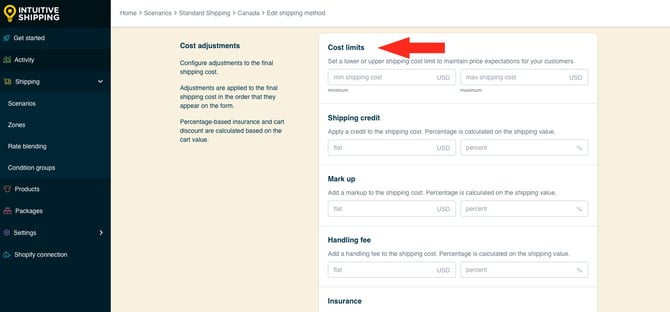
To add **cost limits**:
**1.** Enter a **minimum** and/or **maximum** amount. This optional setting is useful if you want customers to pay a minimum shipping cost if the actual rate is too low or a maximum shipping cost if the actual rate is too high.
For example:
- If the minimum shipping cost entered here is $10.00 and the calculated rate is $8.58, the final cost will be adjusted up to $10.00.
- If the maximum shipping cost entered here is $100.00 and the calculated rate is $122.44, the final cost will be adjusted down to $100.00.
**Please note:** Cost limit calculations are completed *before* the mark up for your 'signature required' add-on fee.
To add a **shipping credit**:
**2.** Enter a **flat** or **percentage** amount. This optional setting is useful if you want to offer customers a credit based on a pre-determined amount or a percentage of the calculated rate.
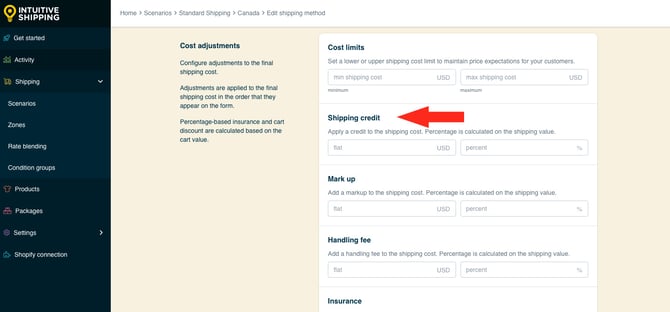
**Please note:** Shipping credit calculations are completed *before* the mark up for your 'signature required' add-on fee.
**3.** Enter the **carrier's flat fee** for requiring a signature. For example, if the signature fee is $5.75, enter ‘5.75’ to mark up the final shipping cost by that amount.
To add a **handling fee**:
**4.** Enter a **flat** or **percentage** amount. This optional setting is useful if you want to add handling fees based on a pre-determined amount or a percentage of the calculated rate.
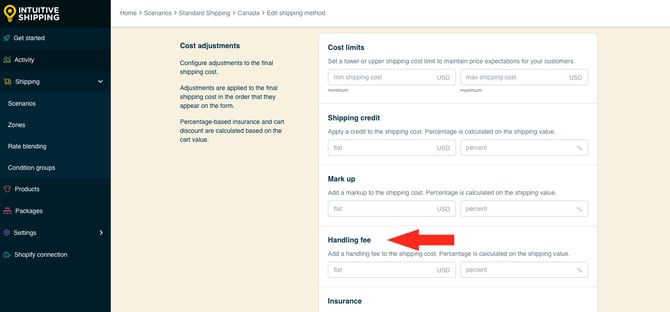
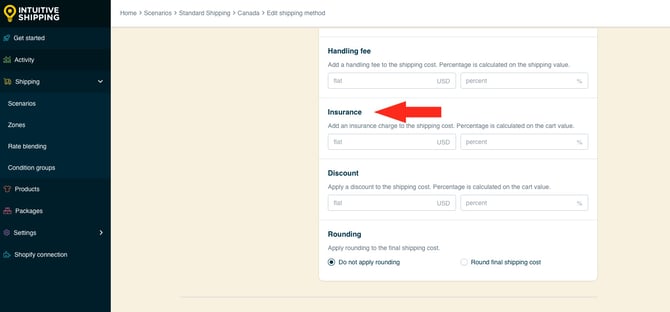
To add **insurance**:
**5.** Enter a **flat** or **percentage** amount. This optional setting is useful if you want to add insurance fees based on a pre-determined amount or a percentage of the pre-tax cart total.
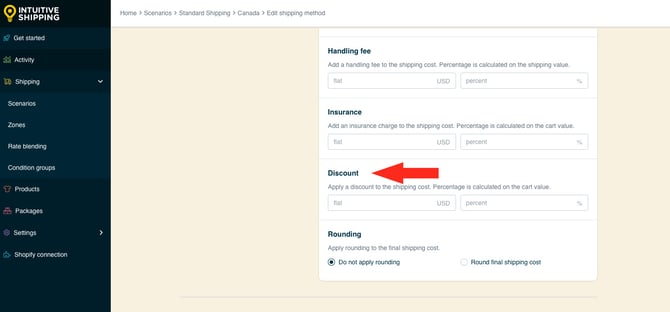
To apply a **discount**:
**6.** Enter a **flat** or **percentage** amount. This optional setting is useful if you want to discount the final shipping cost based on a pre-determined amount or a percentage of the pre-tax cart total.
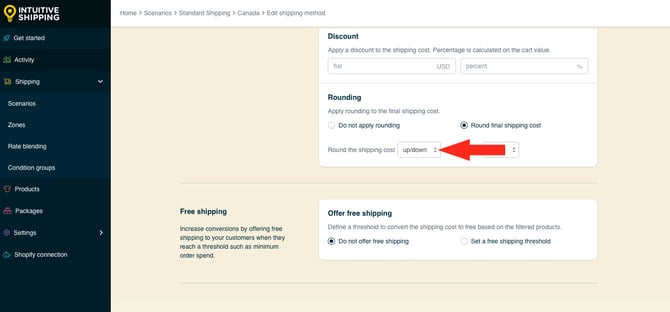
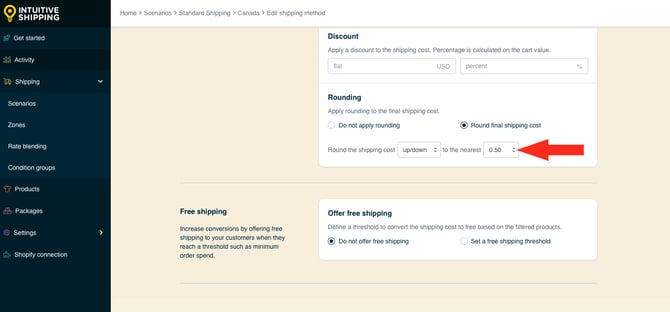
**7.** Select a **rounding** setting.
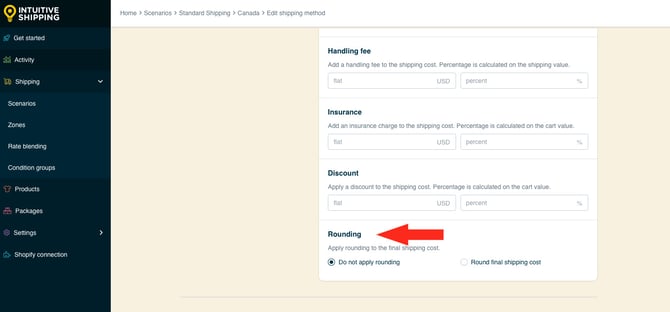
If you selected ‘Round final shipping cost’ in the previous step:
**8.** Choose the rounding **direction** and incremental **amount** to round the shipping cost.
#### Other Optional Settings
Other optional settings are not required for this setup, but can be applied if needed.
**1.** If desired, configure optional settings for **free shipping**, **custom shipping blending** and **rate blending**.

Learn more about [optional settings for parcel service shipping methods](https://knowledge.intuitiveshipping.com/create-a-parcel-service-shipping-method?hsLang=en#optional-settings).
#### Save Your Settings
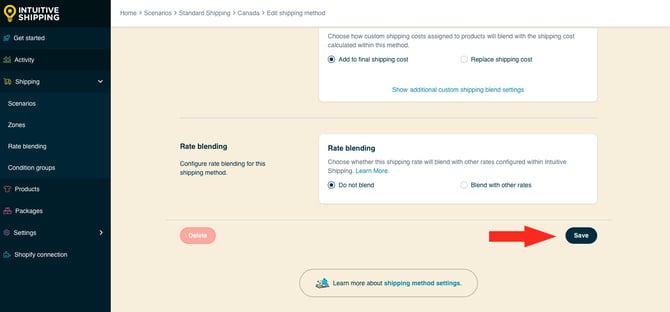
To save your signature required' shipping method:
**1.** Click the **Save** button.
### Create A Signature Required Shipping Method From A Copy
If you already have a standard shipping method where no signature is required and want to quickly add an alternative version with a signature requirement, you can copy the existing shipping method and then add the signature fee. This lets you offer customers the option to choose between the two services.
**1.** Click **Shipping** on the sidebar menu, then select **Scenarios** from the drop-down list.

**2.** Click **Edit** next to the Scenario where you want to assign your 'signature required' shipping method.

**3.** Scroll down to '**Shipping rates and services'**, then click **Edit** beside the shipping method.
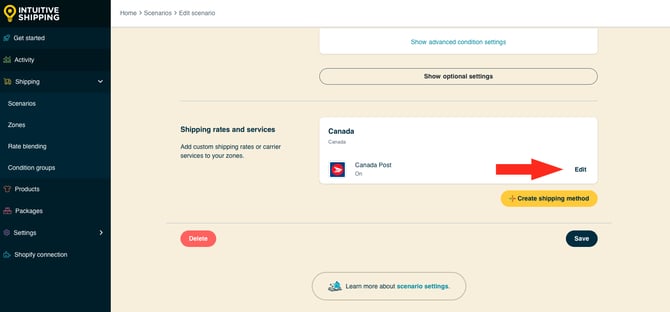
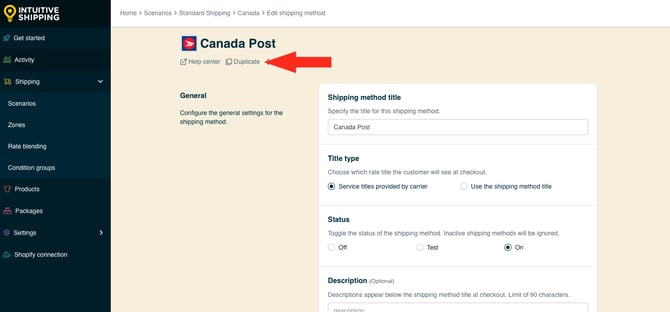
**4.** Click **Duplicate** below the carrier logo at the top of the page. This will create an exact copy of the shipping method.
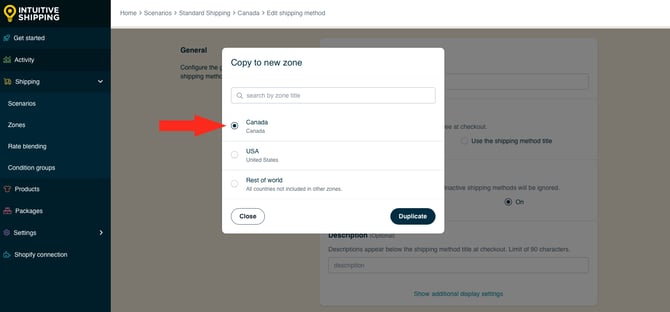
**5.** Ensure the shipping method is being copied to the same **zone** the original shipping method is assigned to.
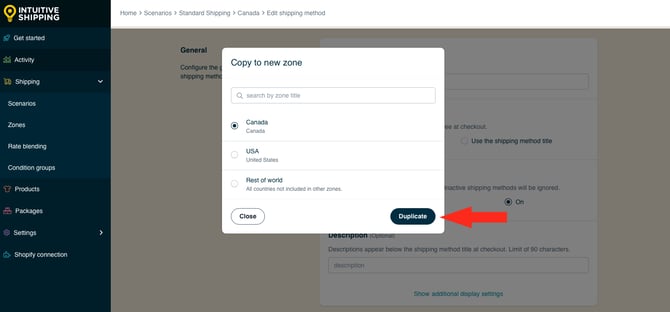
**6.** Click the **Duplicate** button.
**7.** Change the **shipping method** **title** from ‘Copy of \[original title\]’ to something that identifies it as a signature required shipping method, like ‘Canada Post Signature’.

**8.** Scroll to the bottom, then click **Show optional settings**.

**9.** Scroll down to **Cost adjustments**, then enter the carrier’s signature flat fee as a **mark up**. For example, if the signature fee is $5.75, enter ‘5.75’ to mark up the final shipping cost by that amount.

#### Save Your Settings
**1.** Click the **Save** button to save your signature required parcel service shipping method.

### Learn more:
- [Common setups](https://knowledge.intuitiveshipping.com/common-setups?hsLang=en)
- [Additional setups](https://knowledge.intuitiveshipping.com/additional-setups?hsLang=en)
- [How-to guides](https://knowledge.intuitiveshipping.com/how-to?hsLang=en)
- [Connect a carrier](https://knowledge.intuitiveshipping.com/connect-a-carrier?hsLang=en)
- [General info](https://knowledge.intuitiveshipping.com/general-info?hsLang=en)
- [FAQ](https://knowledge.intuitiveshipping.com/faq-page?hsLang=en)
- [Get Started](https://knowledge.intuitiveshipping.com/get-started?hsLang=en)
- [Common Setups](https://knowledge.intuitiveshipping.com/common-setups?hsLang=en)
- [Additional Setups](https://knowledge.intuitiveshipping.com/additional-setups?hsLang=en)
- [How-To](https://knowledge.intuitiveshipping.com/how-to?hsLang=en)
- [Connect A Carrier](https://knowledge.intuitiveshipping.com/connect-a-carrier?hsLang=en)
- [Black Friday](https://knowledge.intuitiveshipping.com/black-friday?hsLang=en)
- [Billing & Account](https://knowledge.intuitiveshipping.com/billing-account?hsLang=en)
- [General Info](https://knowledge.intuitiveshipping.com/general-info?hsLang=en)
- [Get Help](https://knowledge.intuitiveshipping.com/get-help?hsLang=en)
- [Main Site](https://intuitiveshipping.com/)
- [FAQ](https://knowledge.intuitiveshipping.com/faq-page)
- [Privacy Policy](https://intuitiveshipping.com/legal/privacy)
- [Terms](https://intuitiveshipping.com/legal/terms)
- [EULA](https://intuitiveshipping.com/legal/eula)
[](http://intuitiveshipping.com)
The shipping solution for serious sellers.
© Copyright 2019-2025 Intuitive Shipping Inc.