---
title: Create A Blended Rate
description: How to create a blended rate
---
[Skip to content](https://knowledge.intuitiveshipping.com/create-a-blended-rate#main-content)
[](https://knowledge.intuitiveshipping.com?hsLang=en)
- [FAQ](https://knowledge.intuitiveshipping.com/faq-page)
- [Main Site](https://intuitiveshipping.com/)
Open main navigation
Close main navigation
- [FAQ](https://knowledge.intuitiveshipping.com/faq-page)
- [Main Site](https://intuitiveshipping.com/)
- [Contact us](https://knowledge.intuitiveshipping.com/contact)
[Contact us](https://knowledge.intuitiveshipping.com/contact?hsLang=en)
How can we help?
- There are no suggestions because the search field is empty.
1. [Intuitive Shipping Help Center](https://knowledge.intuitiveshipping.com/?hsLang=en)
2. [Get Started](https://knowledge.intuitiveshipping.com/get-started?hsLang=en)
# Create A Blended Rate
## Combine multiple shipping costs into a single blended rate at checkout.
**Contents:**
- [How It Works](https://knowledge.intuitiveshipping.com/create-a-blended-rate#how-it-works)
- [Simple Blending vs. Advanced Blending](https://knowledge.intuitiveshipping.com/create-a-blended-rate#simple-vs-advanced-blending)
- [Create A Simple Blended Rate](https://knowledge.intuitiveshipping.com/create-a-blended-rate#create-simple-blended-rate)
- [Create An Advanced Blended Rate](https://knowledge.intuitiveshipping.com/create-a-blended-rate#create-advanced-blended-rate)
- [Add Rate Blending To A Shipping Method](https://knowledge.intuitiveshipping.com/create-a-blended-rate#add-rate-blending-to-shipping-method)
Intuitive Shipping lets you create multiple [Scenarios](https://knowledge.intuitiveshipping.com/create-a-scenario?hsLang=en) to manage and separate your shipping methods, which is especially useful when rates vary based on products, vendors, or other factors.
You can set up Scenarios using an ‘either/or’ structure, where only one set of rules applies based on what’s in the cart. If, however, you need to charge more than one rate and want those rates combined into a single shipping cost at checkout, you’ll need to enable rate blending. With rate blending, you can easily merge shipping costs from multiple shipping methods across different Scenarios or even within the same Scenario, regardless of the type of shipping methods you're using.
### How It Works
Let’s say you work with two vendors, each with different shipping rates. Your East Coast vendor charges a flat $20.00 rate, while your West Coast vendor uses a tiered rate table that looks like this:
- $15.00 for up to 15 items
- $25.00 for 16 up to 49 items
- $45.00 for 50 or more items
When a customer orders products from both vendors, you want to make sure they’re charged the correct combined shipping amount.
To handle this, you’ve created two Scenarios:
- One with a custom service shipping method for the East Coast vendor’s flat rate
- Another with a custom service shipping method for the West Coast vendor’s tiered rates
Without rate blending, a customer ordering any East Coast items and three (3) West Coast items would see both the $20.00 flat rate (East Coast) and $15.00 tiered rate (West Coast) at checkout. They will inevitably choose the lower option - $15.00 - which means you’ll end up covering the extra cost.
By enabling rate blending, you'll ensure the customer is charged the correct combined amount - in this case, $35.00.
Intuitive Shipping's rate blending feature doesn’t just add rates together. You can also configure it to return the highest cost, the average cost, or even the fastest delivery option - giving you flexibility in how rates are presented.
Blending must be enabledfor every shipping method you want to blend at checkout.
Blended rates only apply to shipping methods that have rate blending enabled. If a method doesn’t have this setting active, it won’t be included in the blended total and may appear as a separate shipping option - depending on how your Scenarios are set up.
For example, let’s say you have three Scenarios:
- **Scenario 1**: flat rate of $30.00 (blending enabled)
- **Scenario 2**: flat rate of $20.00 (blending enabled)
- **Scenario 3**: flat rate of $25.00 (blending not enabled)
If a customer’s order activates all three, checkout will show two shipping options:
- $50.00 (the blended rate from Scenarios 1 and 2)
- $25.00 (the unblended rate from Scenario 3)
Customers will likley choose the $25.00 option, costing you $50.00 in shipping.
If the rate from Scenario 3 is intended to be a stand-alone rate and you don't want it to be part of the blended rate, you can choose to configure its conditions so that the $25.00 rate doesn’t appear when Scenario 1 and 2 are activated. However, if you want to charge the fully blended $75.00, including all of the above costs, rate blending **must be enabled for all three** shipping methods.
You can also blend flat rates or rate tables with rates from carriers or integration services like ShipStation. For example, if some products have a $15.00 flat shipping rate and others activate multiple carrier service options - like Ground, 2 Day, or Priority Overnight - you can blend the $15.00 flat rate with any - or all - of the carrier service levels.

Learn how to set up [advanced blending for multiple carrier service levels](https://knowledge.intuitiveshipping.com/create-an-advanced-blending-rate-for-optional-carrier-services?hsLang=en).
### Simple Blending vs. Advanced Blending
By default, Intuitive Shipping is set to **simple blending mode**. If you prefer to use the **advanced blending mode**, you can enable it in your Intuitive Shipping General settings.
**Simple blending** lets you quickly and easily configure a single blending setup with your preferred blending mode option, such as:
- Adding costs together
- Displaying the average cost or only the most or least expensive
- Displaying only the fastest or slowest delivery method
**Advanced** **blending** gives you greater control, and lets you:
- Do everything that simple blending does
- Create *multiple* blending rules for different situations
- Override shipping method titles, descriptions and delivery times when blending is activated
If you're using **simple** blending mode, skip ahead to [Create A Simple Blending Rate](https://knowledge.intuitiveshipping.com/create-a-blended-rate#create-simple-blended-rate).
To enable **advanced** blending:
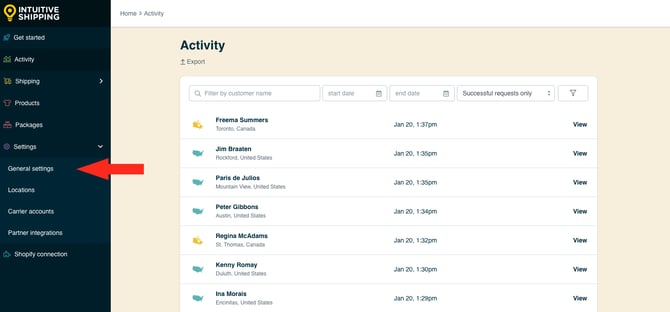
**1.** Click **Settings** on the sidebar menu, then select **General settings** from the drop-down list.
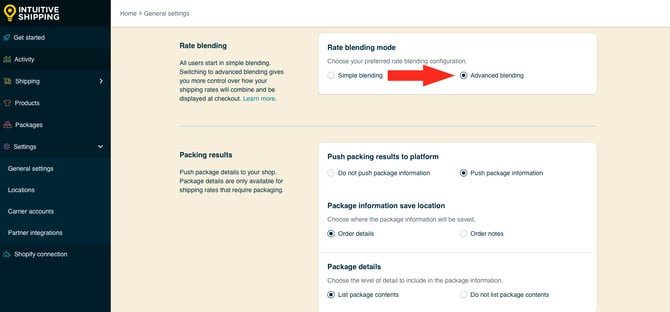
**2.** Scroll down to **Rate blending**, then select **Advanced blending**.
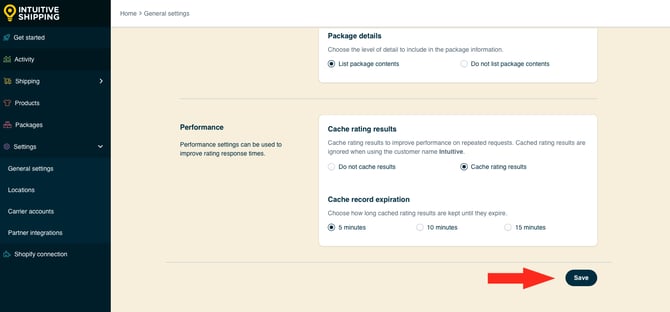
**3.** Click the **Save** button to save changes to your general settings.
**4.** Move ahead to [create an advanced blended rate](https://knowledge.intuitiveshipping.com/create-a-blended-rate#create-advanced-blended-rate).
### Create A Simple Blended Rate
Simple blending mode is enabled by default. You can switch to advanced blending mode at any time in your Intuitive Shipping **General settings**, as shown in the section above.
Here’s how to create a **simple blended rate:**
**1.** Click **Shipping** on the sidebar menu, then select **Rate blending** from the drop-down list.
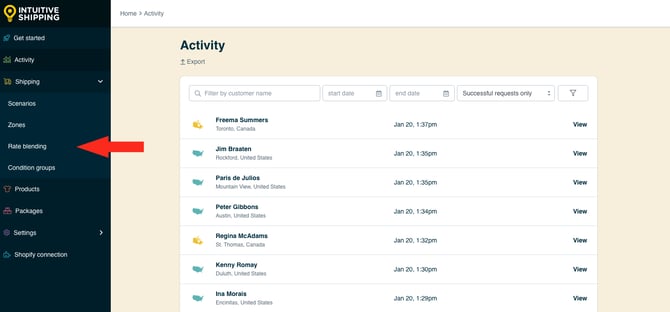
A blue banner with ‘Simple blending mode active’ will be displayed at the top of the page.
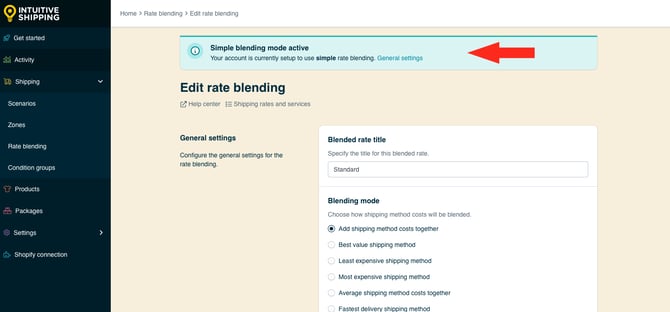
If you don’t see the banner - and you're prompted to 'create rate blending rule' - it means advanced blending mode is currently enabled. Before continuing with the steps below, go to the [Simple Blending vs. Advanced Blending](https://knowledge.intuitiveshipping.com/create-a-blended-rate#simple-vs-advanced-blending) section above and follow the instructions to change the rate blending mode.
Be sure to select **Simple blending** instead of Advanced blending. Once you’ve switched to Simple rate blending, return here and continue with the steps below.
#### General Settings
**1.** Enter a **blended rate title** or leave it set to the preloaded ‘Standard’ title. When rate blending is enabled and an order activates multiple shipping methods, the blended rate title entered here is displayed to customers at checkout in place of the individual shipping method titles.
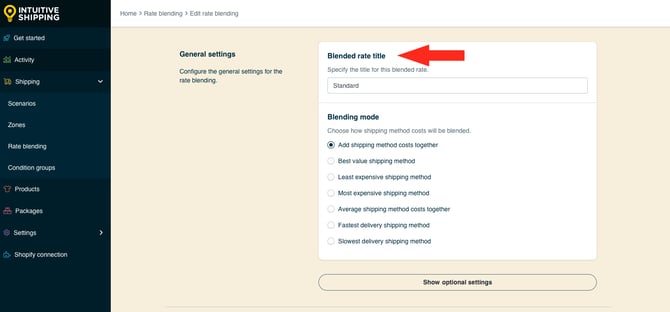
**2.** Select a **blending mode**.
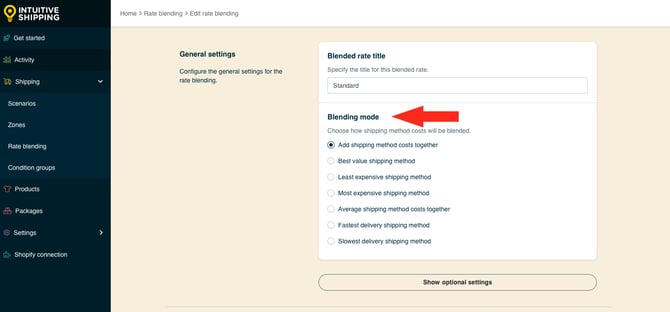
You have seven (7) settings to choose from:
- **Add shipping method costs together** - costs in all activated shipping methods with rate blending enabled will be added together and displayed as a single shipping cost at checkout. This is the default setting.
- **Best value shipping method** -the rate with the best overall value in all activated shipping methods with rate blending enabled will be displayed at checkout.
- **Least expensive shipping method** -the rate with the lowest cost in all activated shipping methods with rate blending enabled will be displayed at checkout.
- **Most expensive shipping method** -the rate with the highest cost in all activated shipping methods with rate blending enabled will be displayed at checkout.
- **Average shipping method costs together** -the average cost for all activated shipping methods with rate blending enabled will be displayed at checkout.
- **Fastest delivery shipping method** -the rate with the fastest delivery method in all activated shipping methods with rate blending enabled will be displayed at checkout.
- **Slowest delivery shipping method** -the rate with the slowest delivery method in all activated shipping methods with rate blending enabled will be displayed at checkout.

Best value considers both cost and delivery time to determine overall value.
#### Optional Settings
Optional cost adjustment settings for **rounding** give you further control of your blended rate at checkout. These settings are not required.
- **Rounding** allows you to present a clean, evenly rounded number at checkout when the actual blended rate results in an odd or unusual number. By default, rounding is set to 'Do not apply rounding'.
If you don't need to round the blended cost, skip ahead to [save your simple blended rate](https://knowledge.intuitiveshipping.com/create-a-blended-rate#simple-save-your-settings).
To round the blended cost:
**1.** Click **Show optional settings**.
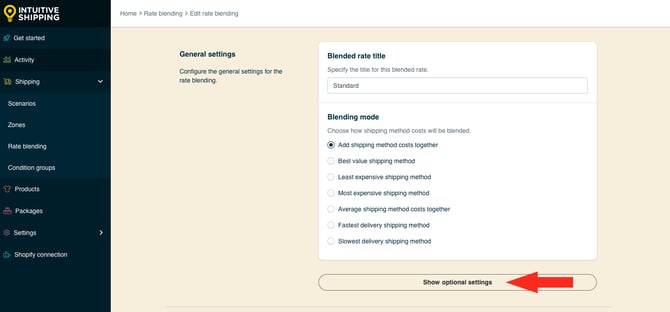
**2.** Select **Round final shipping cost**.
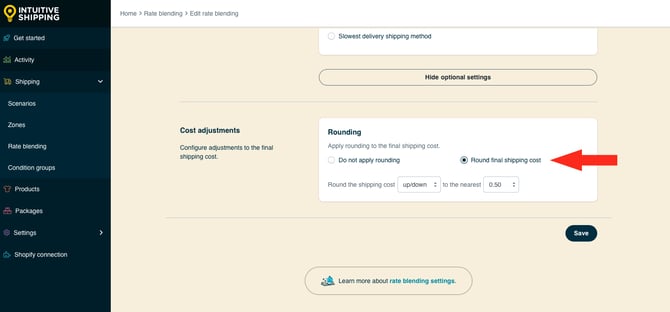
**3.** Choose the rounding **direction**.
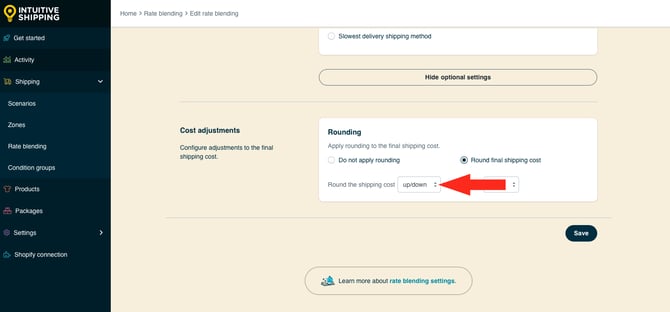
You have three (3) settings to choose from:
- **Up/down** - the final shipping cost will be rounded either up or down to the nearest increment selected in the next step, whichever is closer.
- **Up** - the final shipping cost will always be rounded up to nearest the increment selected in the next step.
- **Down** - the final shipping cost will always be rounded down to the nearest increment selected in the next step.
**4.** Choose the increment **amount** to round the shipping cost.
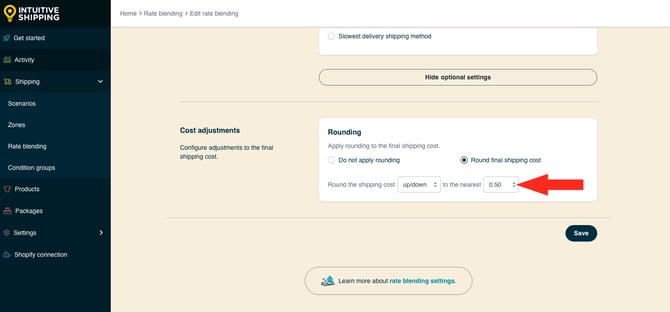
You have four (4) settings to choose from:
- **0.50** - the final shipping cost will be rounded up or down to the nearest 0.50 of your base currency. If the final shipping cost is $18.80, the cost will be rounded down to $18.50 or up to $19.00, depending on the setting selected in the previous step.
- **1.00** - the final shipping cost will be rounded up or down to the nearest 1.00 of your base currency. If the final shipping cost is $23.20, the cost will be rounded down to $23.00 or up to $24.00, depending on the setting selected in the previous step.
- **5.00** - the final shipping cost will be rounded up or down to the nearest 5.00 of your base currency. If the final shipping cost is $33.00, the cost will be rounded down to $30.00 or up to $35.00, depending on the setting selected in the previous step.
- **10.00** - the final shipping cost will be rounded up or down to the nearest 10.00 of your base currency. If the final shipping cost is $22.38, the cost will be rounded down to $20.00 or up to $30.00, depending on the setting selected in the previous step.
#### Save Your Settings
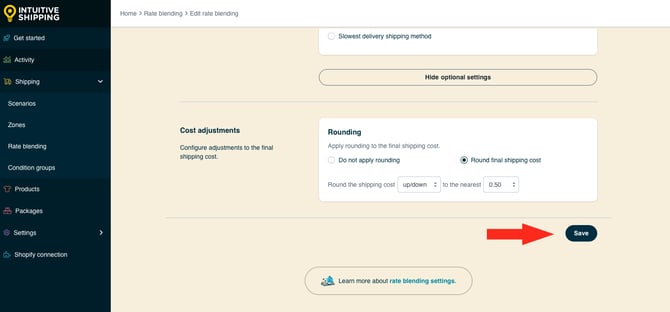
**1.** Click the **Save** button to save your simple blended rate.
### Create An Advanced Blended Rate
Simple blending is enabled by default, so you must [enable Advanced blending](https://knowledge.intuitiveshipping.com/create-a-blended-rate#simple-vs-advanced-blending) mode before you can create an advanced blending rule.
Here’s how to create an **advanced blended rate:**
**1.** Click **Shipping** on the sidebar menu, then select **Rate blending** from the drop-down list.

You will be prompted to '**create** **blending rule**.
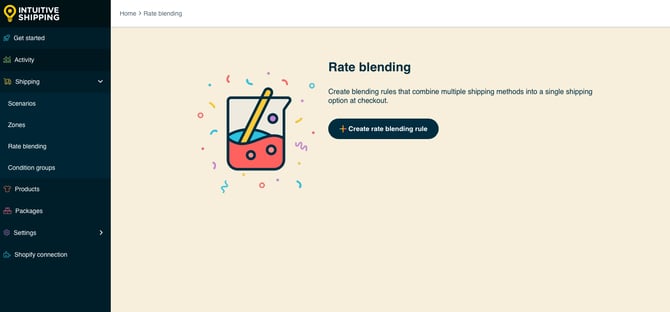
If you don't see the 'create rate blending rule' prompt - and see a blue banner with ‘Simple blending mode active’ displayed at the top of the page instead - it means simple blending mode is currently enabled. Before continuing with the steps below, go to the [Simple Blending vs. Advanced Blending](https://knowledge.intuitiveshipping.com/create-a-blended-rate#simple-vs-advanced-blending) section above and follow the instructions to change the rate blending mode.
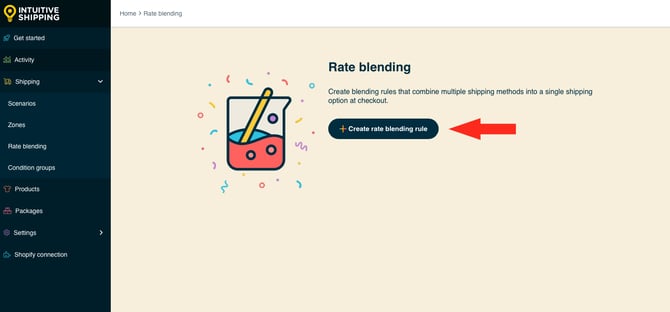
**2.** Click **Create rate blending rule**.
#### General Settings
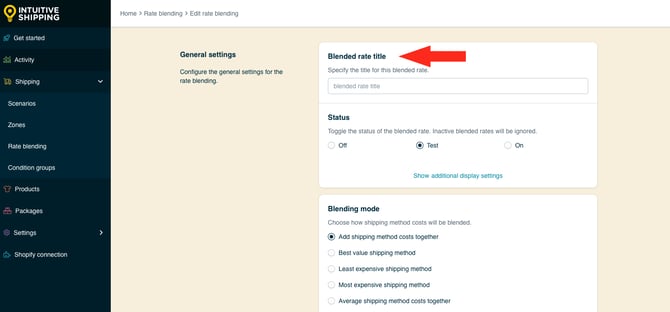
**1.** Enter a **blended rate title**. When rate blending is enabled and an order activates multiple shipping methods, the blended rate title entered here is displayed to customers at checkout in place of the individual shipping method titles.
**2.** Set the **blending rule** **status**.
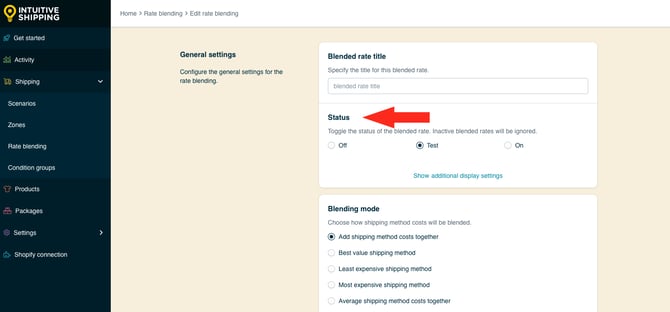
You have three (3) settings to choose from:
- **Off** - shipping methods with rate blending enabled will not be blended, and will be displayed as individual shipping methods at checkout.
- **Test** - shipping methods with rate blending enabled will be blended only when using 'Intuitive' on the checkout page (see below). This is the default setting.
- **On** - shipping methods with rate blending enabled will be blended, and will be displayed as individual shipping methods at checkout.
When using the '**Test**' setting:
- For **Shopify** - enter ‘Intuitive’ as either the customer’s first or last name.
- For **BigCommerce or Shopify B2B** - enter ‘Intuitive’ in the optional address field for ‘Apartment/ Suite/ Building’.
While in Sandbox mode, the 'On' setting behaves the same as 'Test' until a billing plan is selected. Learn more about[how to test your Intuitive Shipping setup](https://knowledge.intuitiveshipping.com/test-your-setup?hsLang=en).
#### Additional Display Settings
Additional display settings for blending **titles**, **descriptions**, **delivery times** and **service codes** let you control how blended rates are displayed at checkout when rules are activated.
- **Delivery times** can be set to show the either the slowest or fastest delivery time. Or, you can choose to set up a unique delivery time that only displays when blending is activated. By default, delivery time blending is set to 'use the slowest delivery time'.
- **Titles,** **descriptions** and **service codes** are combined by default, or you can choose to replace them with unique values that only display when blending is enabled and activated at checkout. (Service codes are not displayed to customers).
For example, you can combine titles from shipping methods titled 'Fragile Shipping' and 'Standard Shipping', so the blended rate title reads 'Fragile Shipping + Standard Shipping' at checkout. Or, you can choose to replace a combined title with a unique title that only displays when blending is activated.
The order in which *combined* shipping method titles, descriptions and service codes are displayed is determined by the alphabetical order of the **Scenarios** they are assigned to - not the shipping method titles.
For example:
- A 'Fragile Shipping' method belongs to a Scenario called 'Fragile Products'
- A 'Standard Shipping' method belongs to a Scenario called 'Standard Products'
- When combined, the shipping method title will be displayed as 'Fragile Shipping + Standard Shipping'. This is because the Scenario title, 'Fragile Products' comes first alphabetically.
However, if the Scenario titles are renamed, it may change the order in which combined shipping method titles are displayed:
- A Fragile Shipping' method belongs to a Scenario called 'Fragile Products'
- A 'Standard Shipping' method belongs to a Scenario called 'All Other Products'
- When combined, the shipping method title will be displayed as 'Standard Products + Fragile Products'. This is because the Scenario title, 'All Other Products' comes first alphabetically.
The same display logic applies when combining descriptions and service codes.
If you don't want to customize display settings for your blending rule, skip ahead to select a blending mode.
To customize the blending rule title, description, delivery time or service code:
**1.** Click **Show additional display settings**.
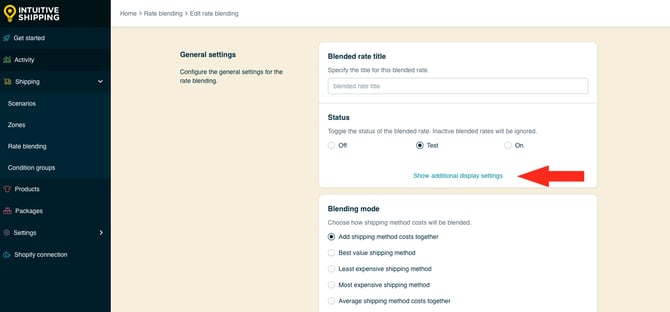
**2.** Select a **title blending** setting.
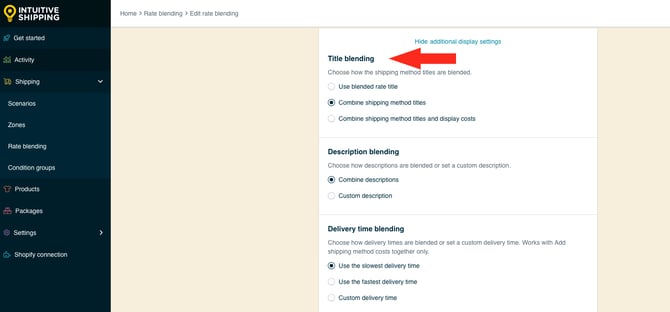
You have three (3) settings to choose from:
- **Use blended rate title** - when rate blending is enabled and multiple shipping methods are activated, the title entered in [General Settings](https://knowledge.intuitiveshipping.com/create-a-blended-rate#advanced-general-settings) is displayed to the customer at checkout.
- **Combine shipping method titles** - when rate blending is enabled and multiple shipping methods are activated, the individual shipping method titles are combined.
- **Combine shipping method titles and display costs** - when rate blending is enabled and multiple shipping methods are activated, the shipping method titles, along with their costs, are combined.
**Use blended rate title:** Let's say your blending rule is simply titled 'Shipping' and a custom order activates two shipping methods - one called 'Flat Shipping' and another called 'Ground Shipping'.
- When blending is enabled, the shipping method title will be displayed as 'Shipping' (the title of your blending rule)
**Combined shipping method titles:** Using the same example:
- When blending is enabled, the shipping method title will be displayed as 'Flat Shipping + Ground Shipping'
**Combine shipping method titles and display costs:** Using the same example again, let's say the cost of 'Flat Shipping' is $15.00 and the cost of 'Ground Shipping' is $25.00.
- When blending is enabled, the shipping method title will be displayed as 'Flat Shipping (15) + Ground Shipping (25)'
Costs shown in combined titles are displayed in whole numbers as part of the shipping method title. The actual shipping cost amount is displayed as a single cost and does not show a line-item breakdown of the combined costs.
**3.** Select a **description blending** setting.
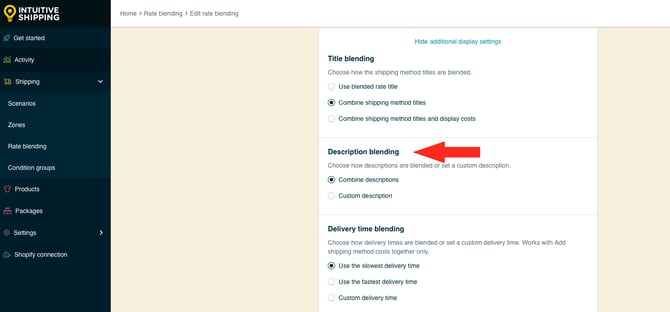
You have two (2) settings to choose from:
- **Combine descriptions** - when rate blending is enabled and multiple shipping methods are activated, the individual shipping method descriptions are combined. This is the default setting.
- **Custom description** - when rate blending is enabled and multiple shipping methods are activated, the description entered in [General Settings](https://knowledge.intuitiveshipping.com/create-a-blended-rate#advanced-general-settings) is displayed to the customer at checkout.
**Combine descriptions:** Let's say you have two shipping methods with blending enabled - one called 'Standard Shipping' and another called 'Fragile Shipping.
- 'Standard Shipping' has the custom description, 'Standard items ship by air'
- 'Fragile Shipping' has the custom description, 'Fragile items ship by ground'
When blending is enabled, the shipping method description will be displayed as, 'Fragile items ship by ground + Standard items ship by air'.
**Custom description:** A unique description (entered in the next step) - such as 'All items ship by ground' - will be displayed to the customer at checkout. This is useful if you want a clear description that helps set expectations when multiple shipping methods are being blended.
If you selected **Combine descriptions**, skip ahead to select a [delivery blending time](https://knowledge.intuitiveshipping.com/create-a-blended-rate#delivery-blending-time).
**4.** Enter a **custom description** to be displayed when rate blending is enabled and multiple shipping methods are activated. We recommend limiting your description to 90 characters or less to ensure it displays properly on the checkout page.
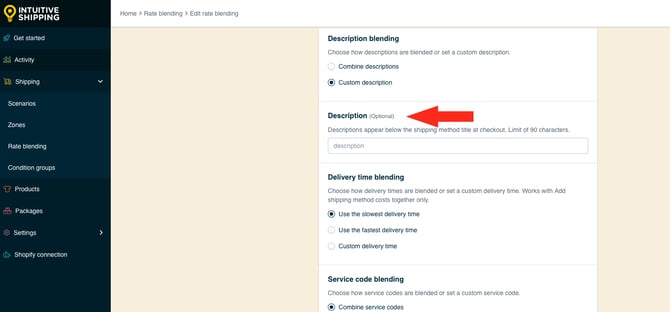
**5.** Select a **delivery blending time** setting.
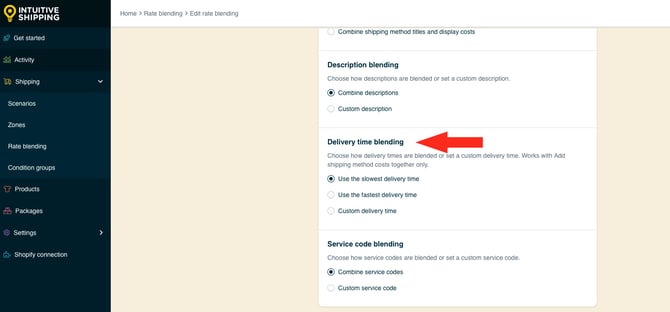
You have three (3) settings to choose from:
- **Use the slowest delivery time** - when rate blending is enabled, the slowest delivery time in the blended rate will be displayed at checkout.
- **Use the fastest delivery time** - when rate blending is enabled, the fastest delivery time in the blended rate will be displayed at checkout.
- **Custom delivery time** - when rate blending is enabled and multiple shipping methods are activated, the delivery time entered in the next step is displayed.
If you selected either **slowest delivery time** or **fastest delivery time**, skip ahead to [service code blending](https://knowledge.intuitiveshipping.com/create-a-blended-rate#service-code-blending).
**6.** Enter a **custom delivery time** in days.
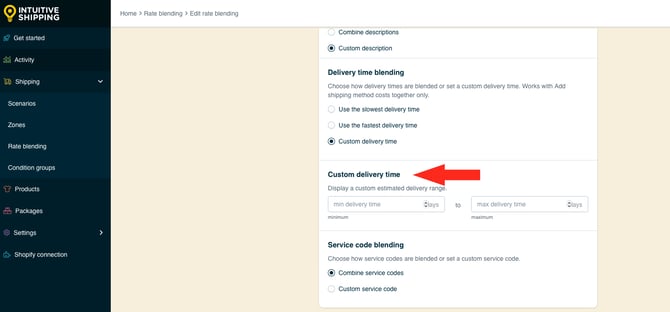
- **Min delivery time** - the lower limit of the delivery time range.
- **Max delivery time** - the upper limit of the delivery time range.
**Number of days**: Enter a number in either 'Min' or 'Max and leave the other field blank. For example, to display delivery time as '3 business days', enter '3' in 'Min' and leave the 'Max' field blank (or vice versa).
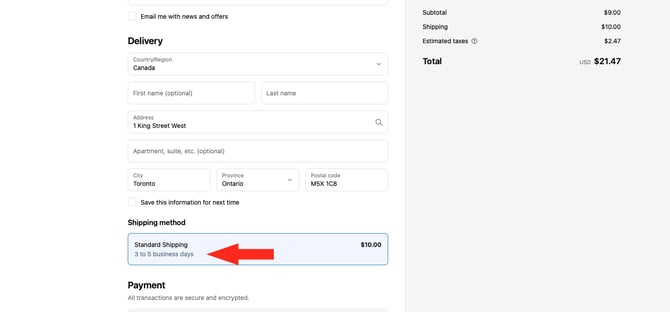
**Range of days**: Enter different numbers in each field. For example, to display delivery time as '3 to 5 business days', enter '3' in 'Min' and enter '5' in 'Max'.
Delivery times are displayed below the shipping method title at checkout.
**7.** Select a **service code blending** setting.
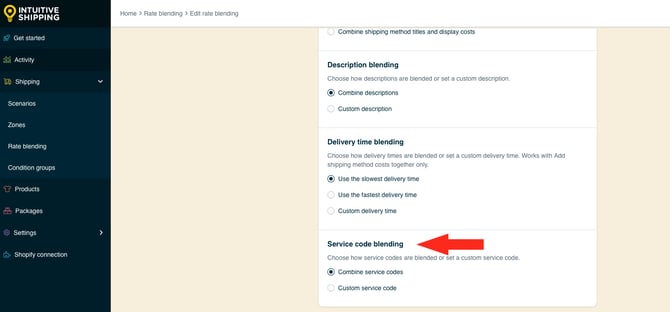
You have two (2) settings to choose from:
- **Combine service codes** - when rate blending is enabled and multiple shipping methods are activated, the service codes from each shipping method will be combined and sent to your fulfillment service (if applicable).
- **Custom service code** - when rate blending is enabled and multiple shipping methods are activated, the service code entered in the next is sent to your fulfillment service (if applicable).
If you selected **Combine service codes**, skip ahead to [select a blending mode](https://knowledge.intuitiveshipping.com/create-a-blended-rate#advanced-select-blending-mode).
**8.** Enter a **custom service code**.
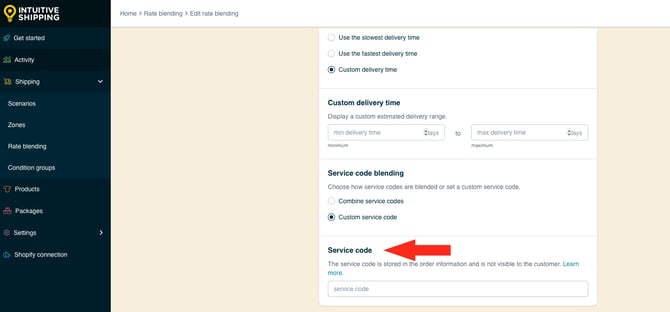

Service codes are not visible to customers.
#### Blending Mode
**1.** Select a **blending mode**.
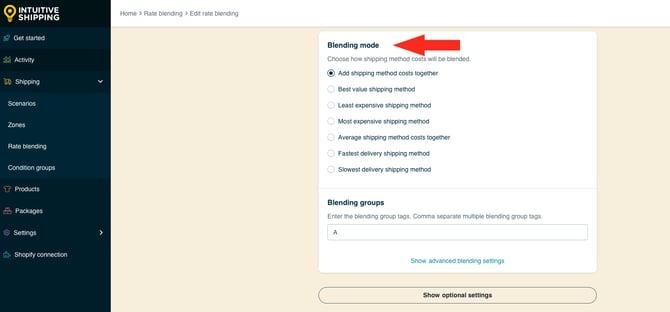
You have seven (7) settings to choose from:
- **Add shipping method costs together** - costs in all activated shipping methods with rate blending enabled will be added together and displayed as a single shipping cost at checkout. This is the default setting.
- **Best value shipping method** -the rate with the best overall value in all activated shipping methods with rate blending enabled will be displayed at checkout.
- **Least expensive shipping method** -the rate with the lowest cost in all activated shipping methods with rate blending enabled will be displayed at checkout.
- **Most expensive shipping method** -the rate with the highest cost in all activated shipping methods with rate blending enabled will be displayed at checkout.
- **Average shipping method costs together** -the average cost for all activated shipping methods with rate blending enabled will be displayed at checkout.
- **Fastest delivery shipping method** -the rate with the fastest delivery method in all activated shipping methods with rate blending enabled will be displayed at checkout.
- **Slowest delivery shipping method** -the rate with the slowest delivery method in all activated shipping methods with rate blending enabled will be displayed at checkout.

Best value considers both cost and delivery time to determine overall value.
**2.** Enter a **blending group tag** (or tags).
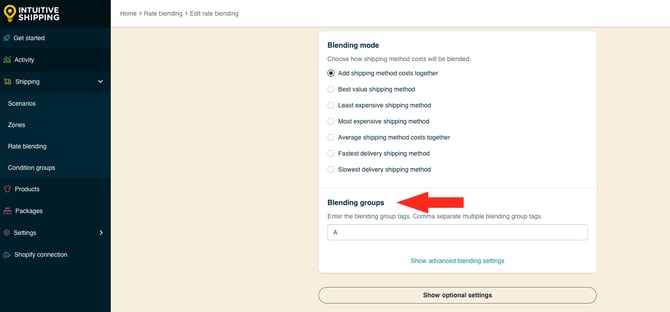
Intuitive Shipping uses a tagging system to identify which shipping methods are being blended with an advanced blending rule. Tags can be almost anything you choose, but we recommend keeping them simple and easy to remember - like the letter ‘A’. The tag ‘A’ is preloaded by default, but can be changed if preferred.
To keep things simple, we recommend using the same tag for all shipping methods you want to blend together.
If you have assigned different tags to shipping methods, you can include them in the same blended rate by entering multiple blending group tags, separated by commas.
Multiple blending tags can be used to blend shipping methods in various ways. For example, you could have a Scenario that includes an 'add-on' shipping cost for oversized items whenever products tagged 'oversized' are included in the order.
Blending group tags are not case sensitive. However, they cannot contain spaces or special characters.
For example, if you want to use a blending group tag for 2nd Day Air or 2-Day delivery service options, enter the tag as ‘2ndDay’ or ‘2Day’ (no spaces).
#### Advanced Blending Settings
Advanced settings for blending conditions let you control how rates are displayed when some of the shipping methods in the blending rule *do not* return a rate. By default, all shipping methods in the blended rate must return a cost. That means, if *any* of the shipping methods don't return a rate, shipping will not be displayed at checkout.
If you don't need to adjust the blending condition, skip ahead to [Optional Settings](https://knowledge.intuitiveshipping.com/create-a-blended-rate#advanced-optional-settings).
**1.** Click **Show advanced blending settings**.
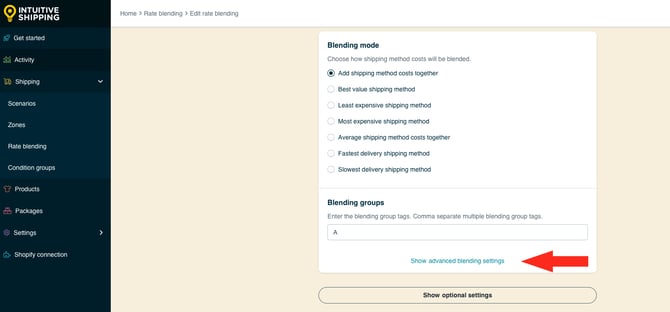
**2.** Select which **condition** should be applied to the blending groups.
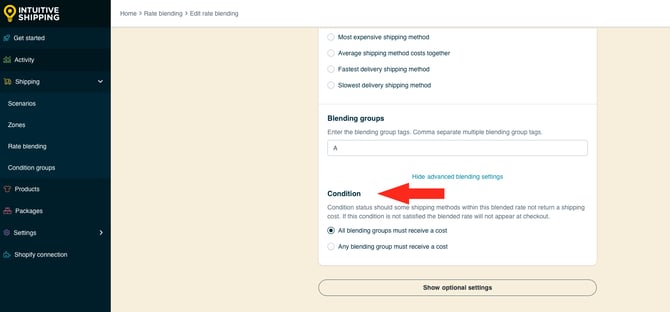
You have two (2) settings to choose from:
- **All blending groups must receive a cost** - all shipping methods with the blending group tag must return a calculated shipping cost.
- **Any blending group must receive a cost** – at least one shipping method with the blending group tag must return a calculated shipping cost.
**All blending groups:** Let's say you have three (3) product-based Scenarios and shipping methods:
- Scenario/Shipping method 1 gets calculated rates from FedEx
- Scenario/Shipping method 2 gets calculated rates from UPS
- Scenario/Shipping method 3 has a custom flat rate of $18.00
- All 3 shipping methods have blending group tag 'A'
When a customer order activates all three shipping methods, but UPS does not return a rate because of an error, the customer will not see a shipping cost at checkout.
**Any blending group:** Using the same example, Intuitive Shipping will blend the successful rate from FedEx with the flat rate, ignore the failed rate from UPS, and present the customer with a *partially* blended rate.
#### Optional Settings
Optional cost adjustment settings for **cost limits**, **discounts**, **mark ups** and **rounding** give you further control of your blended rates at checkout. These settings are not required.
- **Cost limits** can help prevent customers from paying too much or too little for shipping when the blended rate goes above or below a threshold.
- **Discounts** let you offer a reduced shipping cost when rates from mutiple shipping methods are blended together.
- **Mark ups** give you the ability to add a premium to blended costs, such as offsetting additional warehouse costs attributed to packing and shipping different products.
- **Rounding** allows you to present a clean, evenly rounded number at checkout when the actual blended rate results in an odd or unusual number. By default, rounding is set to 'Do not apply rounding'.
If you do not need to adjust these settings, skip ahead to [Save Your Settings](https://knowledge.intuitiveshipping.com/create-a-blended-rate#advanced-save-your-settings).
**1.** Click **Show optional settings**.
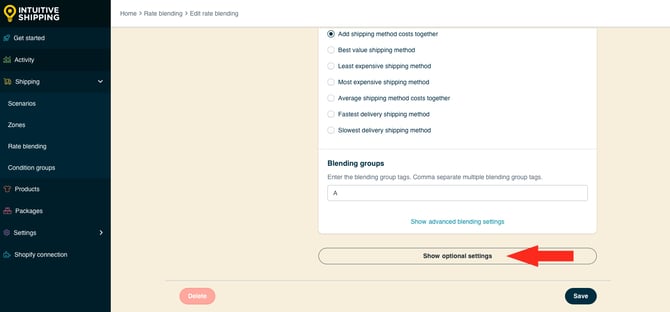
#### Cost Adjustments
Customize how shipping costs appear at checkout by making final adjustments to the carrier rate calculation. These adjustments are applied in the order they're listed in the app:
1. Cost limits
2. Shipping credits
3. Mark ups
4. Rounding
To add **cost limits**:
**1.** Enter a **minimum** and/or **maximum** amount. This setting is useful if you want customers to pay a minimum shipping cost if the actual blended rate is too low or a maximum shipping cost if the actual blended rate is too high.
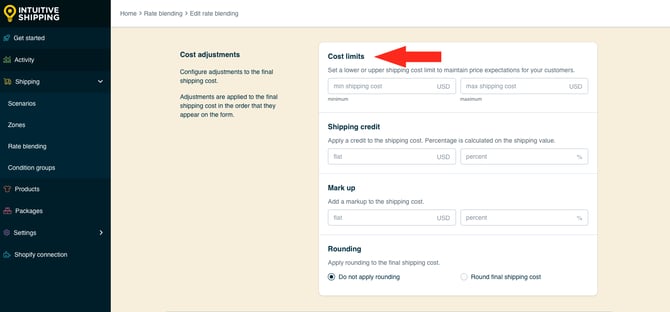
You have two (2) settings to choose from:
- **Min shipping cost** - if the calculated blended shipping cost is lower than the amount you enter here, it will be increased to meet the minimum cost.
- **Max shipping cost** - if the calculated blended shipping cost is higher than the amount you enter here, it will be decreased to meet the maximum cost.
For example:
- If the minimum blended shipping cost entered here is $20.00 and the calculated rate is $14.58, the final cost will be adjusted up to $20.00.
- If the maximum blended shipping cost entered here is $150.00 and the calculated rate is $182.44, the final cost will be adjusted down to $150.00.
Both a minimum and maximum shipping cost can be applied to the same blended rate.
To apply a **discount**:
**2.** Enter a **flat** or **percentage** amount. This setting is useful if you want to discount the calculated blended shipping cost based on a pre-determined amount or a percentage of the pre-tax cart total.
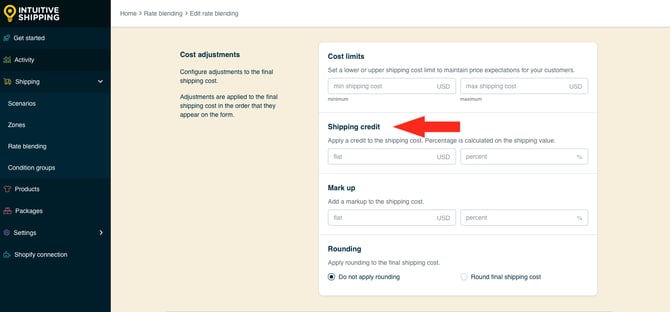
You have two (2) settings to choose from:
- **Flat** - the amount here will be subtracted from the calculated blended rate after any cost limit adjustments.
- **Percentage** - the percentage entered here will be applied to the pre-tax cart total, then subtracted from the calculated blended rate after any cost limit adjustments.
**Flat:** If the amount entered here is $5.00 and the calculated rate is $21.12, the final blended cost will be reduced to $16.12.
- $21.12 - $5.00 = $16.12
**Percentage**: If the percentage entered here is 5%, the calculated blended rate is $21.12 and the pre-tax cart total is $51.50, the final cost will be reduced to $15.97.
- 10% of $51.50 (the cart total) = $5.15
- $21.12 - $5.15 = $15.97
Both a flat amount and percentage amount can be applied to the same blended rate. The flat amount is discounted first, followed by the percentage amount.
If the flat amount entered here is $5.00 and the percentage amount is 5%, here's how the adjustment works: When the calculated blended shipping cost is $21.12 and the pre-tax cart total is $51.50, the final shipping cost will be increased to $10.97.
- $21.12 - $5.00 = $16.12
- 10% of $51.50 (the cart total) = $5.15
- $16.12 - $5.15 = $10.97
To add a **mark up**:
**3.** Enter a **flat** or **percentage** amount. This setting is useful if you want mark up the calculated blended rate based on a pre-determined amount or a percentage of the blended rate.
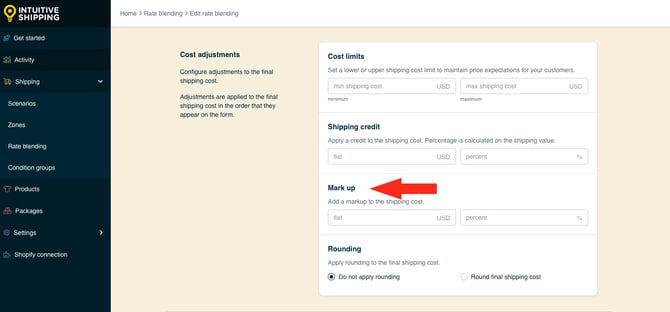
You have two (2) settings to choose from:
- **Flat** - the amount you enter here will be added to the calculated blended rate after any cost limit adjustments and discounts.
- **Percentage** - the percentage you enter here will be applied to the calculated blended rate, then added to it after any cost limit adjustments and discounts.
For example, if the flat amount here is $3.00 and the calculated blended rate is $19.32, the final blended cost will be increased to $22.32.
- $19.32 + $3.00 = $22.32
If the percentage here is 5% and the calculated blended rate is $19.32, the final blended cost will be increased to $20.29.
- 5% of $19.32 = $0.97
- $19.32 + $0.97 = $20.29
Both a flat amount and percentage amountcan be applied to the same blended rate. The flat amount is added first, followed by the percentage amount.
Let's say the flat amount here is $3.00 and the percentage amount is 5%, here's how the adjustment works. When the calculated blended shipping cost is $19.32, the final blended cost will be increased to $23.44.
- $19.32 + $3.00 = $22.32
- 5% of $22.32 = $1.12
- $22.32 + $1.12 = $23.44
**4.** Select a **rounding** setting.
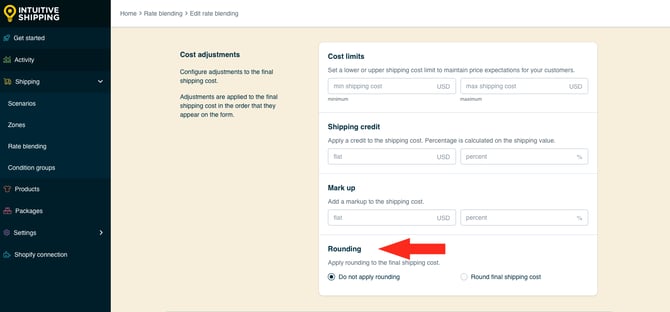
You have two (2) settings to choose from:
- **Do not apply rounding** - the final blended shipping cost, after all other cost adjustments, will be displayed exactly as calculated. This is the default setting.
- **Round final shipping cost** – the final blended shipping cost, after all other cost adjustments, will be rounded up or down, depending on the settings selected in the following two steps.
If you are not applying rounding, skip ahead to [save your settings](https://knowledge.intuitiveshipping.com/create-a-blended-rate#advanced-save-your-settings).
If you selected ‘Round final shipping cost’ in the previous step:
**5.** Choose the rounding **direction**.
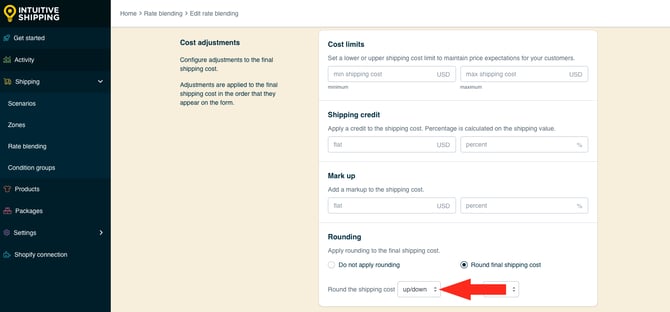
You have three (3) settings to choose from:
- **Up/down** - the final blended shipping cost will be rounded either up or down to the nearest increment selected in the next step, whichever is closer.
- **Up** - the final blended shipping cost will always be rounded up to nearest the increment selected in the next step.
- **Down** - the final blended shipping cost will always be rounded down to the nearest increment selected in the next step.
**6.** Choose the increment **amount** to round the shipping cost.
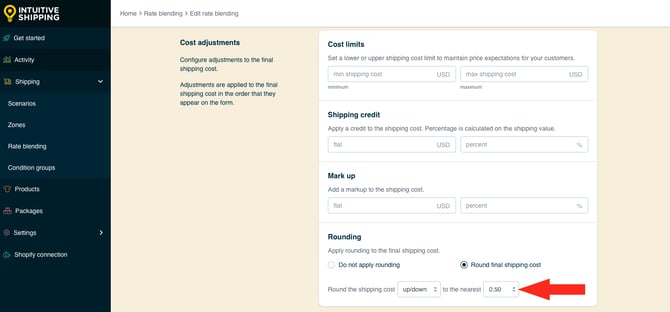
You have four (4) settings to choose from:
- **0.50** - the final blended shipping cost will be rounded up or down to the nearest 0.50 of your base currency. If the final blended cost is $18.80, the cost will be rounded down to $18.50 or up to $19.00, depending on the setting selected in the previous step.
- **1.00** - the final blended shipping cost will be rounded up or down to the nearest 1.00 of your base currency. If the final blended cost is $23.20, the cost will be rounded down to $23.00 or up to $24.00, depending on the setting selected in the previous step.
- **5.00** - the final blended shipping cost will be rounded up or down to the nearest 5.00 of your base currency. If the final blended cost is $33.00, the cost will be rounded down to $30.00 or up to $35.00, depending on the setting selected in the previous step.
- **10.00** - the final blended shipping cost will be rounded up or down to the nearest 10.00 of your base currency. If the final blended cost is $22.38, the cost will be rounded down to $20.00 or up to $30.00, depending on the setting selected in the previous step.
#### Save Your Settings
**1.** Click the **Save** button to save your blended rate.
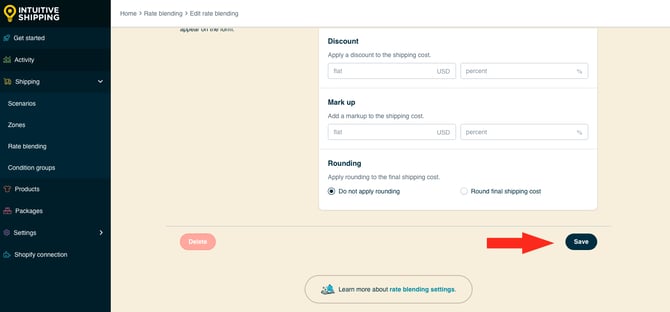
**2.** Repeat all the steps in [Create An Advanced Blended Rate](https://knowledge.intuitiveshipping.com/create-a-blended-rate#create-advanced-blended-rate) to set up additional blended rates.
### Add Rate Blending To A Shipping Method
[Simple blending](https://knowledge.intuitiveshipping.com/create-a-blended-rate#create-simple-blended-rate) - you’ll need to enable blending in each shipping method you want included in the blended rate.
[Advanced blending rules](https://knowledge.intuitiveshipping.com/create-a-blended-rate#create-advanced-blended-rate) - each shipping method must have blending enabled and must also include the [blending group tag](https://knowledge.intuitiveshipping.com/create-a-blended-rate#blending-group-tag) assigned to the rule.
Shipping methods activated at checkout without rate blending enabled won’t be included in the blended rate and will be displayed as separate shipping options.
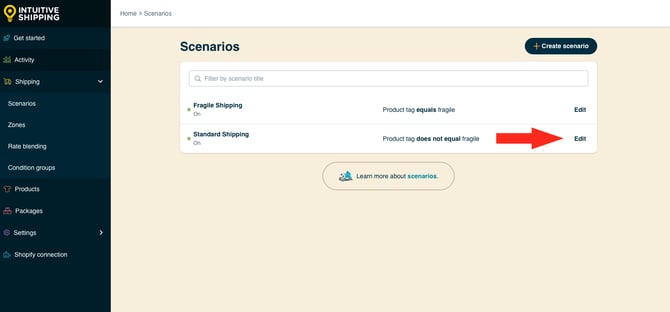
**1.** Click **Shipping** on the sidebar menu, then select **Scenarios** from the drop-down list.
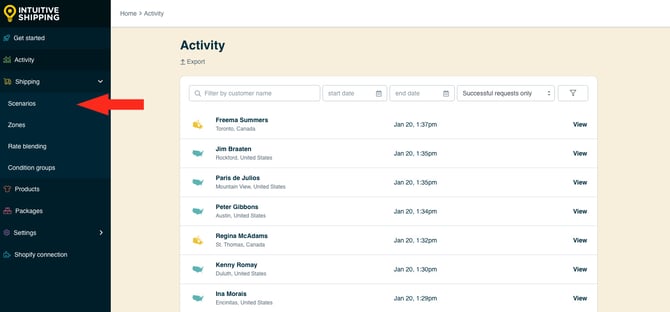
**2.** Click **Edit** beside a Scenario with a shipping method you want included in the blended rate.
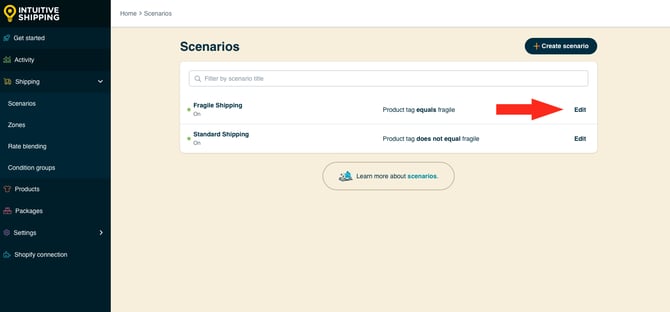
**3.** Scroll down to the **Shipping rates and services** section, then click **Edit** beside the shipping method you want included in the blended rate.
 If don't have a shipping method yet, you'll need to create one. Any shipping method type can be included in a blended rate.
**4.** Scroll to the bottom of the page, then click **Show optional settings**.
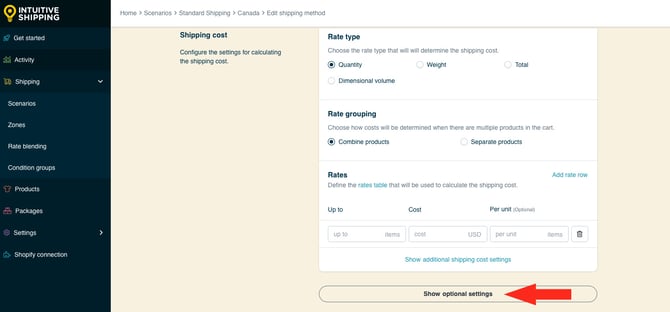
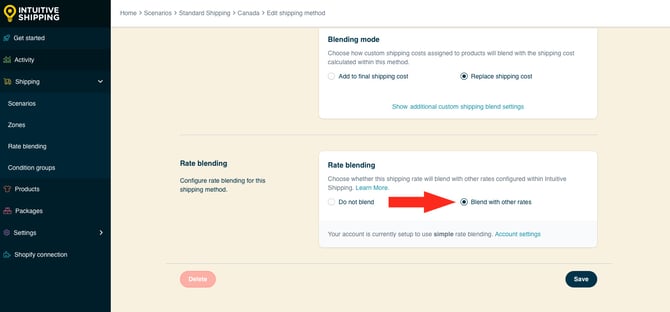
**5.** Scroll to the bottom of the page. In the **Rate blending** section, select **Blend with other rates**.
**6.** For **advanced blending only**, enter the **blending group tag** (or tags) for the [blending group tag](https://knowledge.intuitiveshipping.com/create-a-blended-rate#blending-group-tag) assigned to the advanced blending rule.
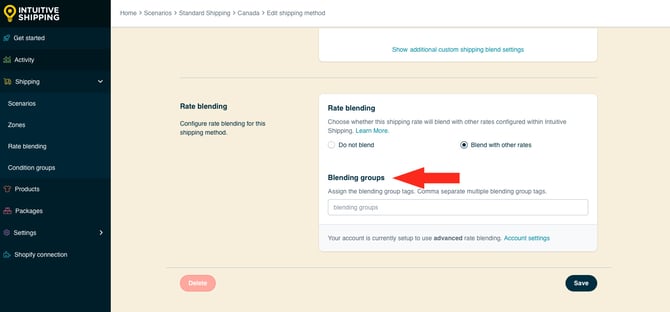
You can assign blending group tags from more than one advanced blended rate if needed. For example, if you created two advanced blended rate rules - one for Air shipments with the tag ‘air’ and one for Ground shipments with the tag ‘ground’ - you can add both ‘air’ and ‘ground’ tags to a shipping method. This allows the rate from that shipping method to be blended with both groups.

Use commas to separate multiple blending group tags, like 'air, ground'.
**7.** Click the **Save** button to save the changes to your shipping method.

**8.** Repeat **Steps 1-7** for each additional shipping method you want to include in the blended rate.
### What's Next:
- [Test your setup](https://knowledge.intuitiveshipping.com/test-your-setup?hsLang=en)
**Optional**:
- [Create a condition group](https://knowledge.intuitiveshipping.com/create-a-condition-group?hsLang=en)
- [Add a location](https://knowledge.intuitiveshipping.com/add-a-location?hsLang=en)
- [Update product settings](https://knowledge.intuitiveshipping.com/update-product-settings?hsLang=en)
- [Update general settings](https://knowledge.intuitiveshipping.com/update-general-settings?hsLang=en)
**Can we lend a hand?** Let us help you get up and running faster and with greater confidence. Book a [complimentary Onboarding session](https://intuitiveshipping.com/meeting/details/onboarding-session)!
- [Get Started](https://knowledge.intuitiveshipping.com/get-started?hsLang=en)
- [Common Setups](https://knowledge.intuitiveshipping.com/common-setups?hsLang=en)
- [Additional Setups](https://knowledge.intuitiveshipping.com/additional-setups?hsLang=en)
- [How-To](https://knowledge.intuitiveshipping.com/how-to?hsLang=en)
- [Connect A Carrier](https://knowledge.intuitiveshipping.com/connect-a-carrier?hsLang=en)
- [Black Friday](https://knowledge.intuitiveshipping.com/black-friday?hsLang=en)
- [Billing & Account](https://knowledge.intuitiveshipping.com/billing-account?hsLang=en)
- [General Info](https://knowledge.intuitiveshipping.com/general-info?hsLang=en)
- [Get Help](https://knowledge.intuitiveshipping.com/get-help?hsLang=en)
- [Main Site](https://intuitiveshipping.com/)
- [FAQ](https://knowledge.intuitiveshipping.com/faq-page)
- [Privacy Policy](https://intuitiveshipping.com/legal/privacy)
- [Terms](https://intuitiveshipping.com/legal/terms)
- [EULA](https://intuitiveshipping.com/legal/eula)
[](http://intuitiveshipping.com)
The shipping solution for serious sellers.
© Copyright 2019-2025 Intuitive Shipping Inc.